

Labels
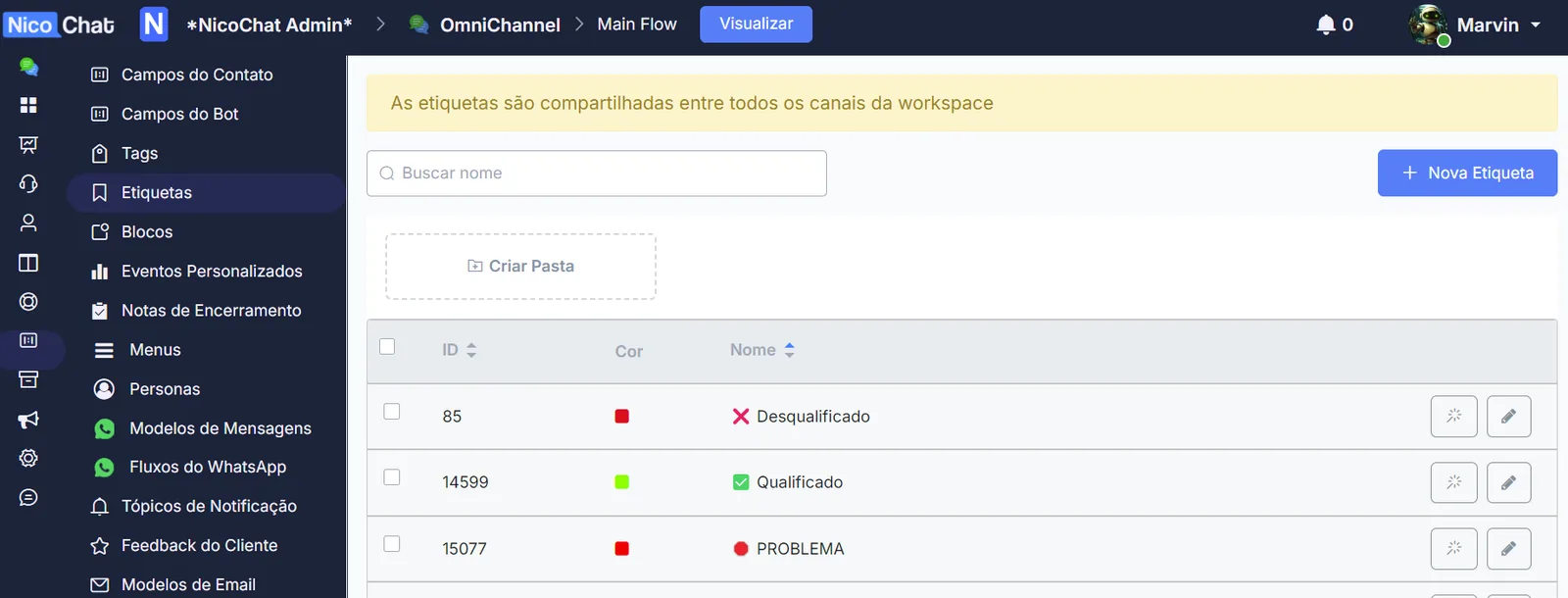
Labels work similarly to tags, but they can be accessed by different channels in the same workspace.

Where to find it: under Content, you can see the labels
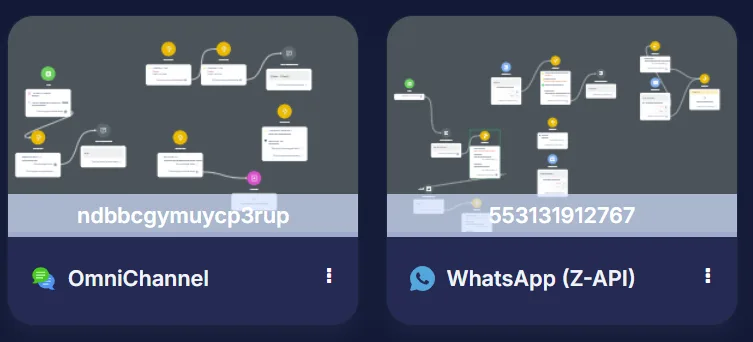
To explain how labels work, we have two channels in the same workspace: one is the WhatsApp Bot and the other is the Omni-Channel.
When you create a label, you can access it in all the channels that share the same workspace.
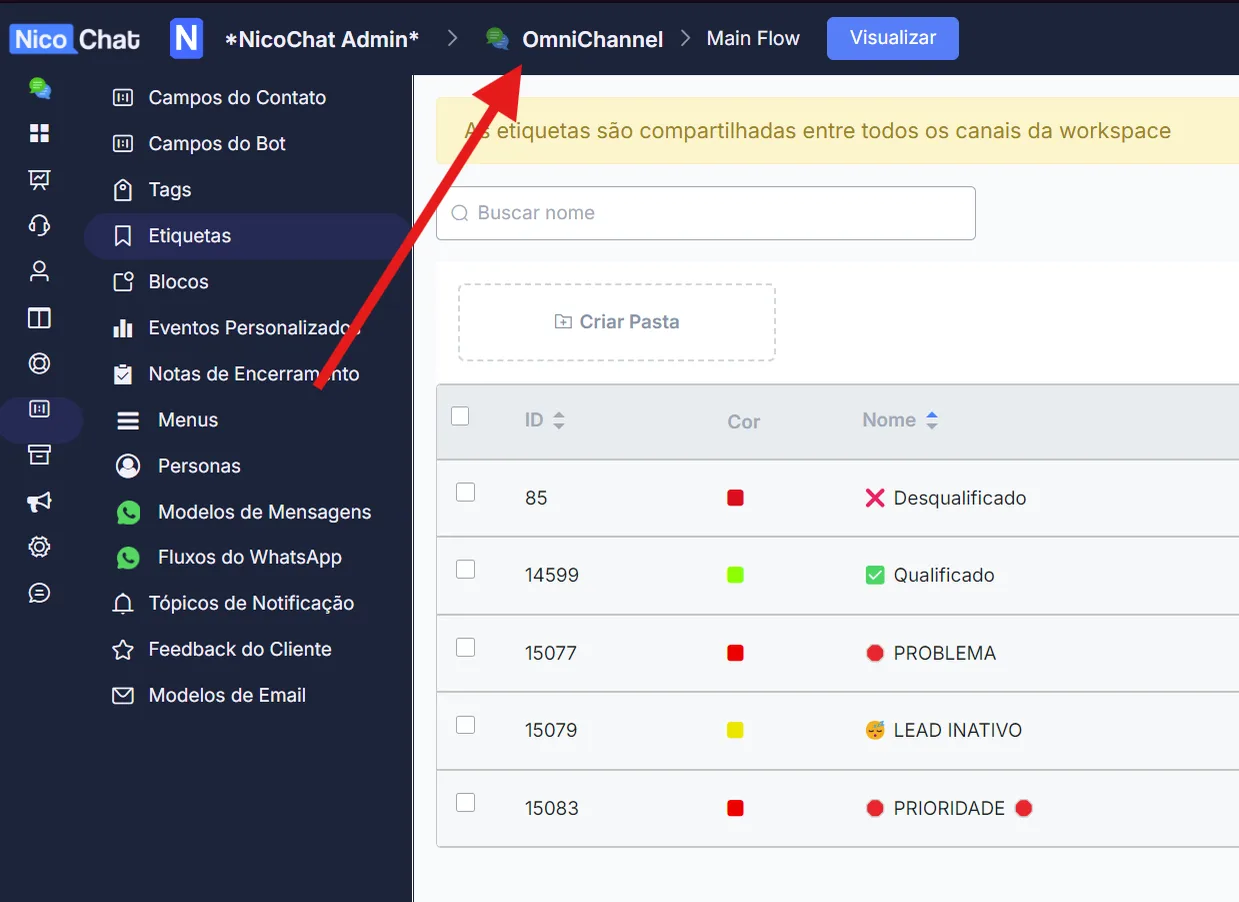
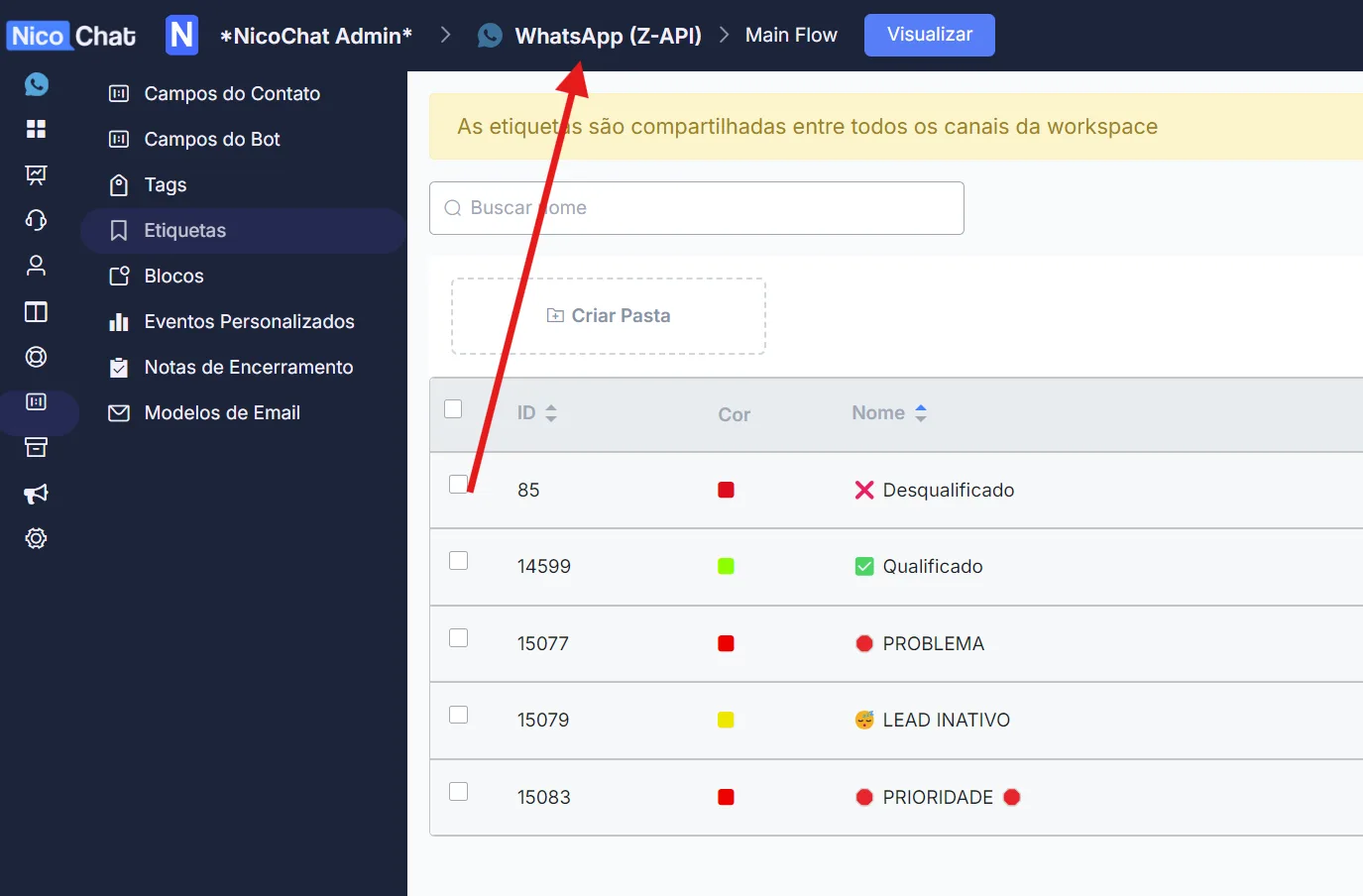
How to use it in SubFlows:
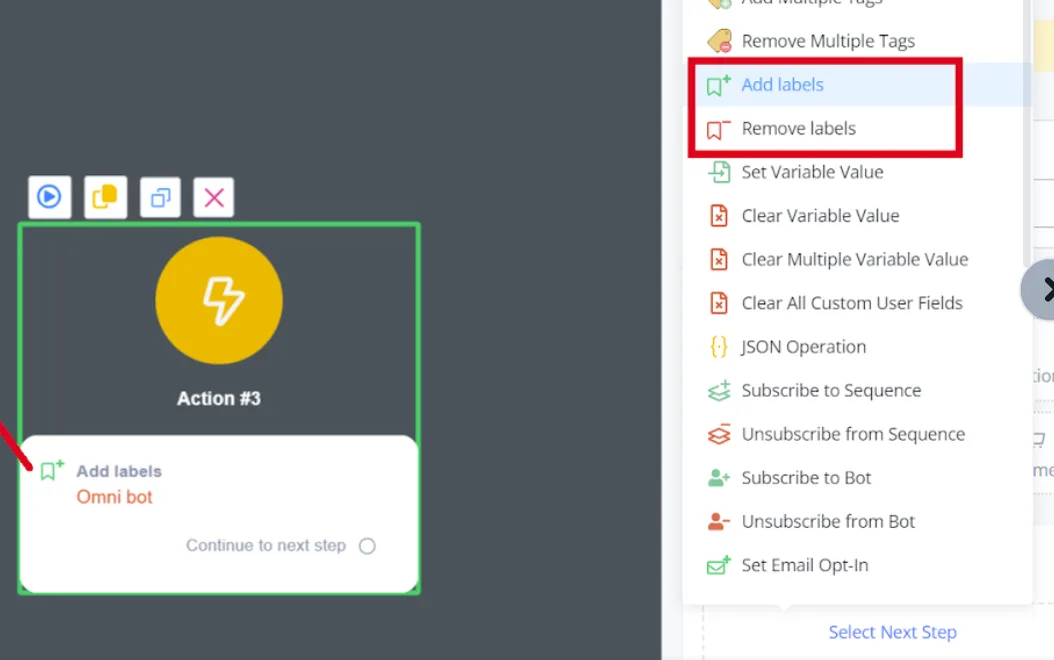
In the action node -> basic action -> add and remove label.
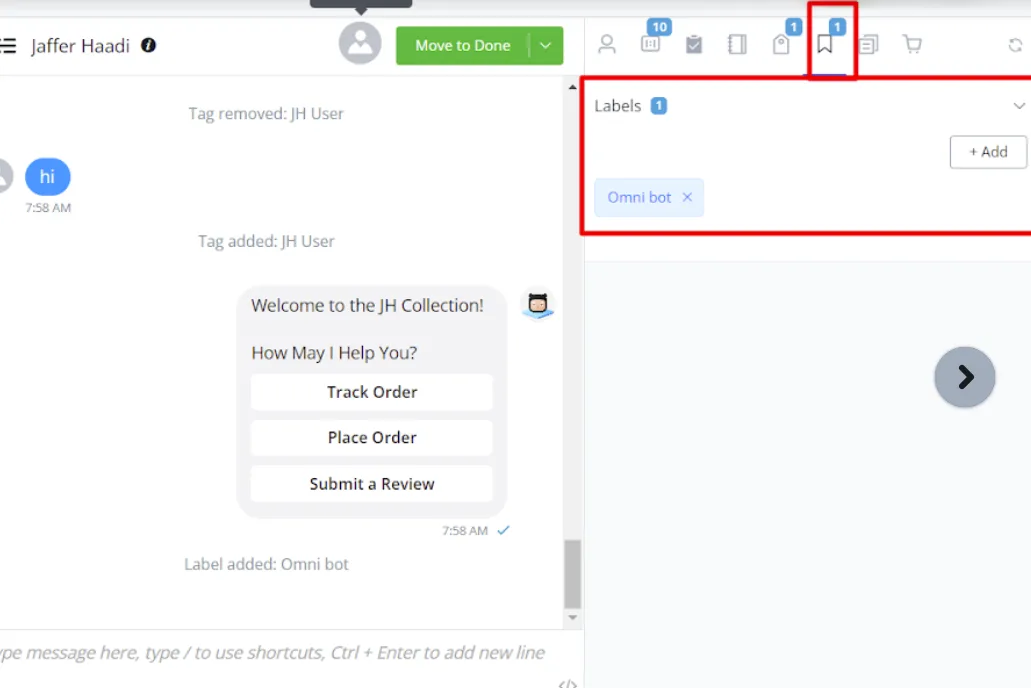
You can now view these labels in the live chat.
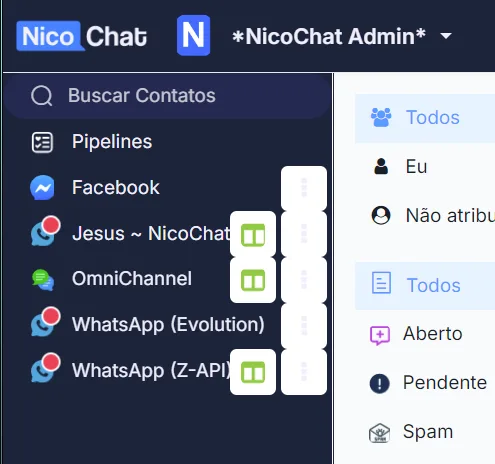
The add-on is located in “Live Chat”, in the top navigation bar, and you will find “Search Contacts” on the left side.
Workspace labels are shared across the different channels of the same workspace. Therefore, if you have added the same label in different channels, you can filter all the contacts that meet your segment requirements.
In Global Contacts, you can click the “filter” icon and then create and share the segment based on the workspace labels.
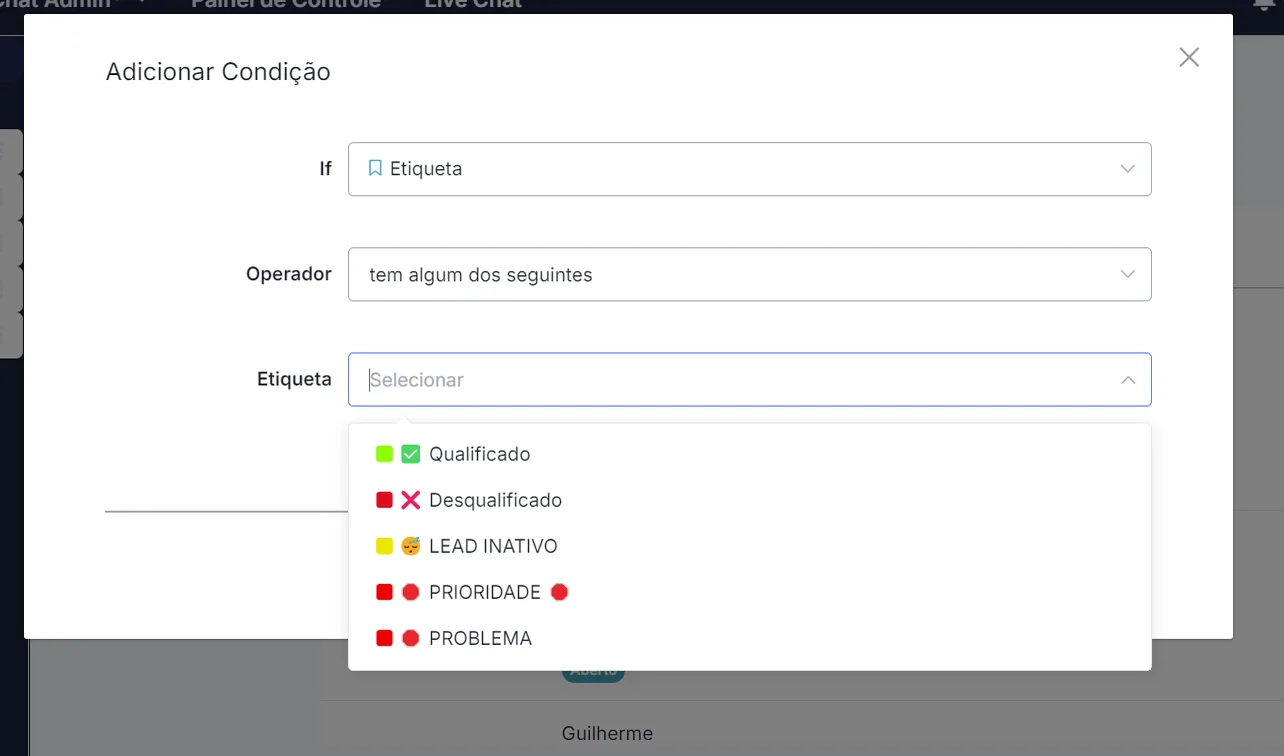
For example, we created the “new customer” label, and it is shared across all the channels of the same workspace
After saving, you can save it as a public or private segment, and then your team will be able to access these contacts easily from the left sidebar.
That is how you can use labels with the Global Contacts add-on.