

Send Message Step
YouTube video (unavailable for embedding)
After creating your first flow, open it, click “Edit Flow”, keep your bot side by side and here we go! 😆
Let's take Facebook as an example. Other flows follow similar processes, and the main difference is the message type.
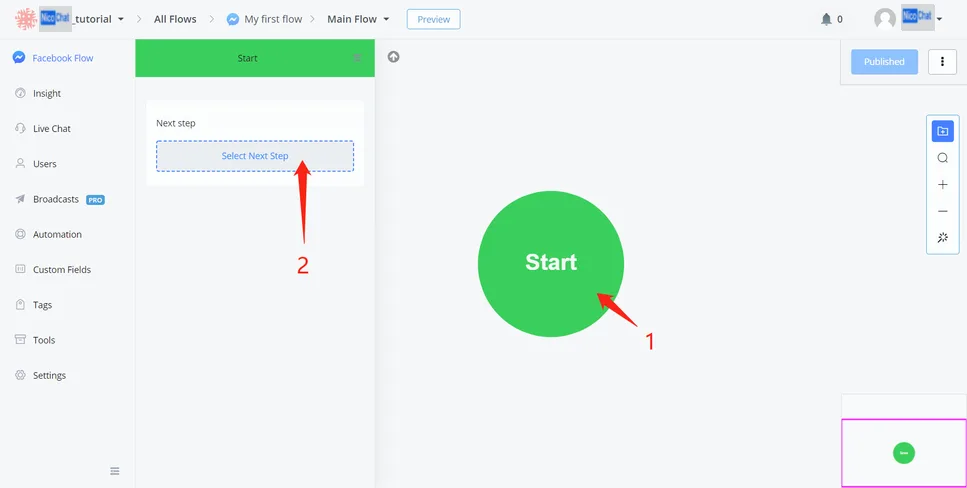
A few simple steps to send your first message:
- click the green start point
- in the edit panel, "Select Next Step"
- choose the "Send Message" step
- click the "Send Message" step
- click the "text" message type
- type your message
- "Publish"
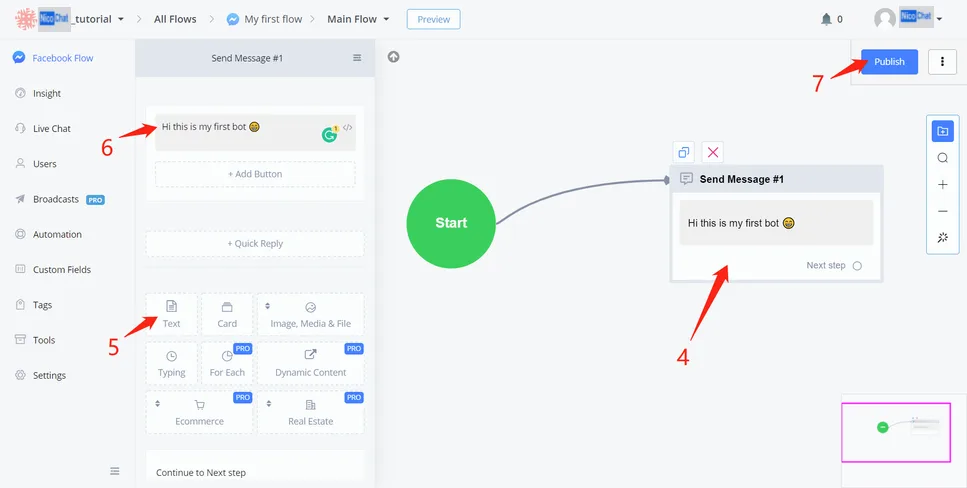
That's it! Let's test it!
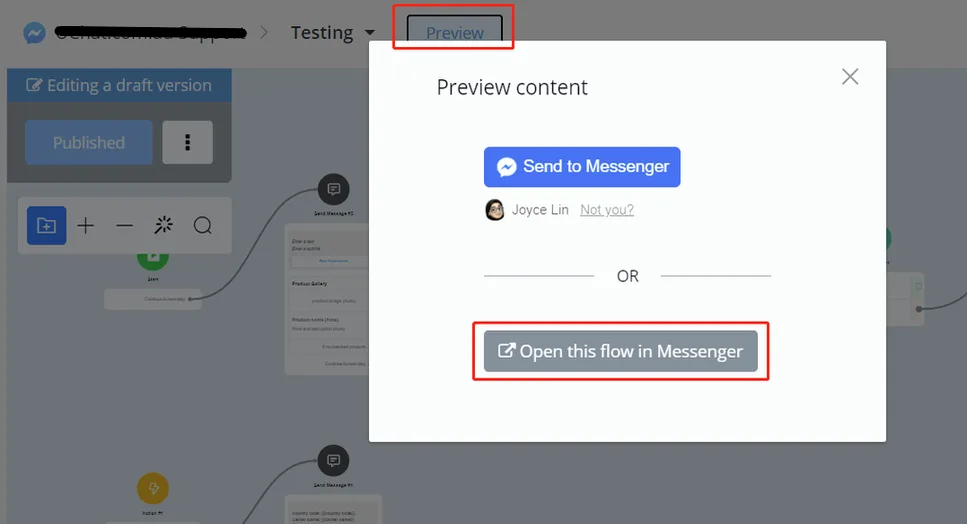
Click “Preview” in the navigation bar and then “Open the flow in Messenger”. Click “Get Started” if this is the first time you talk to the bot.
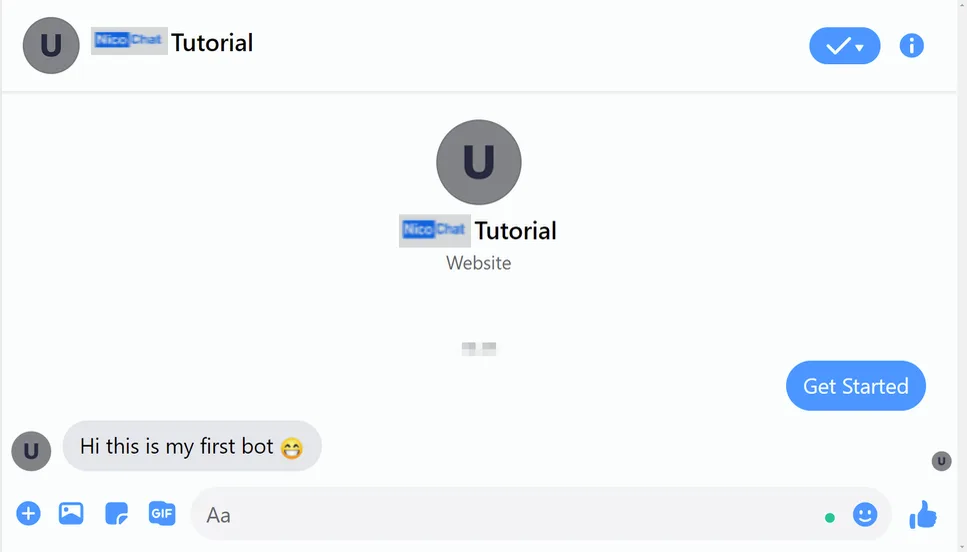
Congratulations! Your bot is working now. 🤖🤖
Let me show you a few more details about the Send Message step. These are the message types common to all channels or to some of them.
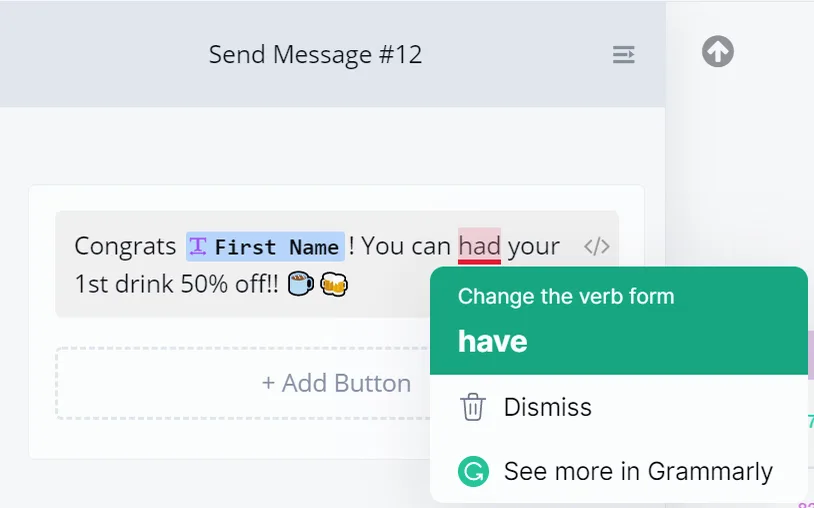
NicoChat is integrated with Grammarly to help you make your text flawless.
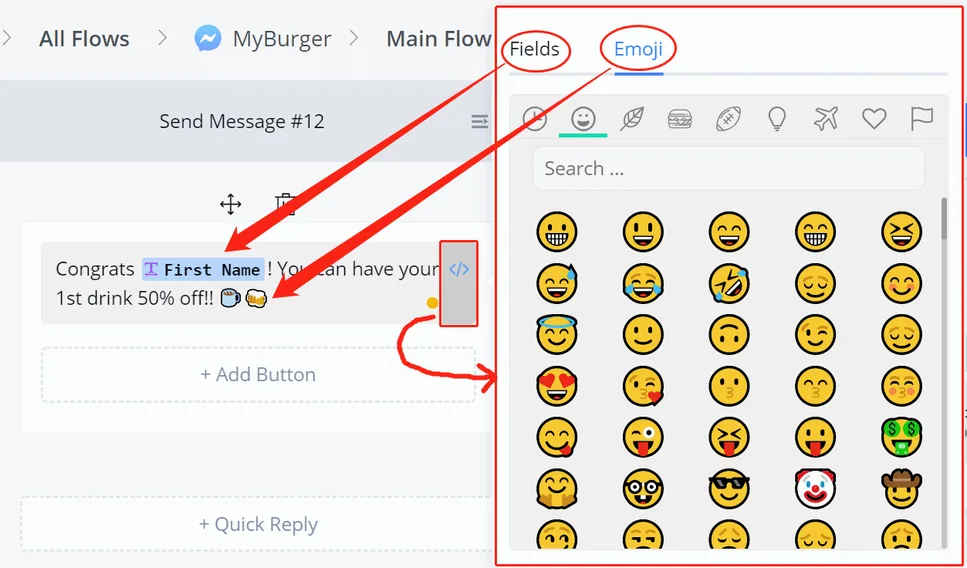
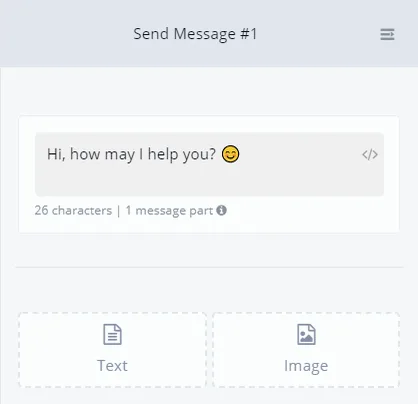
Whenever you see "</>", you can insert emojis or variable values into the text.
Or simply type "{{" to call up the field list:
There are 4 ways in total:
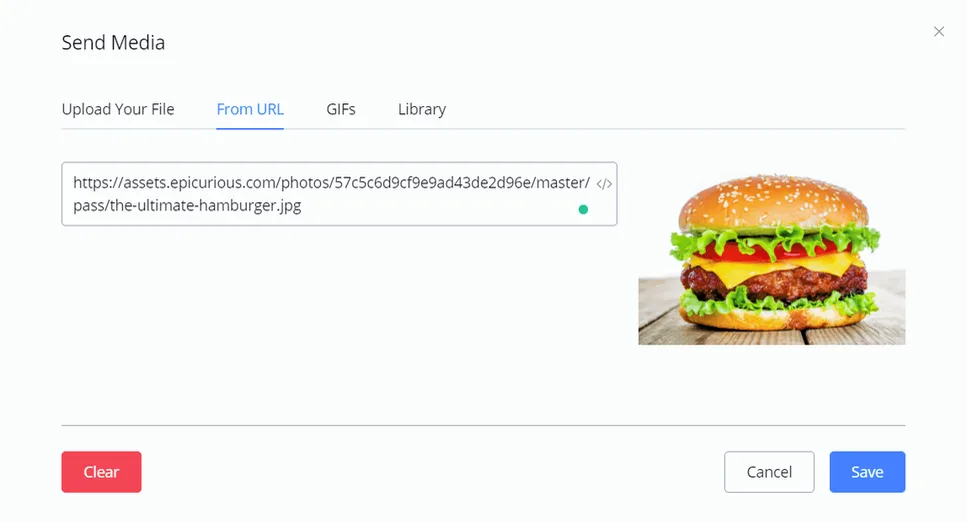
- upload from your computer ( limited size )
- From a URL link (recommended)
You can search for images online and copy their direct URL links. But this direct link may change. Alternatively, you can upload the photos to your server or to another third-party photo storage, such as Imgur, and get the direct URL links there. Direct URL link means the link points to a specific photo, and not to a website, ending in .jpg, .png etc.
- search in the GIF gallery
NicoChat offers a GIF gallery; here you can search for what you need.
- from the Library
The Library is where you see all the photos, GIFs, audios and videos you have already uploaded. That way you don't need to upload the same media again: just find it in your library.
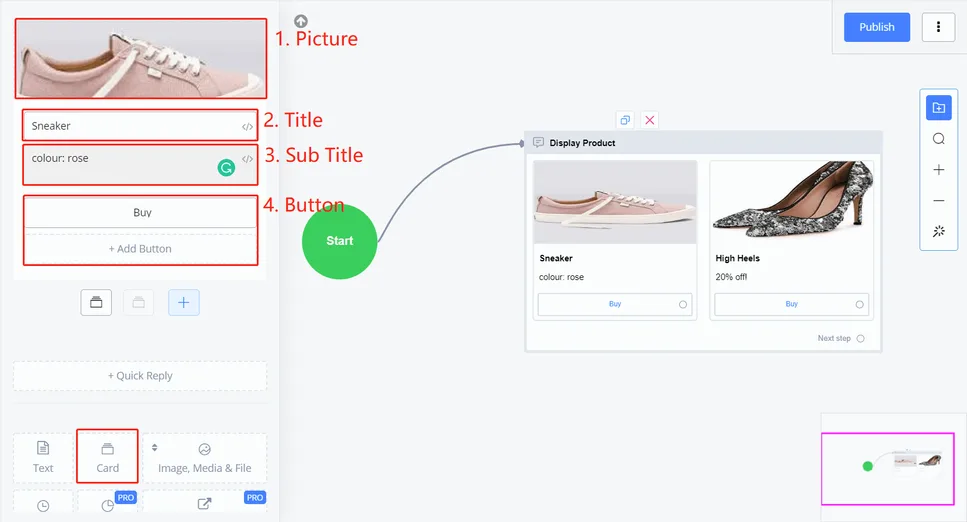
The card is used to display a set of information, such as a product's data. A card has 4 elements: image, title, caption and button.
This message type also shows cards, but in a more automatic way. With "For Each", you don't need to type each card manually: it automatically displays all the items of a JSON variable. See Action Step - JSON Operation if you don't know what a JSON variable is.
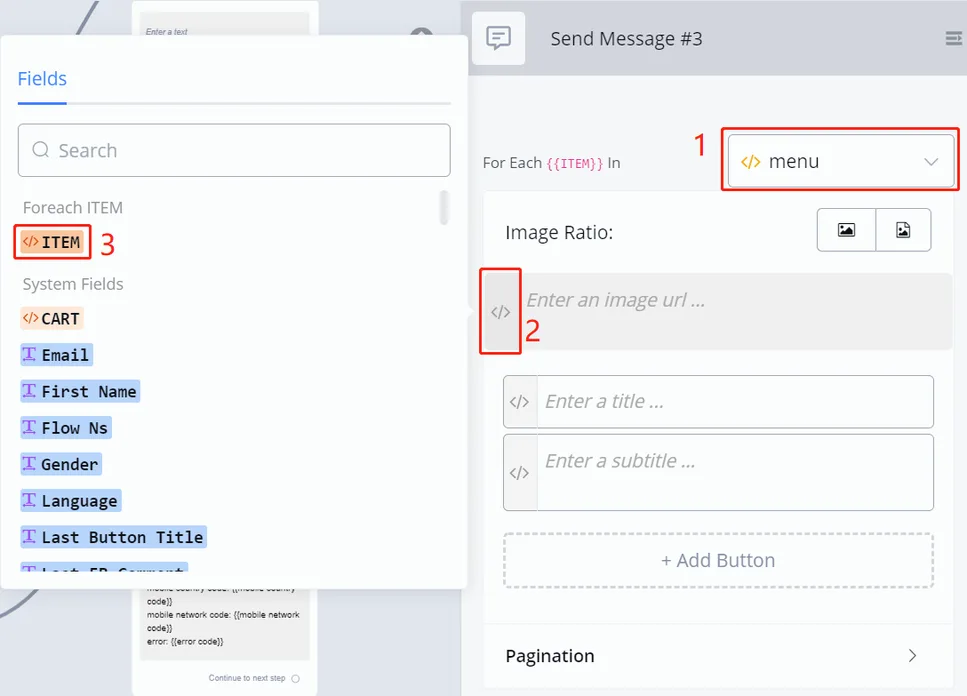
- first choose a JSON variable
- click "</>" or type "{{" in the text box
- choose "ITEM" to get a sample item from the JSON variable
Value in the JSON variable:
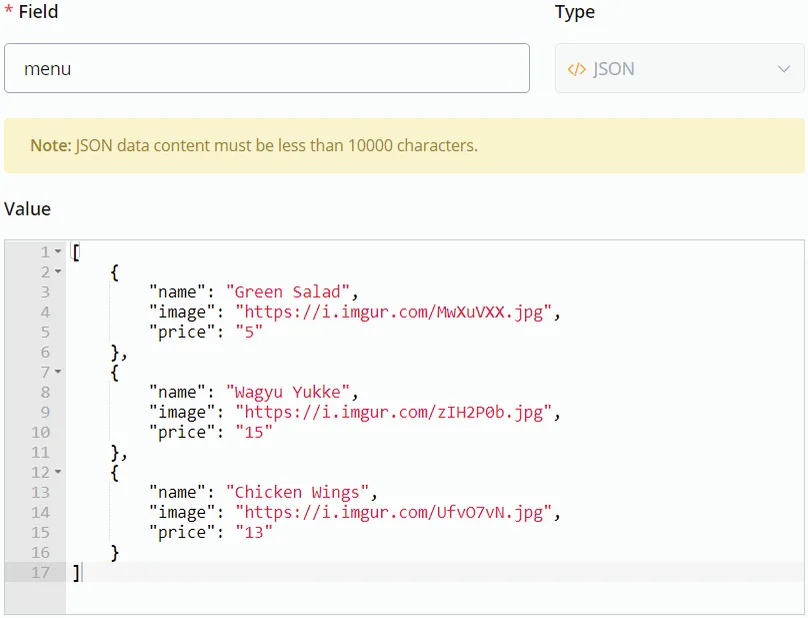
Value in "ITEM":
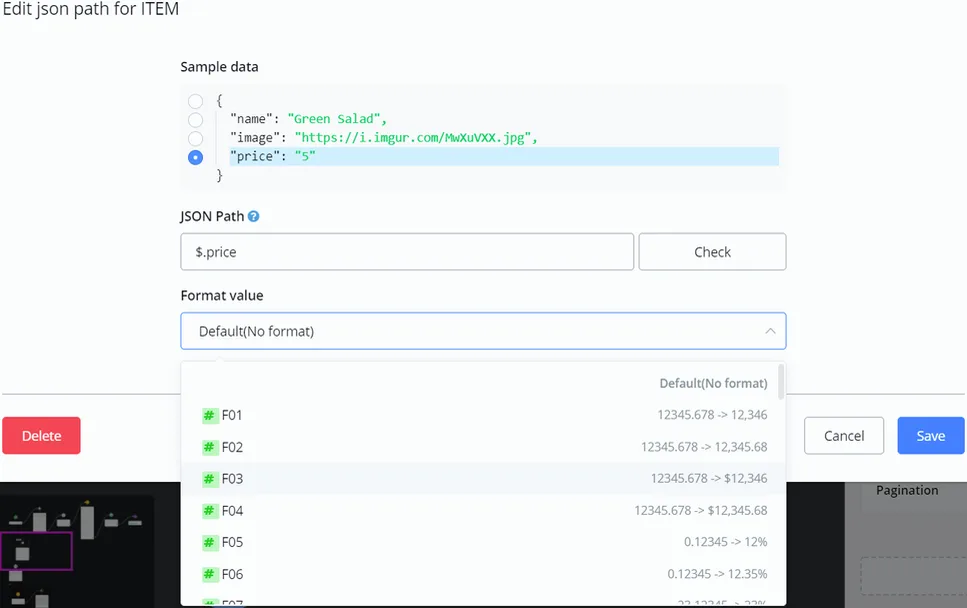
The "Sample data" is used to quickly fill in the "JSON Path" field. For example, as the image shows, click the “price” row and “$.price” appears in the “JSON Path” field itself. This means that we are displaying the price of each item. If no sample data is suggested, you can fill in the path yourself by typing "$.", which refers to each item of the JSON variable, followed by the key of a value.
In addition, for numbers such as percentage and price, and for date and time values, NicoChat offers several formats. For example, in the image above, the price value is “5” and, after choosing the “F03” format, the bot starts displaying it as “$5”. Since the value in the variable is still the number "5", you can use it in mathematical calculations or in condition comparisons without any problem.
Great! Now you know how to use "For Each". Besides the keys of the JSON variable, there are three hidden keys you may need:
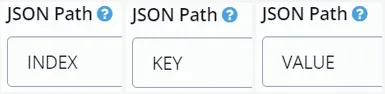
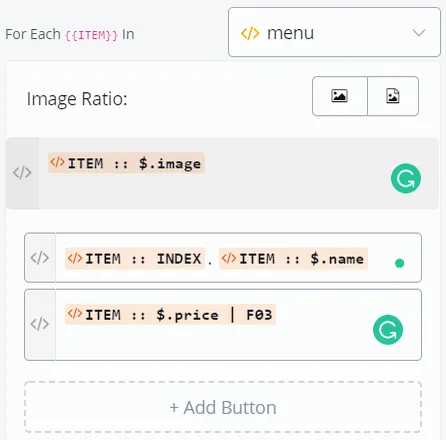
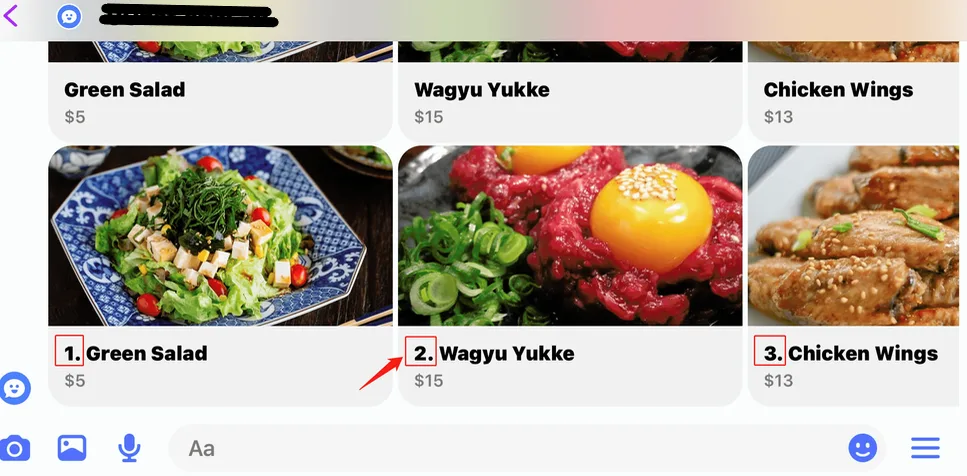
When you have a JSON with a list of JSONs inside, use INDEX to check the sequence number of an item. Let's add an index number before the item name:
Test result:
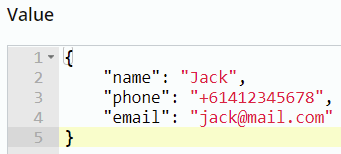
When you have a JSON like the one in the following image, and not a JSON with a list of JSONs:
This is what you get by using the three keys:
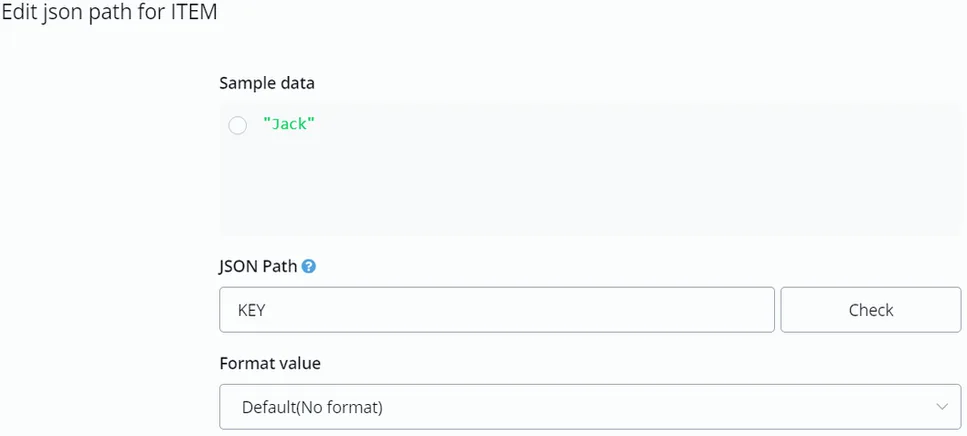
Test result:
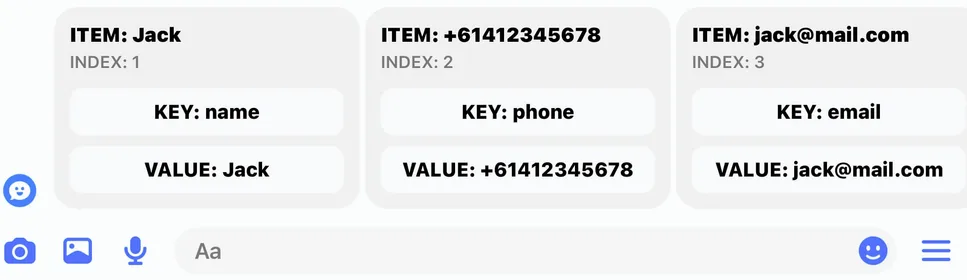
When you add a button to "For Each", it appears on every card. Normally, you will want to place a “Buy” or “Select” button here, in case you are listing products or options.
How does the bot know which card the user selected?
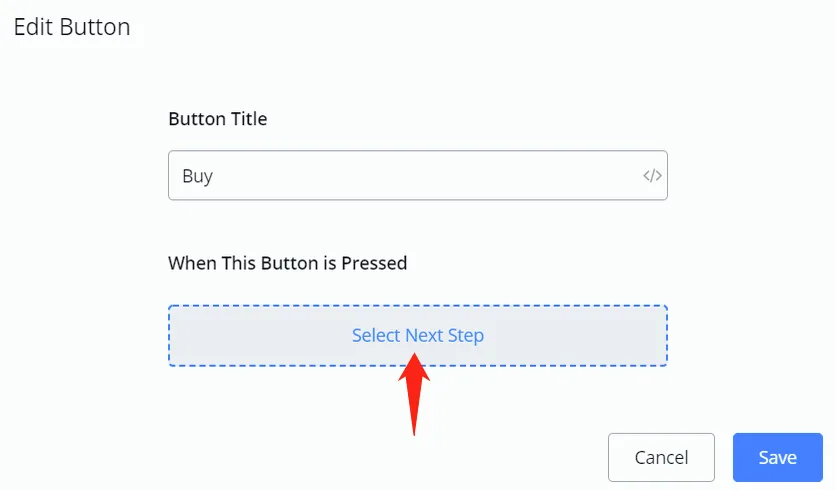
When selecting the next step of the button, choose "Select":
Then select the next step as you usually do: a Send Message step to show the selected item or an action step to handle the data. After that, you access the selected item in "SELECT":
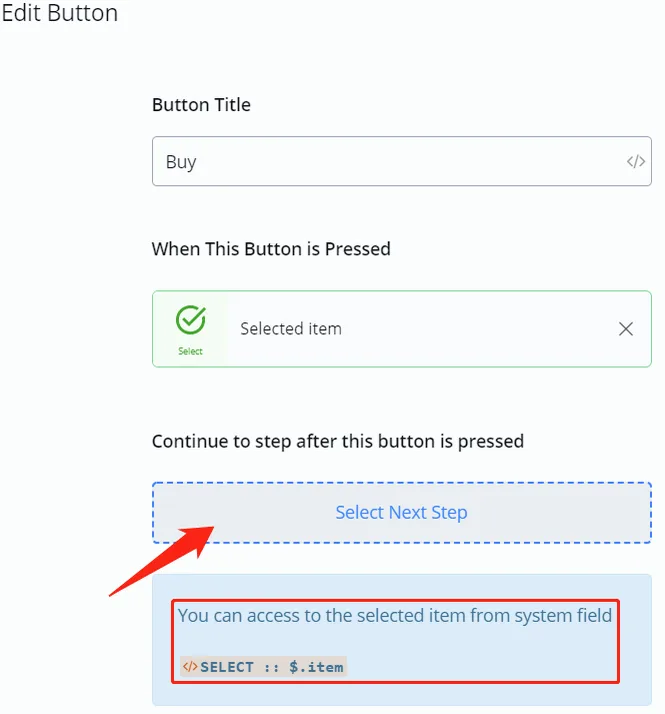
For example, let's add a Send Message step and find the system field "SELECT":
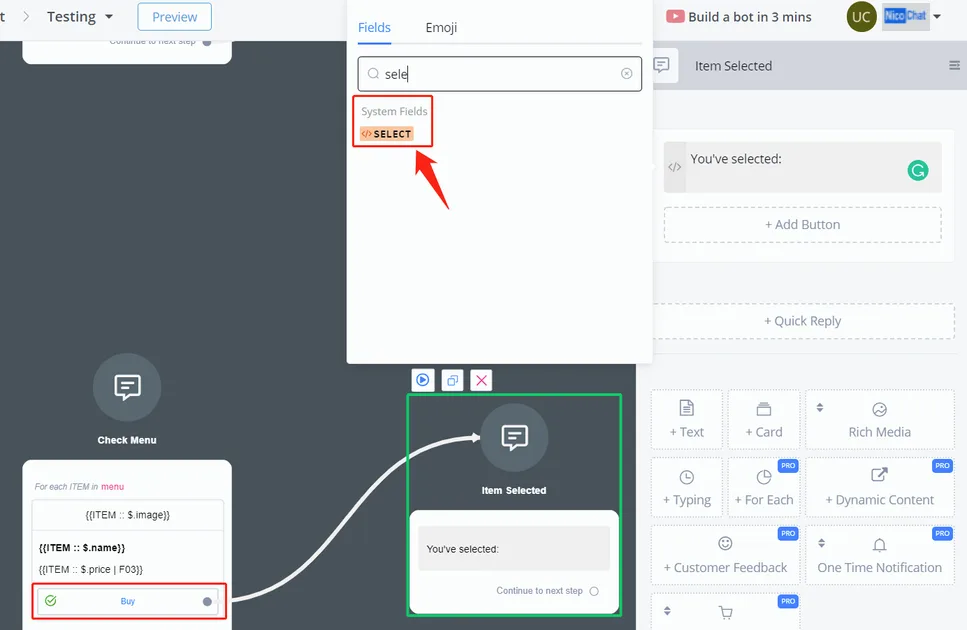
- click the "item" row to get the path "$.item" or type the path directly
- in the JSON path, add the key name, if necessary. In this case, we will show the name of the selected item; to do so, add “.name” after the path.
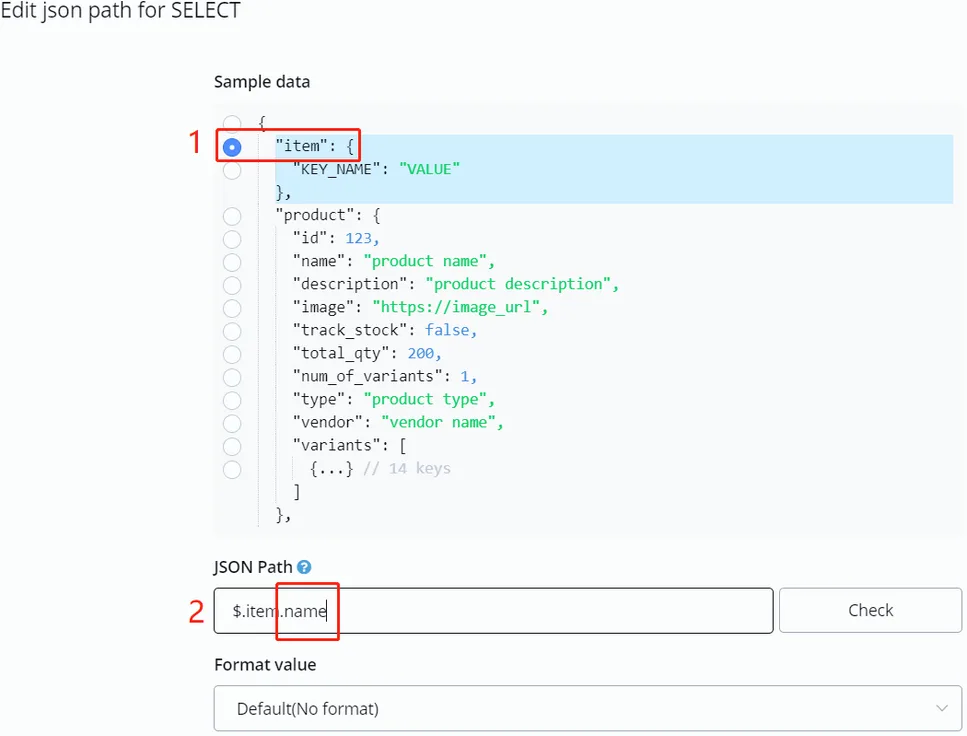
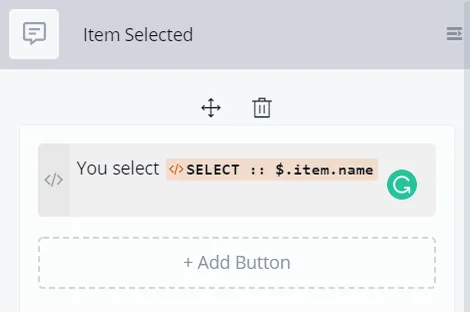
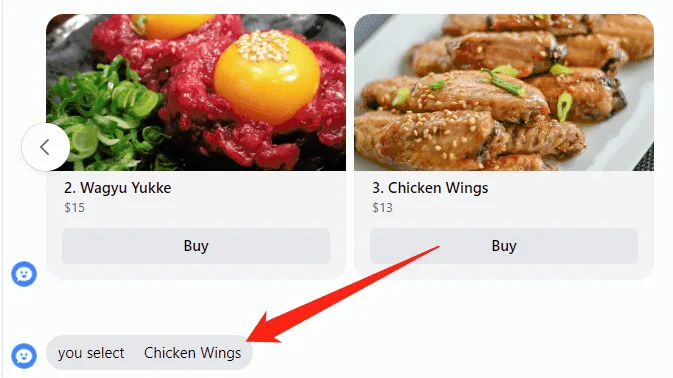
You will see this when you test it:
Dynamic Content helps you send an API request to your server or to a third-party server in order to get a response and display it. The server can respond differently each time. That way, your bot can display dynamic content to your users.
This feature is handy when your bot's logic is complex and relies heavily on other servers. For example, let's say you have your own AI algorithm on your server to analyze users' questions and calculate the corresponding answer; in that case, you can send the question in the API request, and the server generates an answer based on it. Finally, the server returns the answer to NicoChat, which displays it to your users.
A response message can contain several messages, buttons and quick replies with actions. You can even apply simple actions, such as adding a tag, directly in the response JSON.
- See Action Step - External Request to learn how to send an API request,
- and Response Format for guidance on formatting the messages.
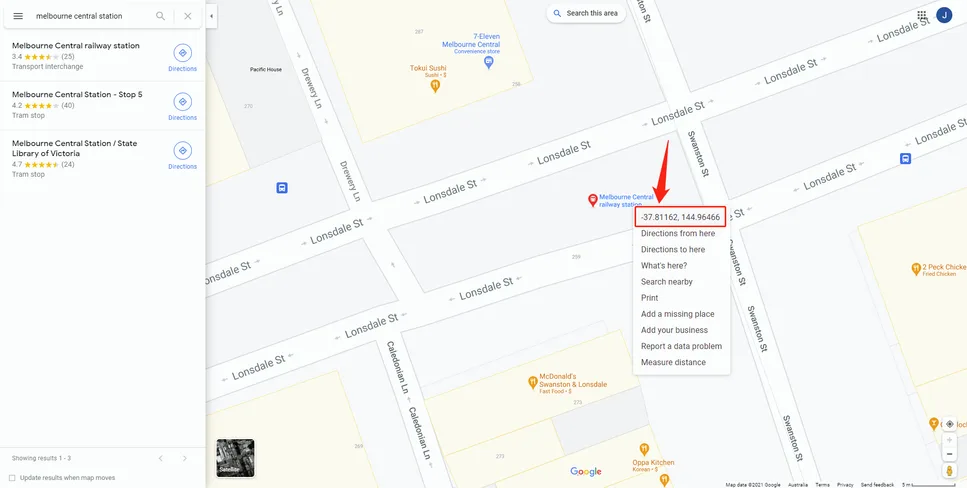
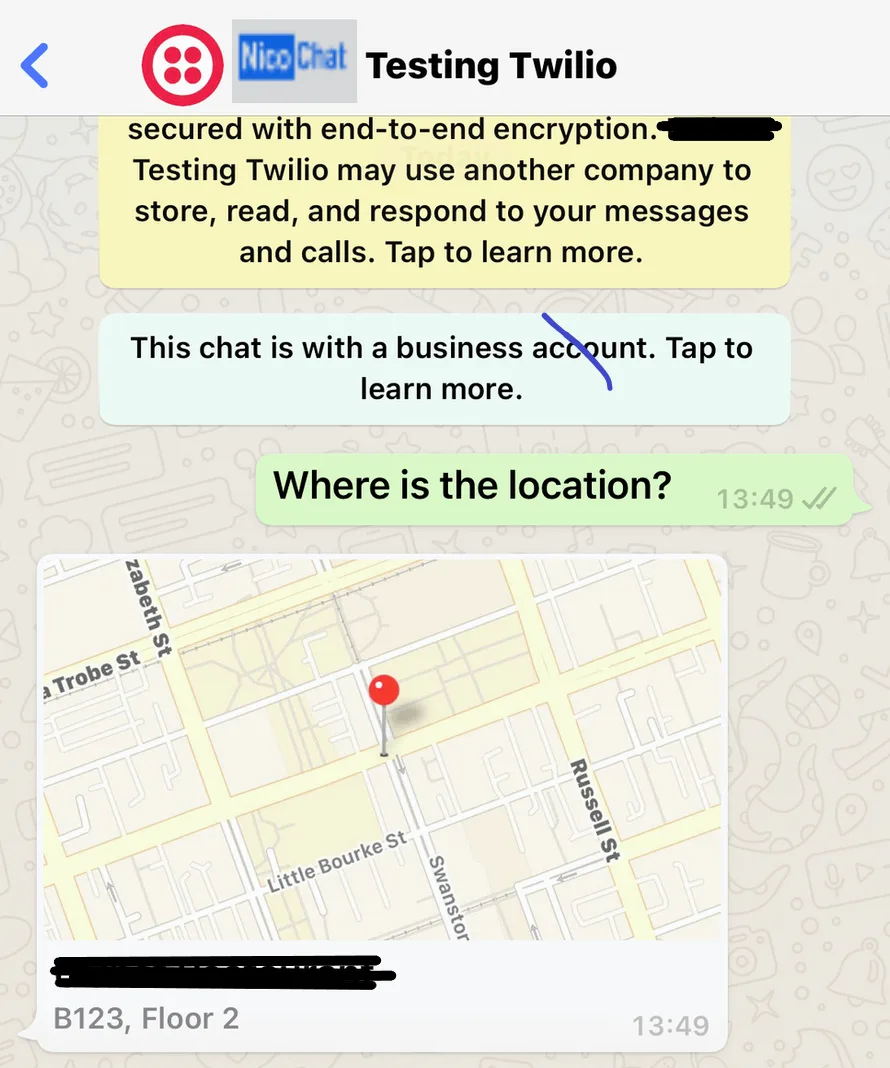
To send a location, search for it on a map and right-click it to copy the latitude and longitude values:
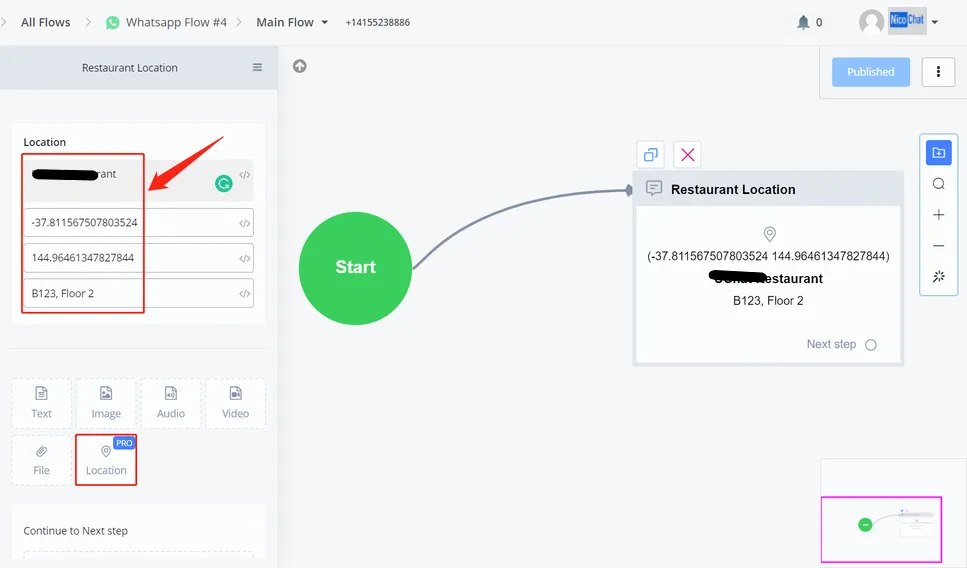
Type the name of the place, paste the data and add a label, if necessary. The label provides additional information, such as floor or room number.
See E-commerce to learn how to set up and use the built-in e-commerce system.
Facebook allows the bot to send texts with up to 3 buttons and up to 10 quick replies.
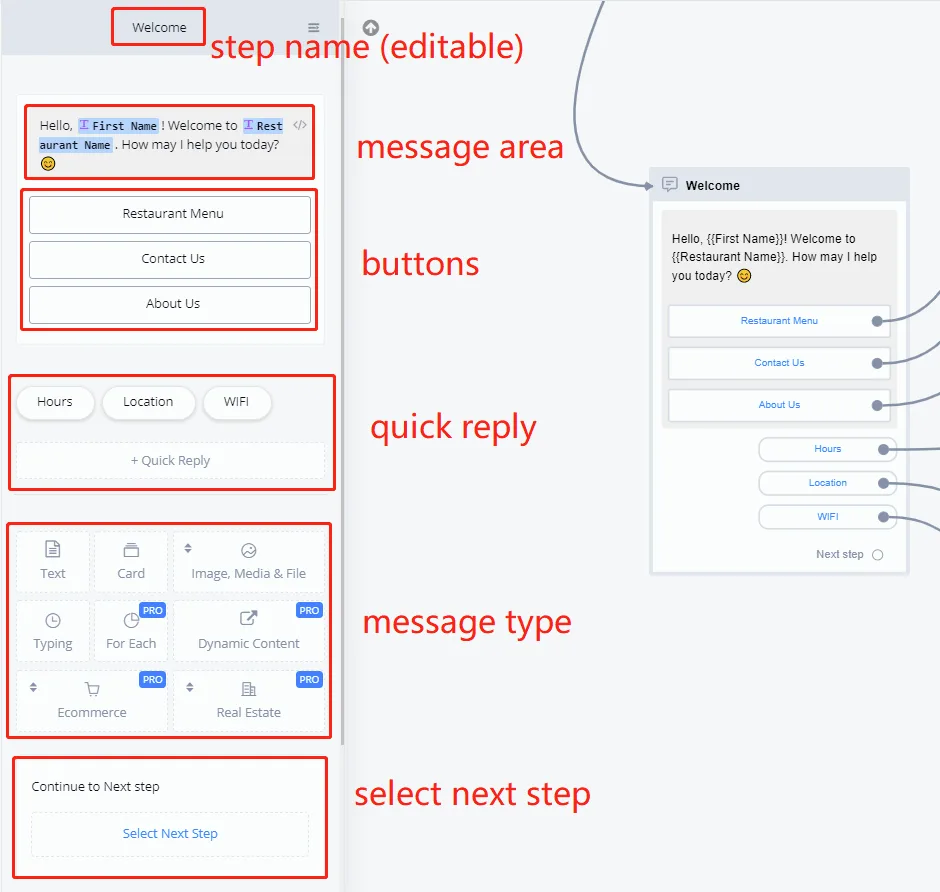
The difference between button and quick reply on Facebook Messenger:
Try adding some buttons and quick replies and run a test. You will see the difference between them.
The Telegram flow is our newest flow type. It is similar to the Facebook flow, except for some features exclusive to Facebook. For now, see the Facebook flow for guidance. The text tutorial on the Telegram flow will be published soon.
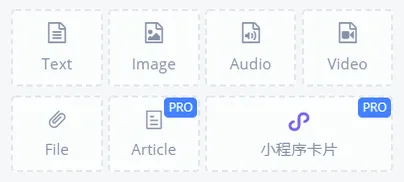
WeChat allows the bot to send texts with up to 10 buttons. Message types on WeChat:
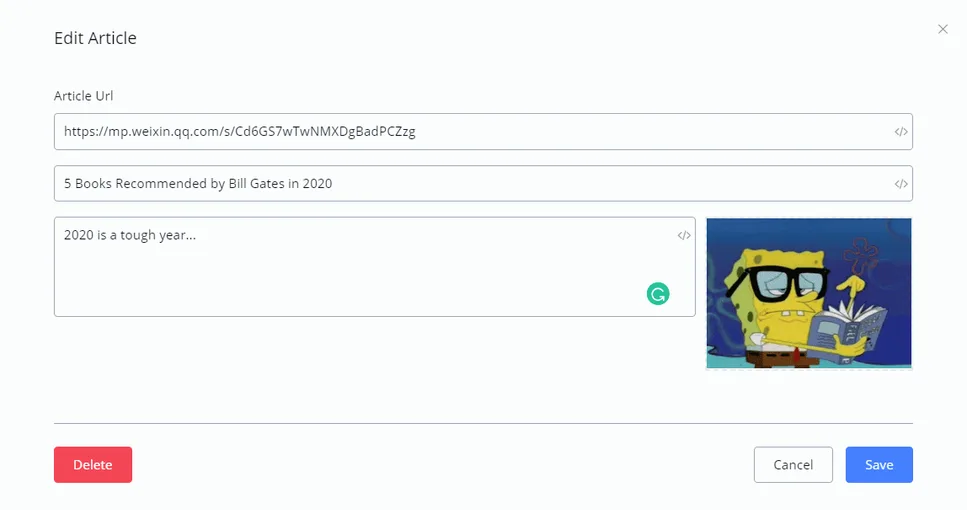
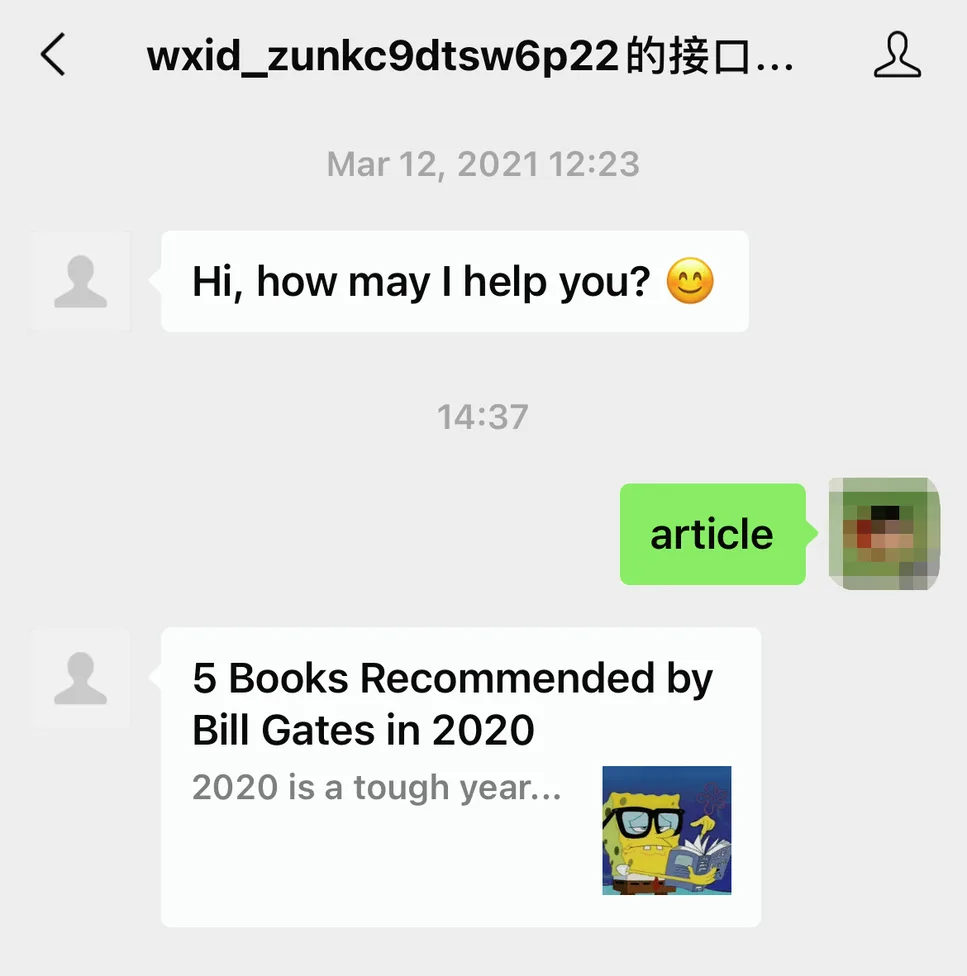
This is how it looks in the chat:
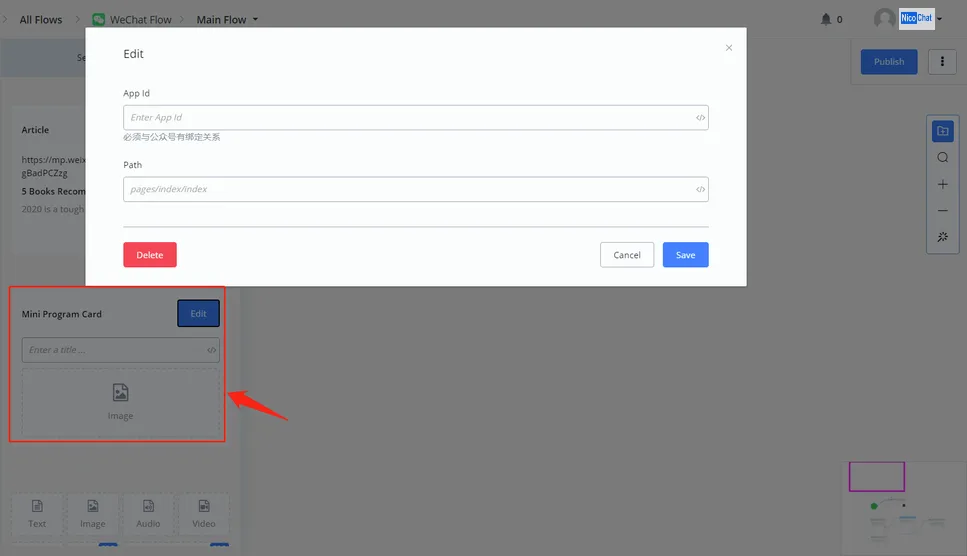
You can also send mini programs associated with your official account.
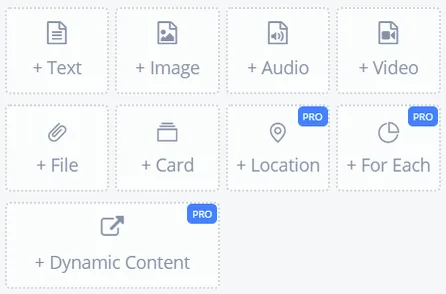
Message types on WhatsApp:
The WhatsApp button is a little different from the Facebook button: on Facebook, a button can be pressed several times; on WhatsApp, only once.
The SMS channel can send only text and image.
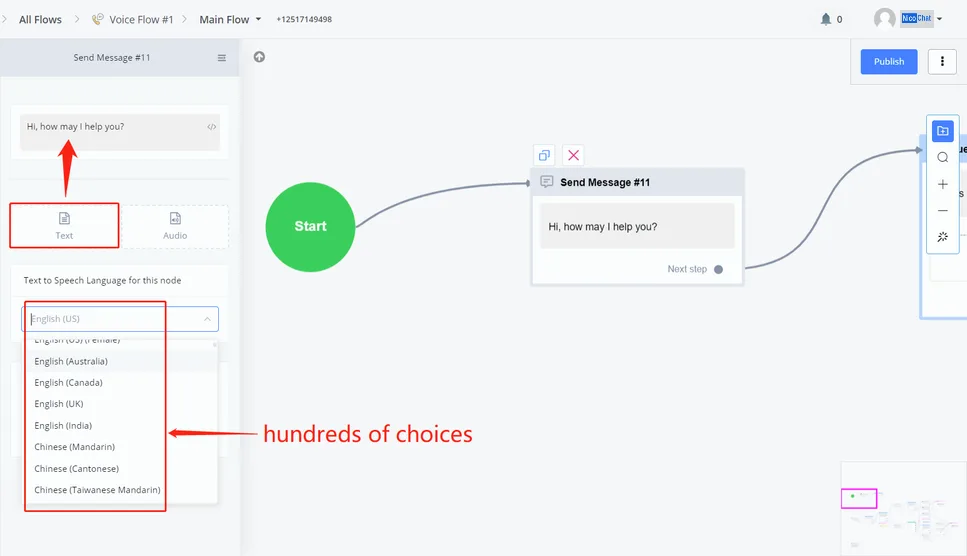
You can have the bot read the text in a specific language or record your own audio and send it.
NicoChat has created a NicoApp called "VoiceMaker", which uses a third-party API with better text-to-speech conversion quality! Download the NicoApp in the integrations section. The documentation about "VoiceMaker" is in progress.
Message types in the Google My Business flow:
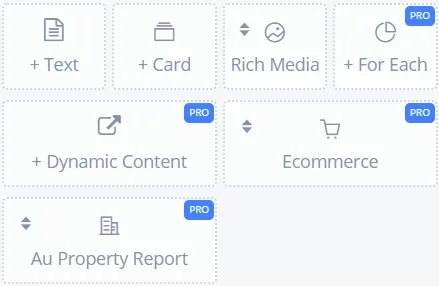
All the types were covered above; see the message types common to all or to some channels. The Location type is in "Rich Media".