With the Condition step, you can go to different steps or subflows depending on the conditions.
In the Condition step, click "+ Add Condition Group" to define at least one condition group. The "Otherwise" group is always there.
You can create as many condition groups as you need. The check goes from top to bottom and, as soon as a group matches, the system goes to the step named in it. If no condition group matches, the "Otherwise" group takes over. That is why it is always a good practice to name a step in the “Otherwise” group, even if it is very unlikely to be used.
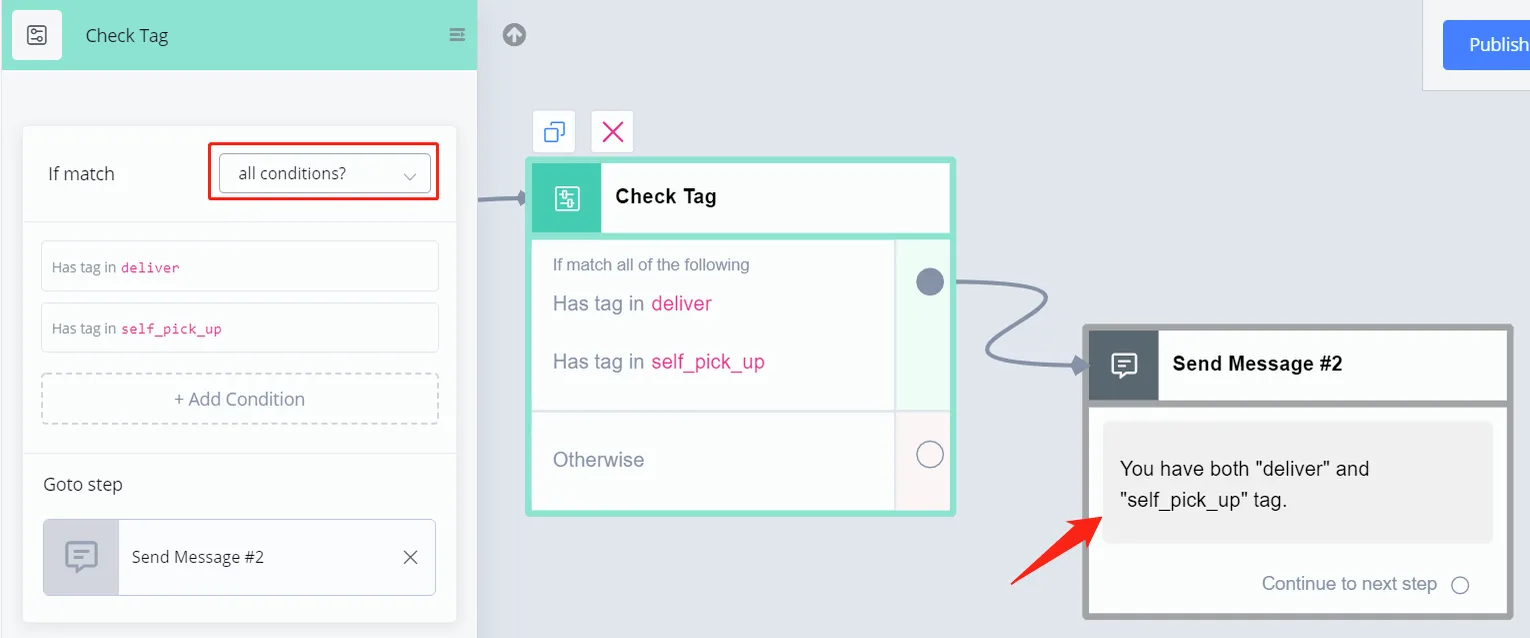
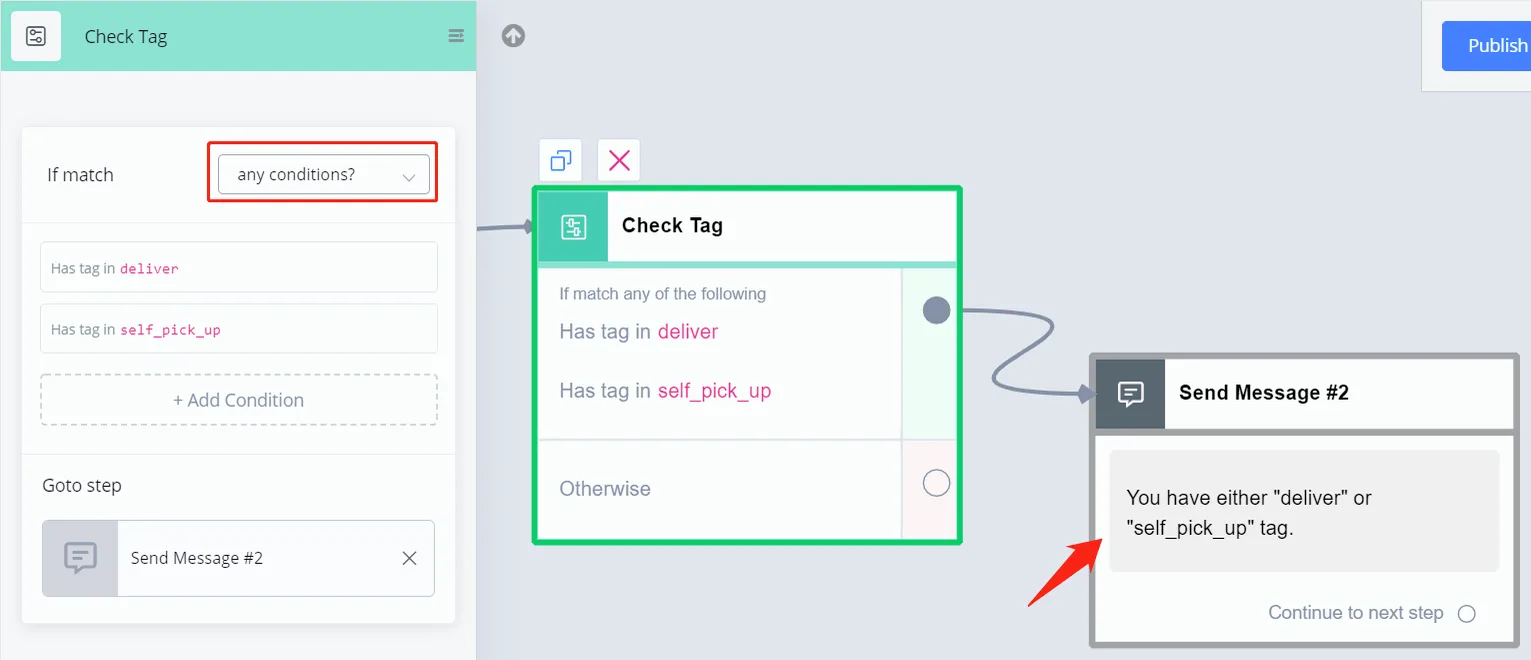
Another important thing to know is the difference between “All conditions” and “Any conditions”. The option is in the upper right corner of each condition group.
You can list more than one condition in a condition group. When you do, it is important to choose "All" or "Any".
"All conditions" means that, for this group to match, every condition in the group must be met.
For a group with "Any conditions" to match, it is enough for one of the conditions to be met.
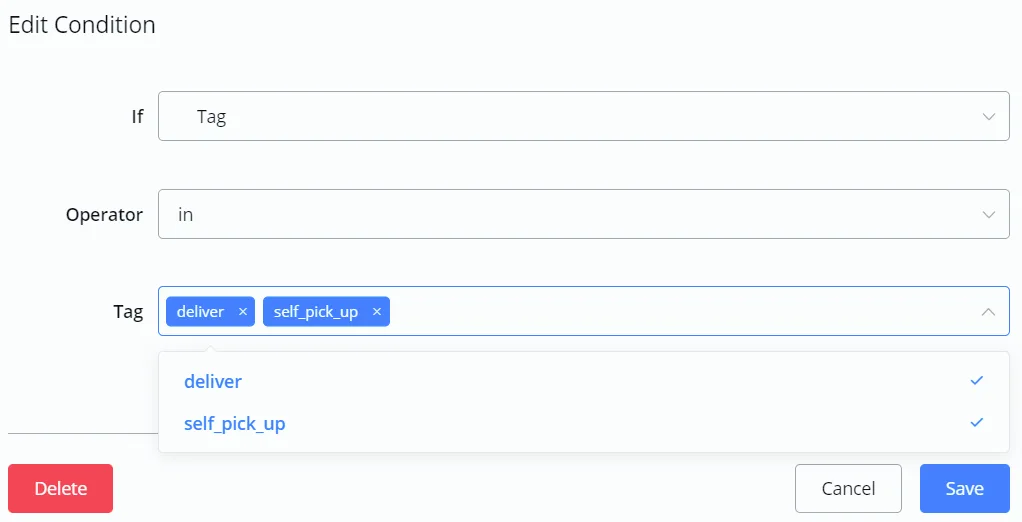
Tag and Sequence Condition
For the tag and sequence condition, you can choose "in" or "not in" in the "Operator". Choosing multiple tags or sequences is allowed.
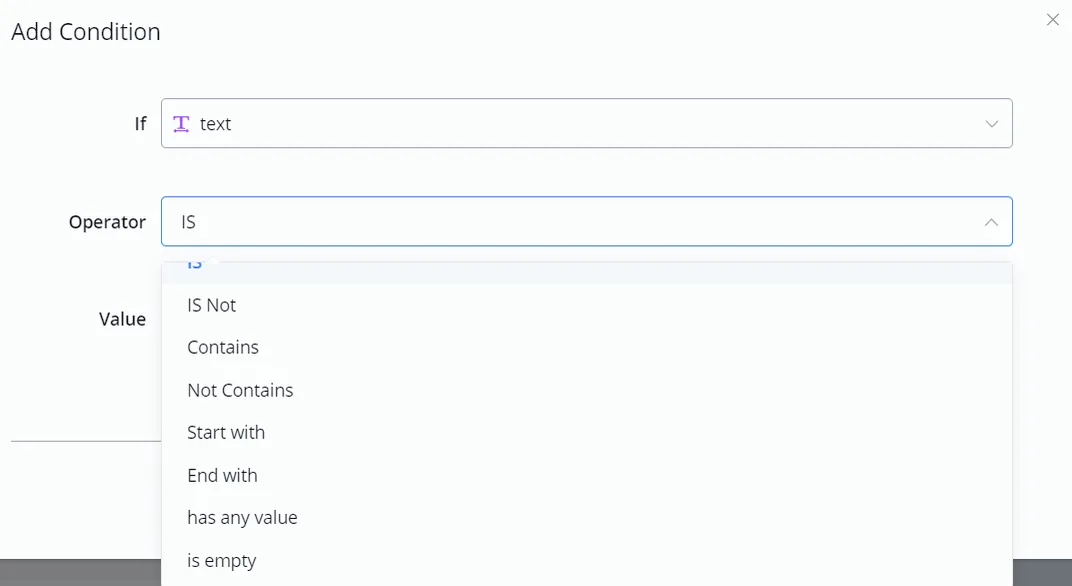
Text Variable Condition
These are all the operators for the text condition.
For "has any value" and "is empty", in all variable types: when you clear a variable, it becomes empty. Thus, “has any value” is false and “is empty” is true for that variable.
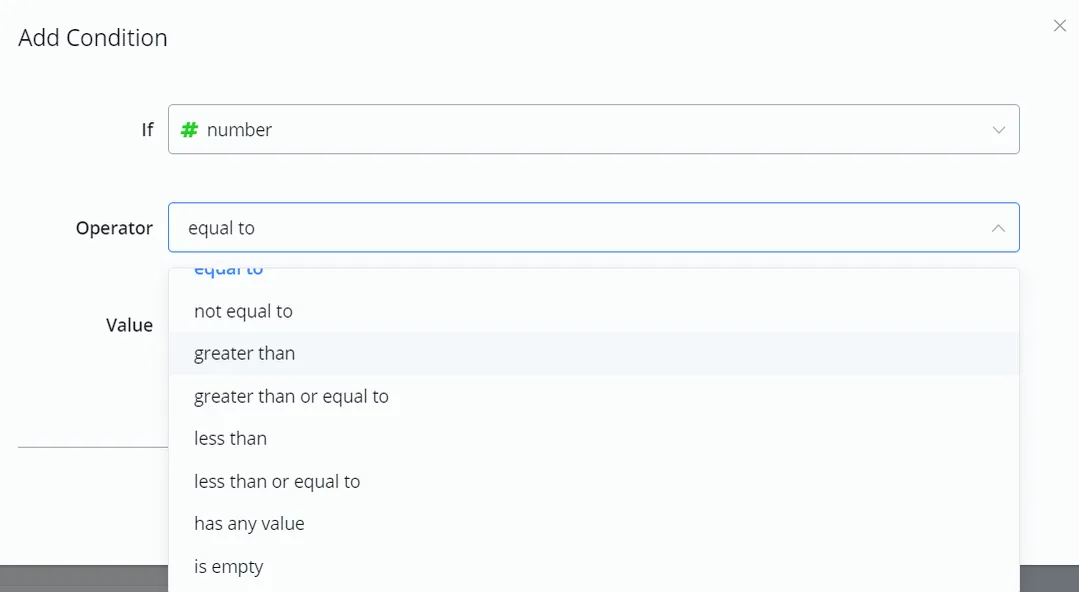
Number Variable Condition
These are all the operators for the number condition.
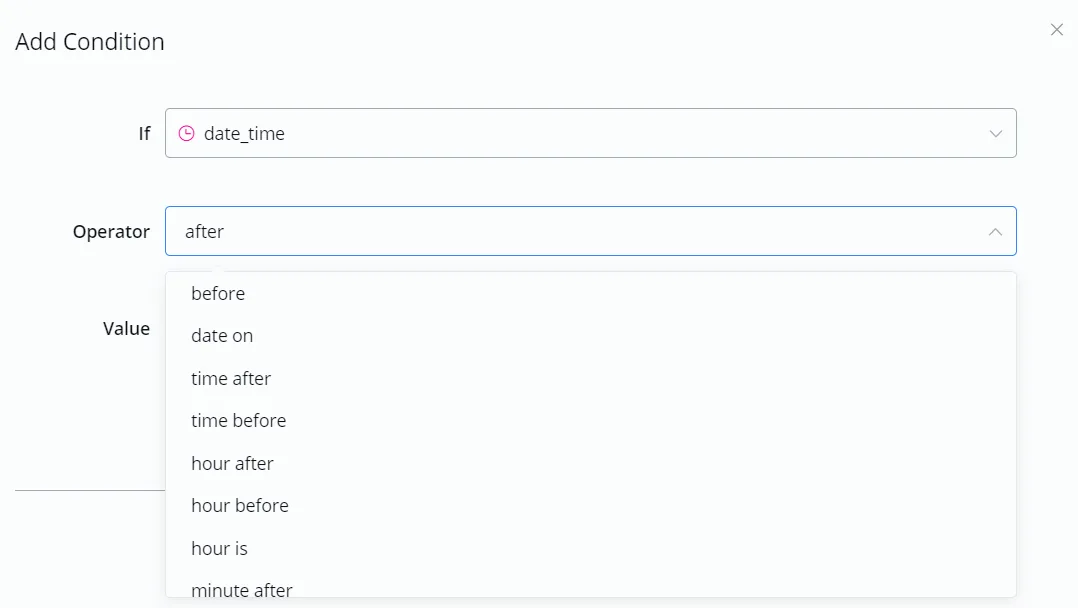
DateTime Variable Condition
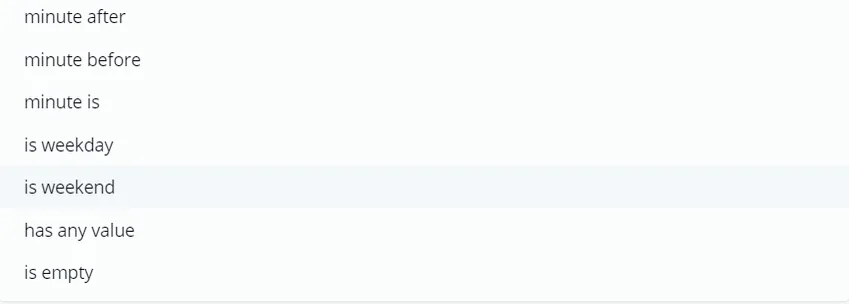
These are all the operators for the DateTime condition.
Note that you must always enter the "value" in the correct format "yyyy-MM-dd HH:mm:ss", whichever display format you choose for that variable.
Attention
Note that "before/after" is different from "time before/after". The former compares the whole date and time value, while the latter compares only the time value.
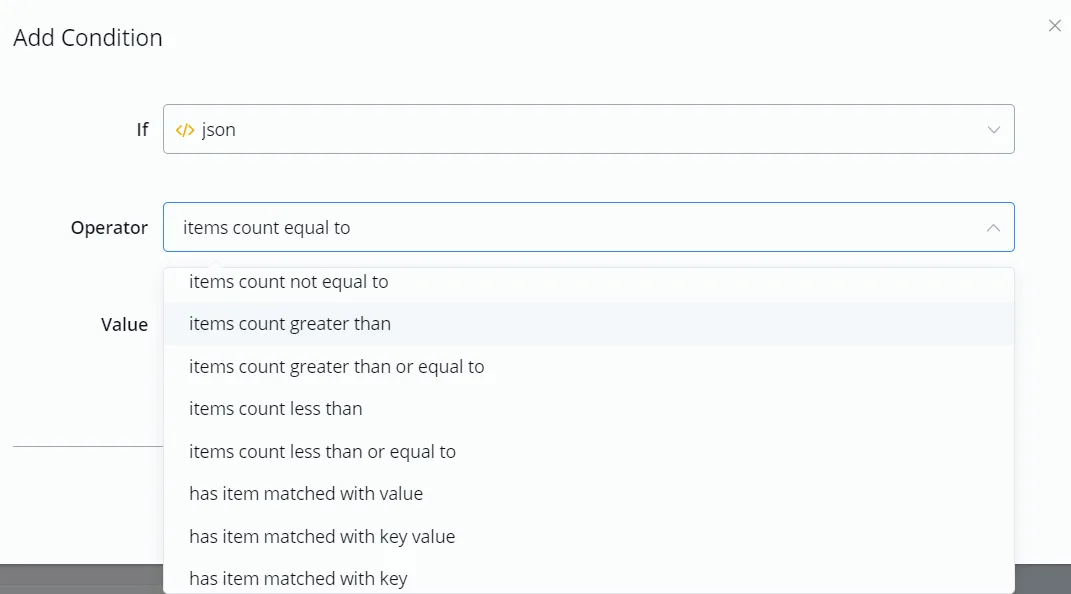
JSON Variable Condition
These are all the operators for the JSON condition.
Attention
Note: the last three operators, "has item matched with ...", require the JSON to be a list of variables, not a list of JSON. In other words, if your JSON stores a list of normal variables, these 3 operators work. They do not work for a JSON that stores a list of JSON.
Custom Input
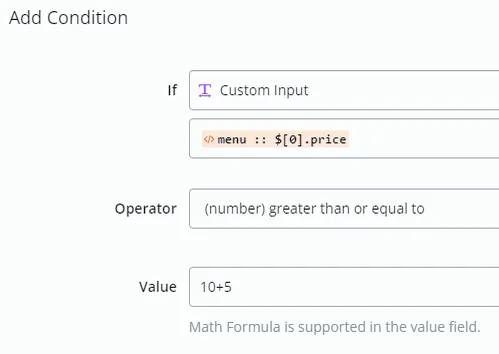
Custom input was built to compare values inside the JSON variable. Search for "custom input" in the If field:
Pick a value from a JSON and compare it as you would in the text variable condition.
Math Formula
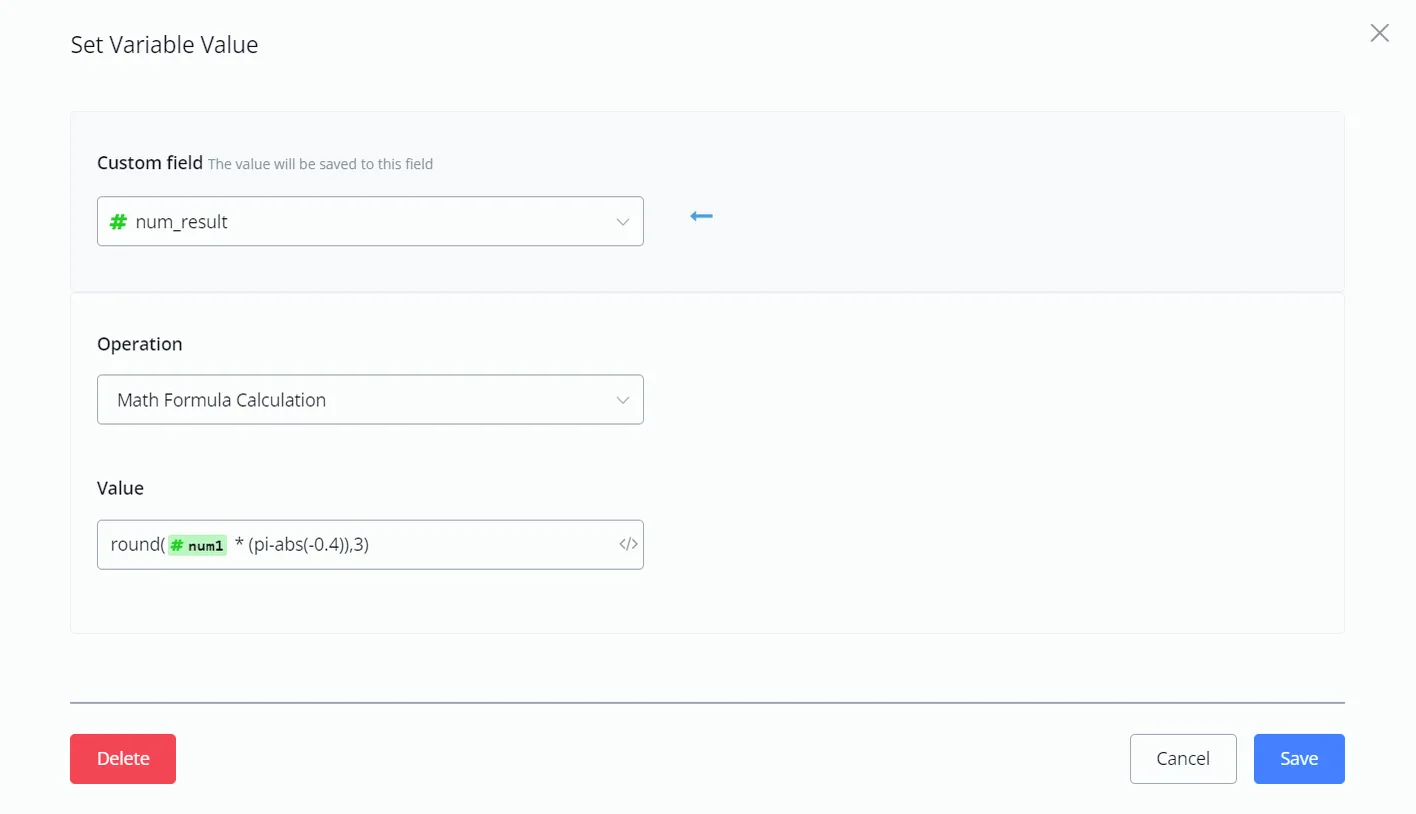
With this operation, you can now do the formula calculation directly in the Action Step - "Set Variable Value" and in the Condition Step - "Value".
Note that, if the formula is invalid, the system returns 0 for the number variable and empty for the text variable.
Email
These relate to the email nodes and indicate whether a specific email node was sent, delivered or clicked.
Condition
Explanation
Condition
Explanation
Email Click
Whether a specific email was clicked
Email Opened
Whether a specific email was opened
Email Delivered
Whether a specific email was delivered
Email Sent
Whether a specific email was marked as sent
Opted-In for Email
Whether the contact has opted in to receive emails
True/False Conditions (Boolean)
These refer to boolean variables and indicate whether a condition or variable is true or false.
Condition
Explanation
Subscribed to bot
Whether the contact is subscribed to the channel or not
Is bot paused?
Whether bot automation is paused for this contact. While the bot is paused nothing new is triggered, but a flow already being processed finishes — and sends
Has interacted in last 24h
Whether the contact has interacted in the last 24 hours since the last interaction
Is Guest User
Whether a user is a guest user
Is Tester
Whether the user is a tester
Is Admin
Whether the user is an admin
Is assigned to agent
Whether the contact has an assigned agent
Has SSO user connected
Whether the user has SSO connected
Is Business Hours
Whether the time of the interaction is within the specified business hours
Is assigned agent online
Whether the contact's assigned agent is online or not
Has agents online
Checks whether any human agent is assigned or not
72h Window (FEP) Active?
Whether the 72h Ad Window (FEP) is active — messages are not charged during that period
72h Window (FEP) Pending Activation?
Whether the contact came from an eligible ad and the window has not been activated yet — reply within 24 hours to activate it
72h Window (FEP) Active/Pending Activation?
Whether the window is active or pending. Negating this condition is the only way to identify "outside the window"
The three 72h Window (FEP) conditions describe overlapping states: negating one of them does not always identify a state. See 72h Ad Window (FEP).
While the bot is paused, no keyword, trigger or answer to a question block starts the automation: nothing new begins, and a flow that was waiting for an answer does not move on. What is already mid-processing, however, finishes — and sends.
This is the AI case: it is generating the answer when a human agent joins the conversation and pauses the bot. The flow finishes processing and sends the message anyway, on top of the human agent — from then on the contact's replies no longer go back to the flow. To prevent that last message, put Is bot paused?isYes before the sending step and let that branch end without sending anything. What still goes out during the pause depends on Paused Bot Automations, in General (Settings).
Integer/Numerical Conditions
Condition
Explanation
Condition
Explanation
Opted-In Date (minutes ago)
Represents the minutes since the contact subscribed to the channel
Last seen (minutes ago)
Represents the minutes since the contact last saw the message sent by the flow
Last interaction (minutes ago)
Represents the minutes since the contact's last interaction with the flow
Last agent interaction (minutes ago)
Represents the minutes since the human agent's last interaction with the contact
Opted-In for Email (minutes ago)
Represents the minutes since the contact opted in to receive email
Opted-In for SMS (minutes ago)
Represents the minutes since the contact opted in to receive SMS
Shopping cart total price
Represents the total price of the cart, present in the ORDER system JSON field
Agent Id
System ID of the human agent
Last FB Comment is existing user
Last FB Comment total new tagged users
Last FB Comment total tagged users
Date/Time Conditions
Condition
Explanation
Condition
Explanation
Opted-In Date
Date when the contact opted in
Last Seen
Datetime field representing the contact's last seen
BOT_CURRENT_TIME
Current time, represented in the workspace timezone
Created At
Datetime field representing the timestamp when the contact was created
Last Interaction
Datetime field representing the timestamp of the contact's last interaction
NOW
Current time, represented in UTC
Subscribed
Datetime field representing the timestamp when the contact subscribed to the channel
TODAY
Date field representing today's date
System Fields Conditions
Condition
Explanation
Condition
Explanation
Agent Email
Represents the email of the assigned agent
Agent Name
Represents the name of the assigned agent
Browser
Represents the browser through which the user interacts with the flow on the web channel
CRM Contact Id
Represents the unique Id assigned by the integrated CRM (for example, GHL, Zoho, etc.)
Channel
Represents the channel through which the contact interacts with the flow
City
Represents the contact's city
Country
Represents the contact's country
Department
Represents the department you want to assign the contact to
Device
Represents the device through which the contact interacts with the flow
Email
Represents the contact's email
First Name
Represents the user's first name
Flow Ns
Represents the Ns of the channel's current main flow
GMB Name
Name of the GMB location
GMB Place Id
Id of the GMB location
GTAG Client Id
GTAG Session Id
Gender
Represents the contact's gender
IP
Represents the contact's IP on the web channel
Instagram Id
Represents the Meta-assigned unique ID of the contact on Instagram
Instagram User Name
Represents the Meta-assigned user name of the contact on the Instagram channel
Interest
Represents the interest you can assign to the contact
Language
Represents the contact's language
Last Button Title
Represents the last button the user clicked
Last FB Comment
Represents the last comment made by the user on the Facebook channel
Last FB Comment Id
Represents the Id of the last comment made by the user
Last FB Comment Post Id
Represents the Id of the post on which the user made the last comment
Last Name
Represents the contact's last name
Last Node Ns
Represents the Ns value of the last node visited by the contact
Last Text Input
Represents the last text input the contact entered
Lead Source
Represents the source you can assign to the contact
Lead Status
Represents the status you can assign to the contact
Live Chat Url
Represents the URL link of the contact's live chat
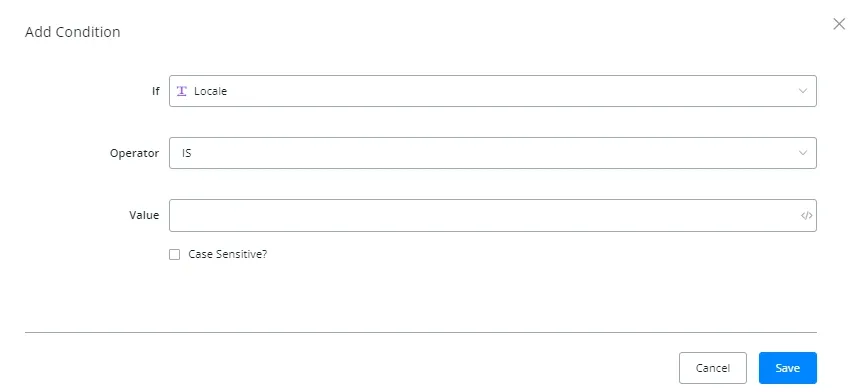
Locale
Represents the contact's locale
Market
Represents the market you can assign to the contact
OpenAI Thread Id
Represents the current thread Id of the assistant run in OpenAI
Page Id
Represents the Id of the Facebook page
Page Name
Represents the name of the integrated Facebook page
Page Username
Represents the user name of the Facebook page admin who integrated the page with NicoChat
Platform
Represents the platform from which the contact interacts with the flow
Profile Image
Represents the contact's profile image
Region
Represents the contact's region
SSO Url
Contains the SSO Url
Sub Flow Ns
Represents the Ns value of the subflow the contact is currently in
Timezone
Represents the user's timezone
User Id
Represents the User ID the system assigned to the contact
User Name
Represents the contact's username
User Ns
Represents the unique value NicoChat assigns to each contact
System JSON Fields Conditions
Condition
Explanation
Condition
Explanation
CART
Represents the line items the user selected when using NicoChat's native ecommerce
Claude
Represents the contact's chat history when using Claude AI
DialogFlow
Represents the contact's chat history when using DialogFlow
Gemini
Represents the contact's chat history when using Gemini
Last Error
Represents the last error triggered by the contact
Last Message
Represents the last message the contact went through
ORDER
Represents the order placed by the contact when using NicoChat's native ecommerce
OpenAI
Represents the contact's chat history when using OpenAI
SELECT
Unique JSON that saves the key-value pair from the JSON the user selected in the previous step. It is widely used in the For Each option.
SHOP
Contains the information about the user's business
User
Contains the complete information about the contact
Miscellaneous Conditions
Condition
Explanation
Condition
Explanation
Segments
Represents the segment the contact belongs to
Tag
Represents whether the contact has a certain tag or not
Label
Represents whether the contact has a certain label or not
Sequence Subscription
Represents whether the contact is subscribed to a sequence or not
Closing Notes
Represents the closing notes assigned to the contact
Board
Represents the board the contact is currently assigned to
Notification Topic
Represents the notification topic assigned to the contact
Assigned Agent
Represents whether a certain agent is assigned to the contact
Channel
Represents the channel the contact belongs to
Conversation Status
Represents the status of the contact's conversation (Done, Open, Pending, etc.)
Custom Input
Allows the user to enter custom inputs that do not necessarily fit into the various conditions provided by the user. For example, using custom JSON user fields.