

Contacts (Bot Users)
People who opt in to your chatbot by interacting with it are considered contacts. They become part of your chatbot channel and, over the course of one or several conversations, the chatbot gathers information about them and gives you more insight into your audience.
Once you have logged in to one of your chatbots, you reach your contacts through the corresponding section in the left-hand menu.
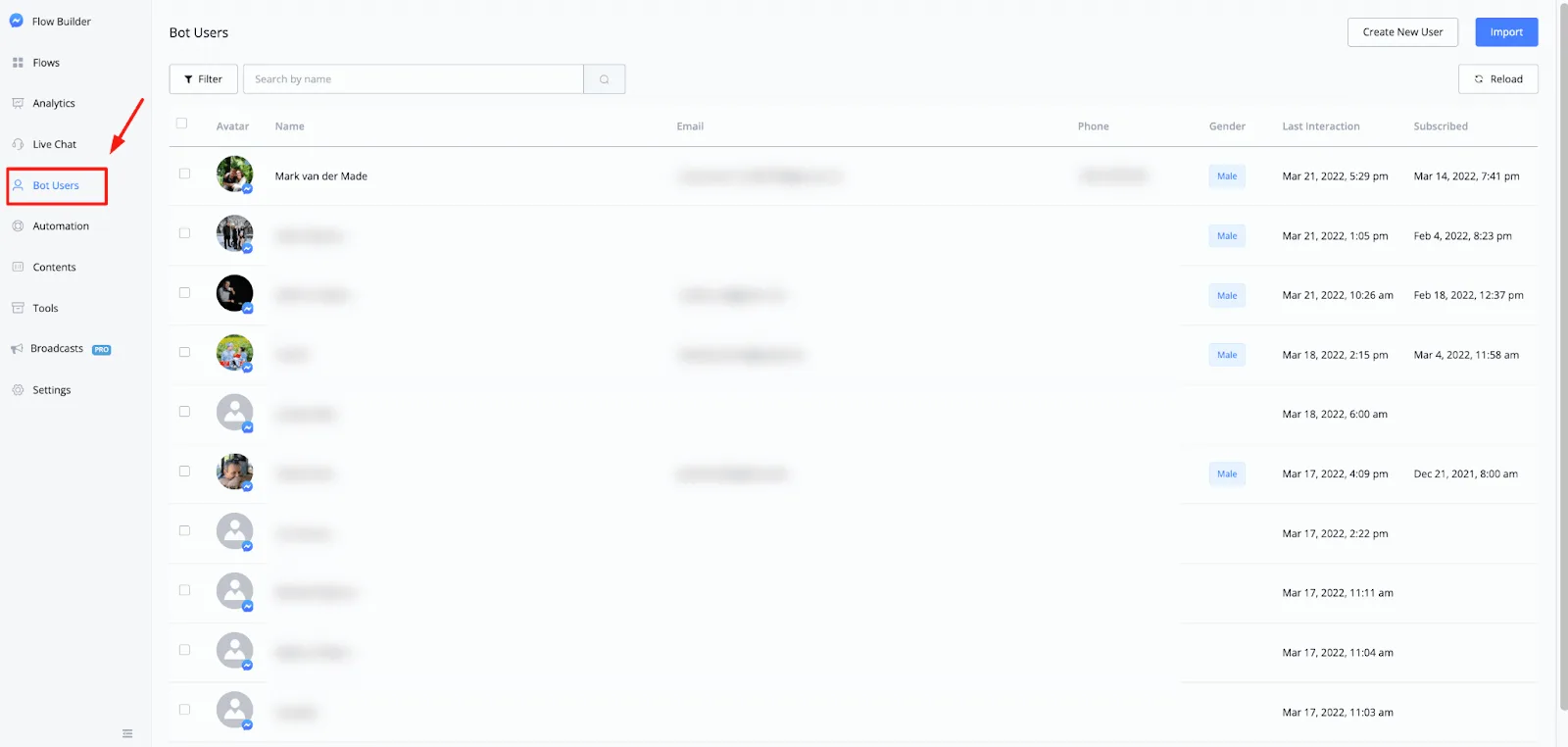
From here you see a list with a complete overview of all the contacts who have interacted with your chatbot and therefore opted in to it.
In this overview, you can also quickly segment your contacts with the filter option. Once you activate it, you can use any condition or filter you like.
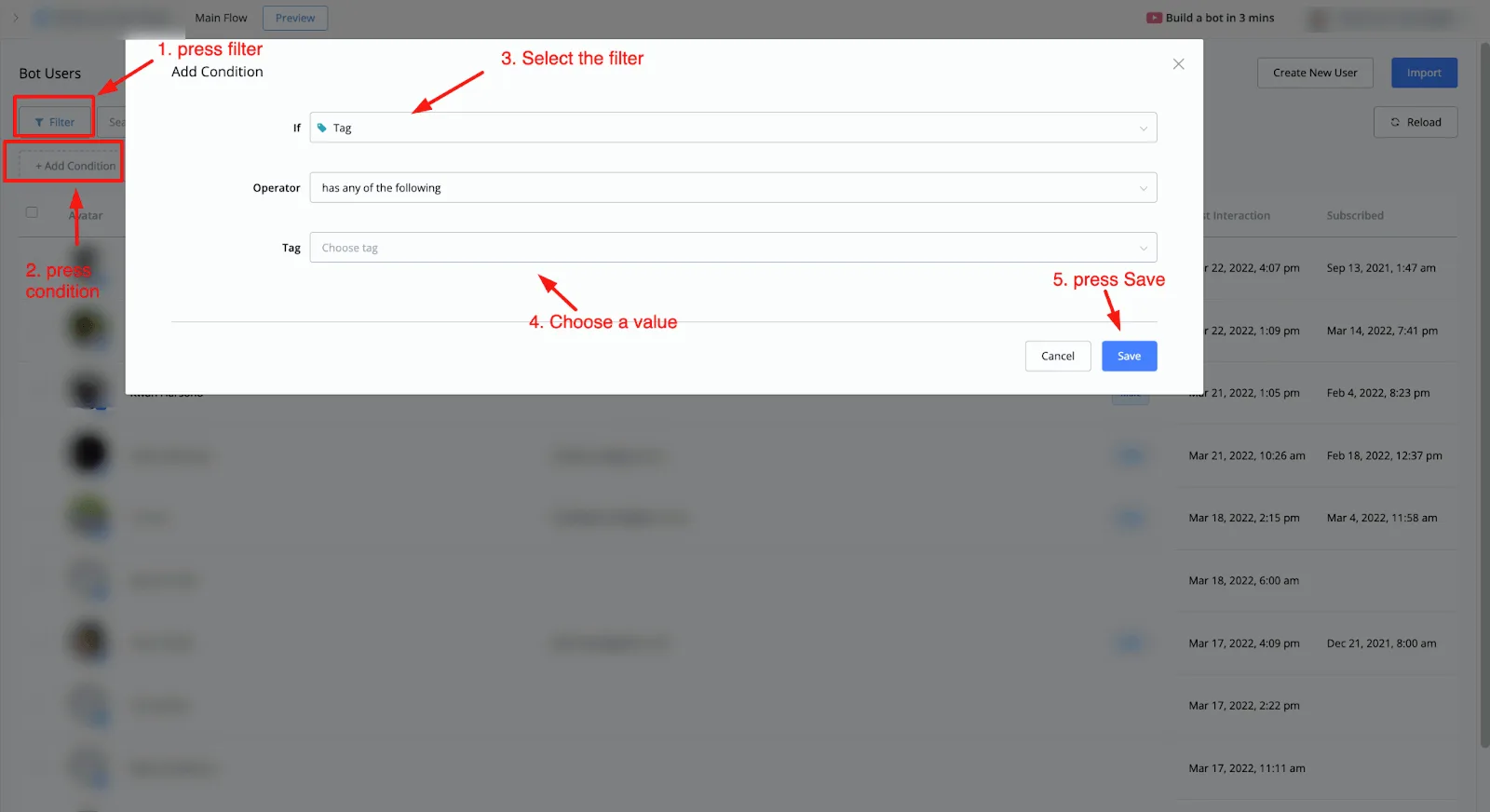
This lets you quickly see which tags someone has or what the values of the custom contact fields are.
One example of a filter would be finding out which of your contacts have provided their email.
Another example: when a contact completes the initial onboarding flow, you tag them and then want to see who got that far.
When you click a contact, a pop-up appears with all the details collected about them so far.
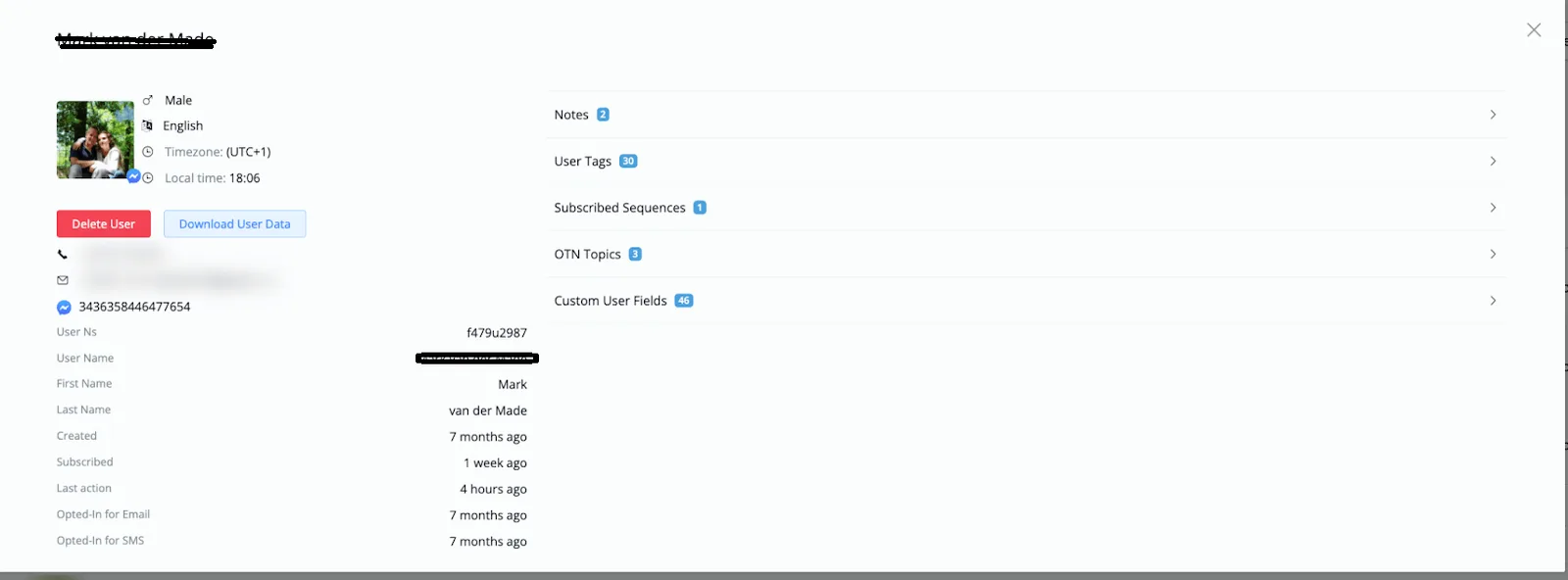
On the left side you will see:
- Name
- Gender
- Language
- Timezone
- Local time
Below the profile image, you can delete the contact or download their data. This helps you stay GDPR compliant, since contacts may request this data.
You will also see the User Id on that channel and some date and time information, such as the subscription and the last interaction, among others.
On the right side of the contact information, you will see tabs for:
- Notes
- User tags
- Subscribed Sequences
- OTN Topics
- Custom Contact Fields
You can only see the collected data after clicking one of the tabs.
For tags, you have the most options at your disposal.
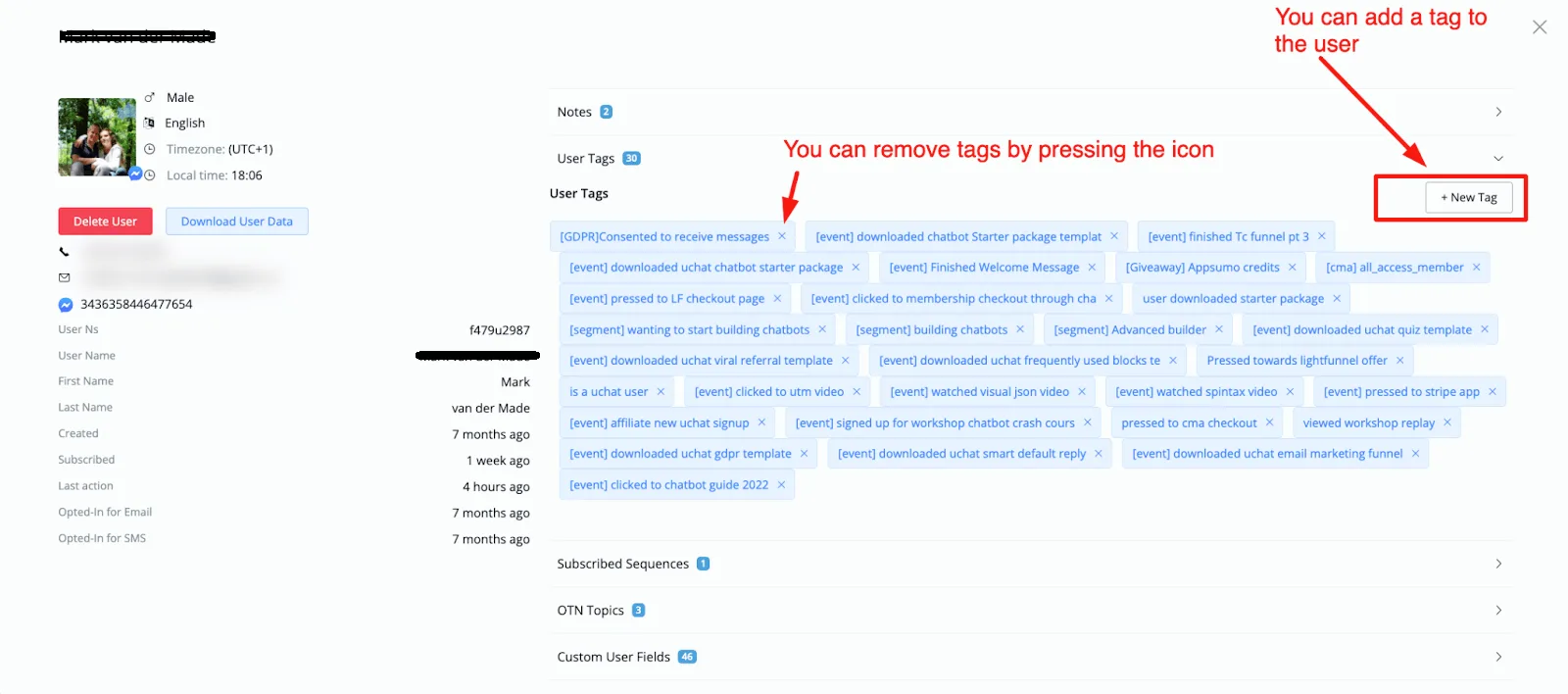
You can add tags directly to the contact and also remove them.
In the Subscribed Sequences, OTN Topics tabs you can only remove them from the contact.
In custom contact fields, you can remove or change the value.
YouTube video (not available for embedding)
For the SMS and voice channels, it is also possible to import or create contacts manually. The buttons for this are in the top right corner.

Creating a new contact means adding a single contact manually, whereas Import means doing it in bulk, by means of a CSV file.