

Canvas
The Canvas helps you organize the steps.
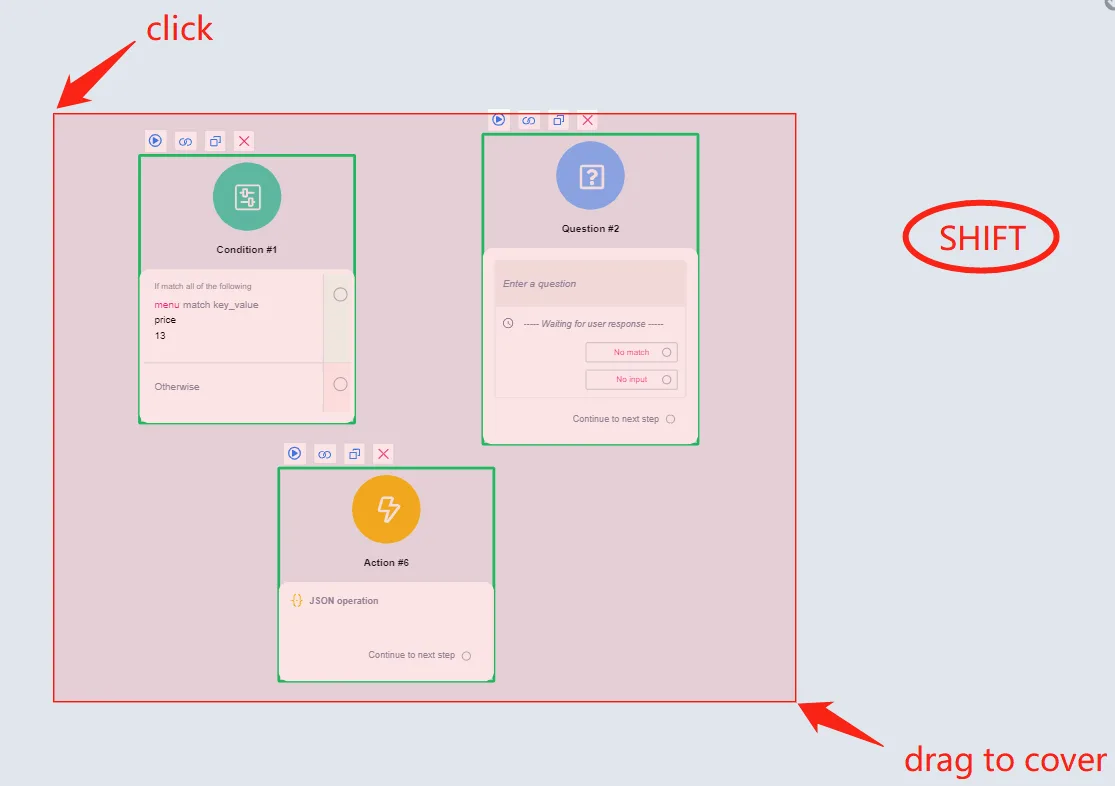
We have already seen that, to move the workspace, you just click and drag. Selecting multiple steps is similar: hold the Shift key and click and drag to cover the steps you want to select:
Alternatively, use Ctrl + click to select them one by one:
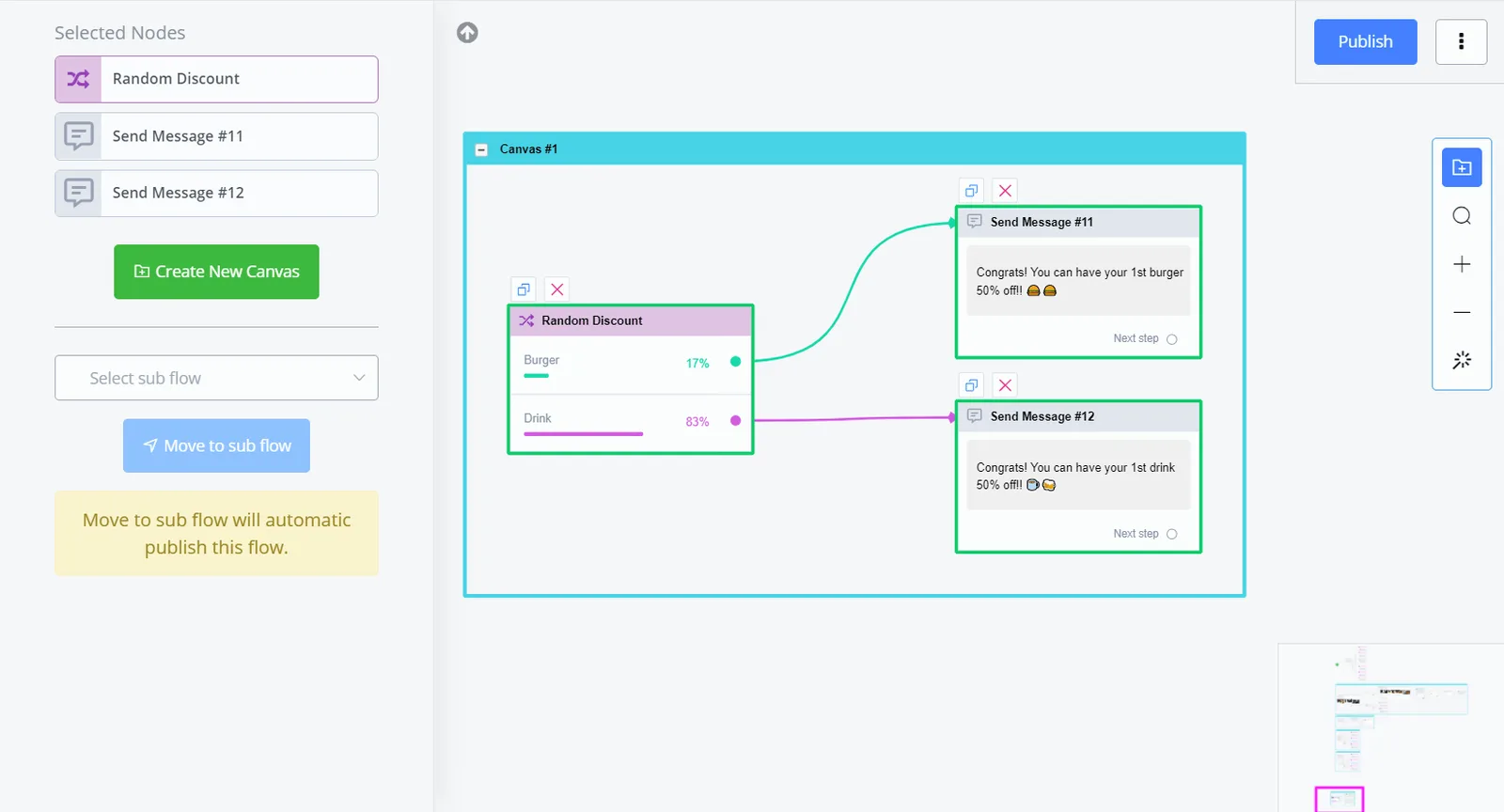
After selecting multiple steps, click “Create New Canvas” to organize those steps into a Canvas box.
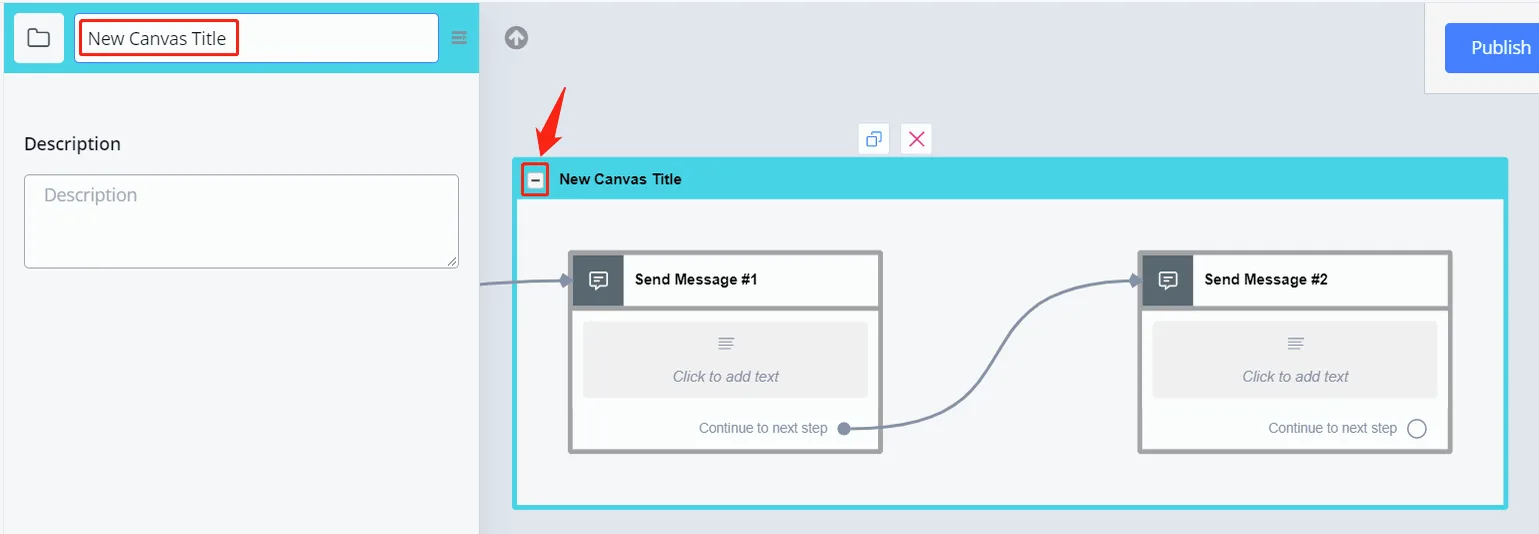
Click the Canvas title to edit that title or add a description. To minimize the Canvas, click the “-” button to the left of the title.
Finally, to add and remove steps from an existing Canvas, just select one or more steps and drag them into or out of the Canvas:
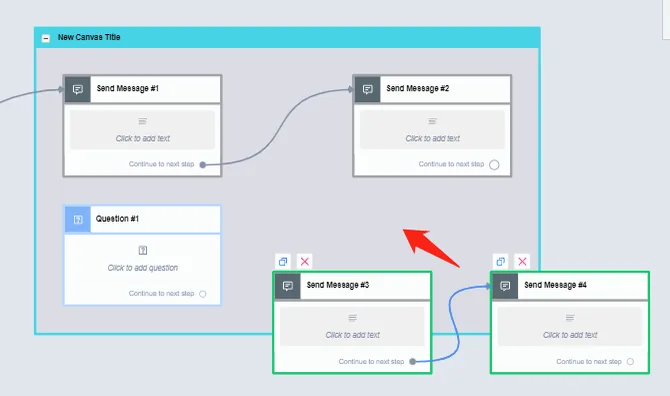
When you move steps into the Canvas, its background color changes; release the steps when it turns from white to grey.