

Nodes (Content)
We'll guide you through NicoChat's powerful Nodes feature. It lets you efficiently manage and interact with the nodes in your workspace, making your workflow smoother and more organized.
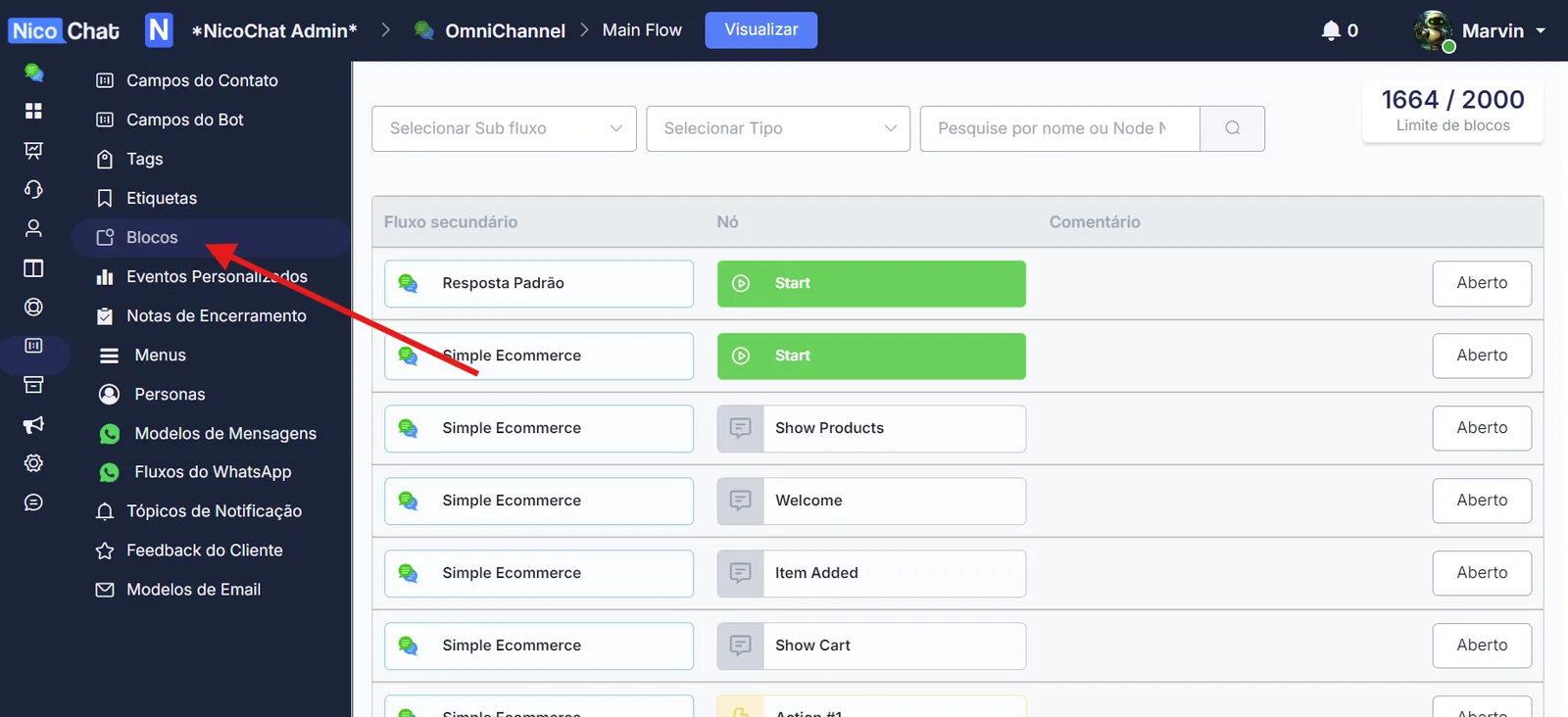
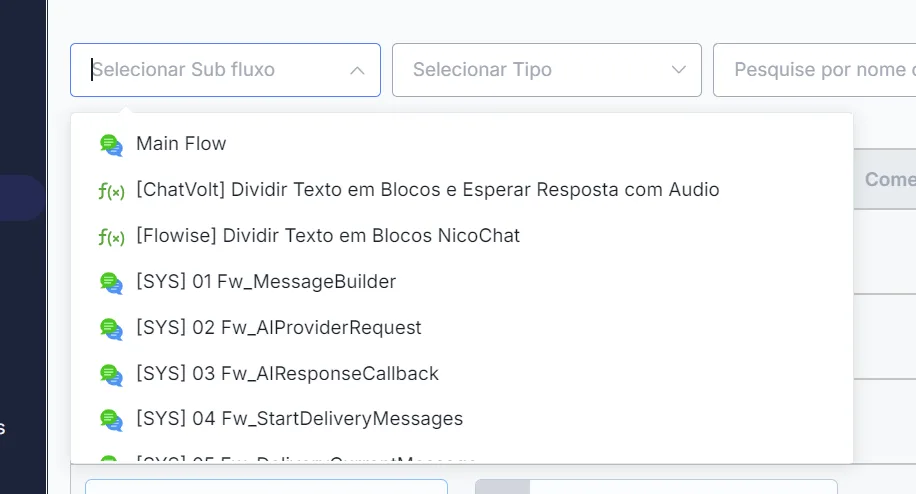
To start, users can select flows within the channel. This selection dynamically displays every node in the chosen flow, giving you a complete view of the workflow.
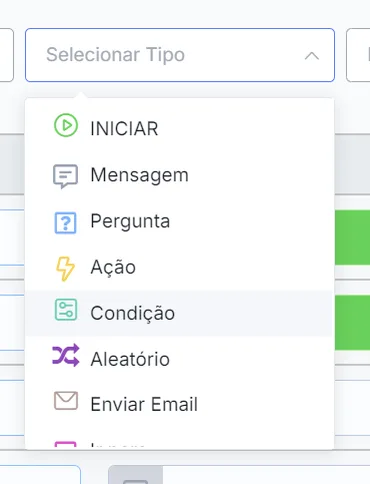
Users can filter nodes by type, which makes it easier to locate specific nodes by the function they perform. You can also search for nodes by name, which makes it simpler to find exactly what you need.
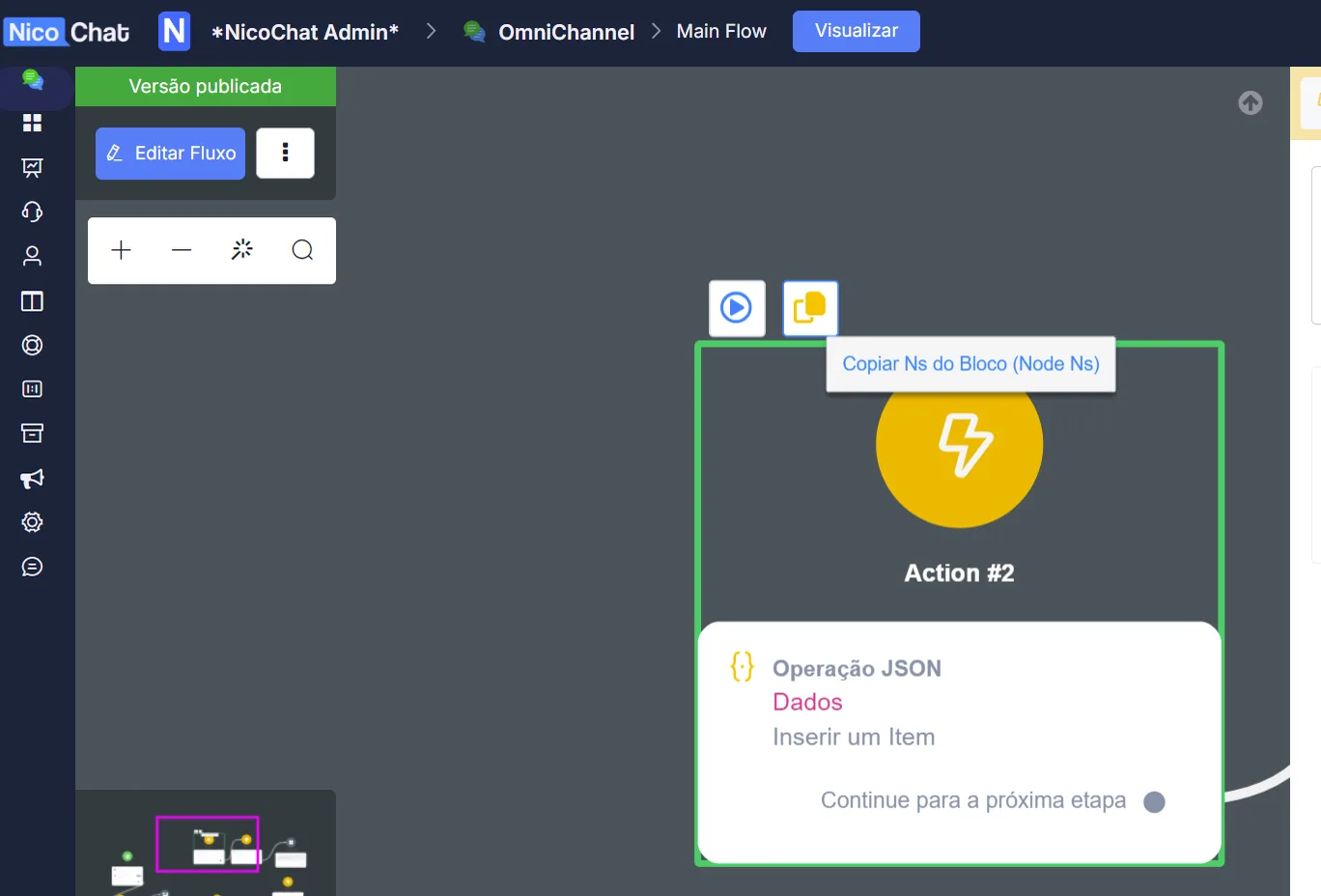
To get the Node NS, follow these steps:
- Go to the Flow Builder.
- Click one of the nodes.
- Look for a list icon; this will copy the Node NS.
With the Node NS in hand, you can search for it directly in the Nodes feature. That makes it quick and easy to go straight to specific nodes, without navigating manually through the entire flow.
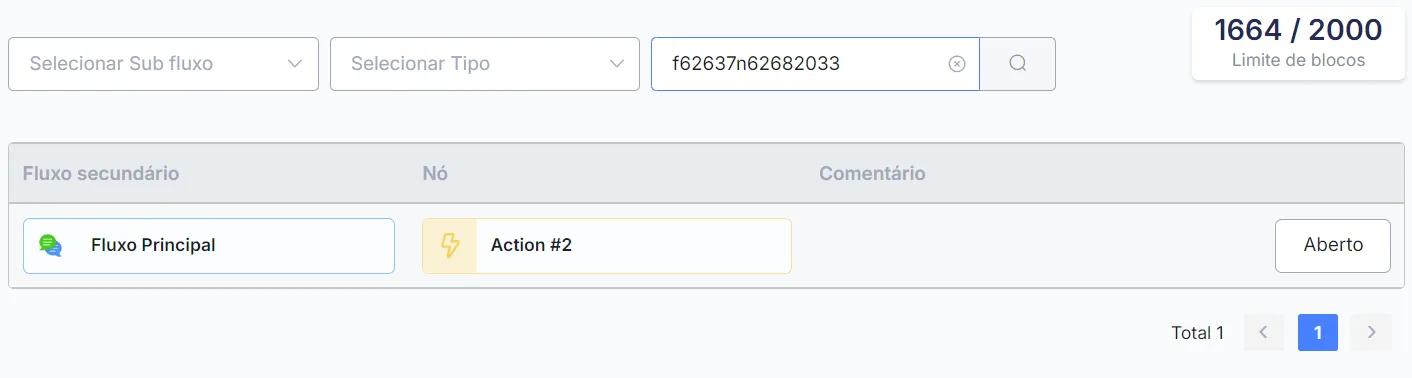
You can also open certain nodes directly by their Node NS. This feature takes you straight to the node, saving you time and effort.

NicoChat has a limit of 2000 nodes per workspace. If you exceed this limit, you may need to purchase additional nodes.
For every 1000 extra nodes, the cost is 30 credits per month. If you need more than 2000 nodes, contact NicoChat support for assistance.
Exceeding the 2000-node limit can affect your channel's performance and speed. We recommend optimizing your nodes and deleting flows that are no longer in use, to free up space and keep performance at its best.