

Admins
Besides the regular members you invite to your workspace, you can also invite admins to your chatbot only.
With a condition, you can set up admin menus they can access — to get a report, for example, or to see information about the chatbot.
To invite an admin, go to Tools in the left-hand menu and select the Admins tab at the top.
From here you get to the main overview.
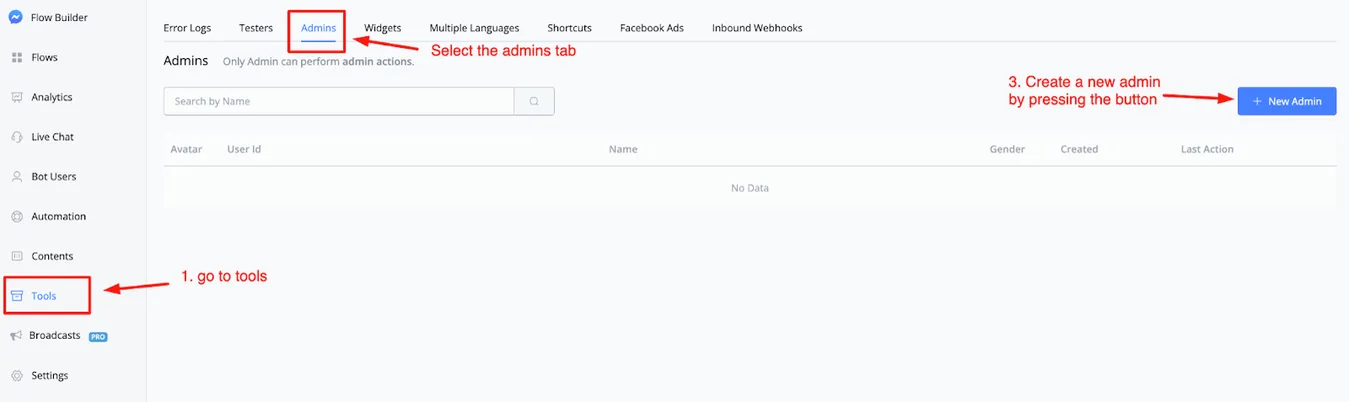
To add a new admin, the person you want to invite needs to be a subscriber to your chatbot. If that is the case, click the + New Admin button in the top-right corner.
A window appears where you can search for and add a new admin.
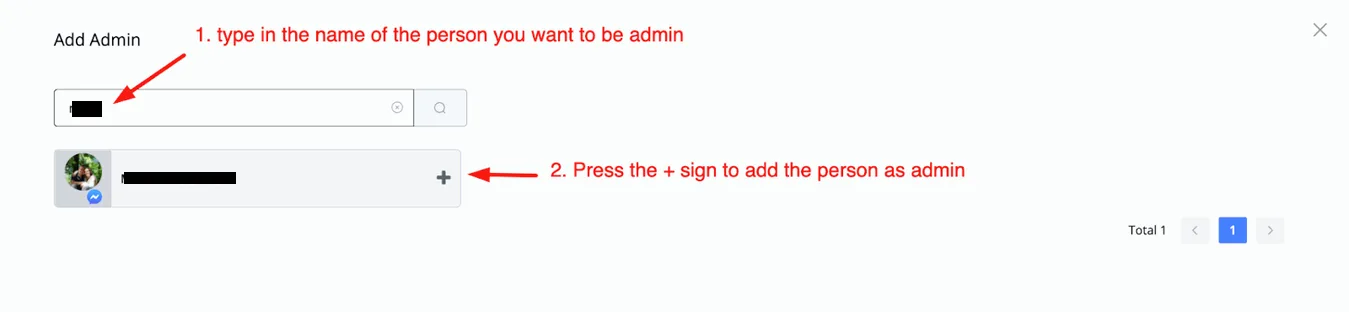
Type the name of the person you want as an admin and click the plus sign to add them. Once you do, you return to the main menu, where you can manage all admins.
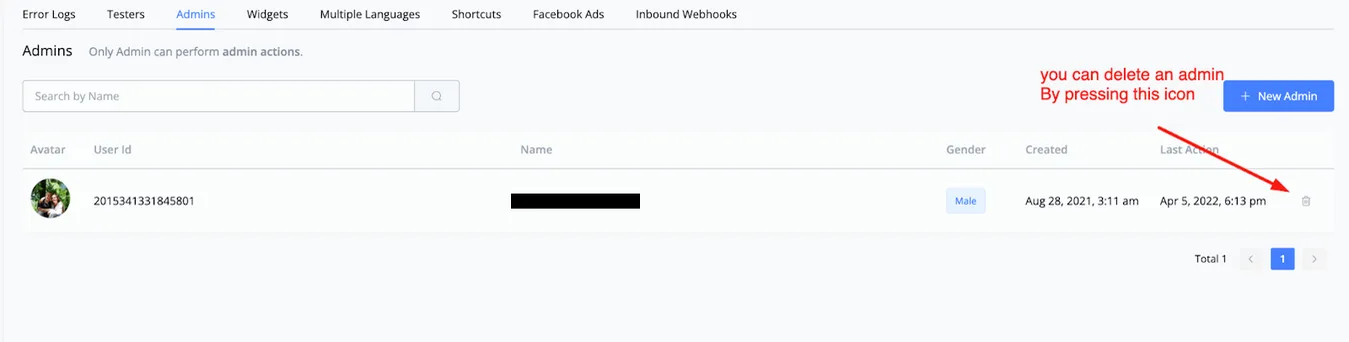
To the right of each admin there is the option to delete them, if you like.
Now that you have appointed an admin, you can set up specific flows for them. This is ideal when you want to give a business owner information about what happens inside the chatbot, but do not want to grant access to the backend of that chatbot.
Open any flow you like and insert a condition block. In it, look for the condition Is Admin.
If the condition is yes, you can send the admin to admin mode, where you set up access to whatever you like.
An example would be:
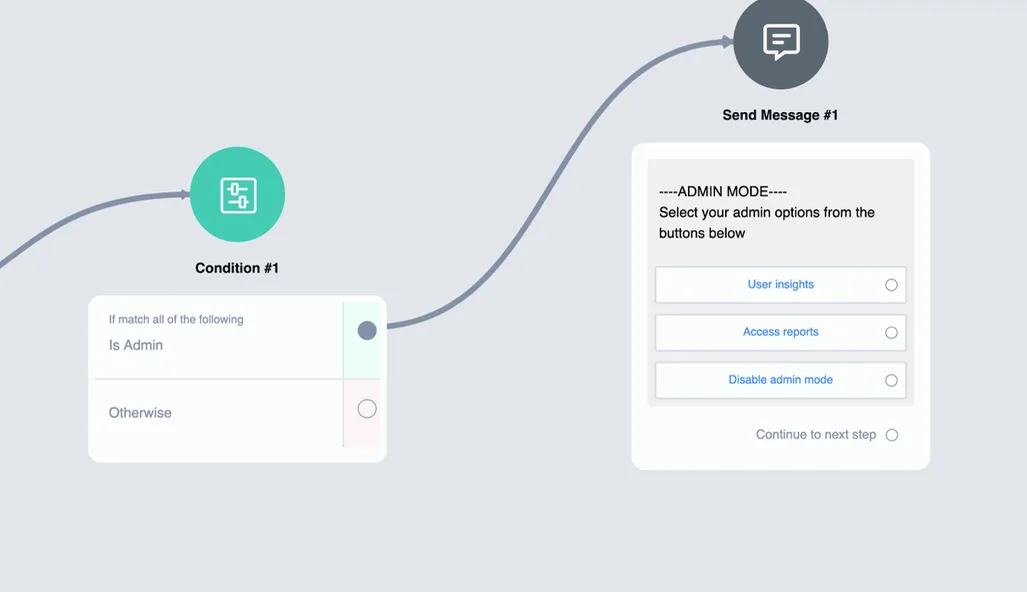
It is a great way to give business owners access to certain features on the front-end without worrying about their access to the back-end.