

How do I fix common errors?
This error is triggered whenever the flow tries to send a sequence to a contact who unsubscribed from the channel.
This error is triggered whenever the flow tries to send a sequence to a contact who unsubscribed from the channel.
The contact has to subscribe again in order to receive sequences.
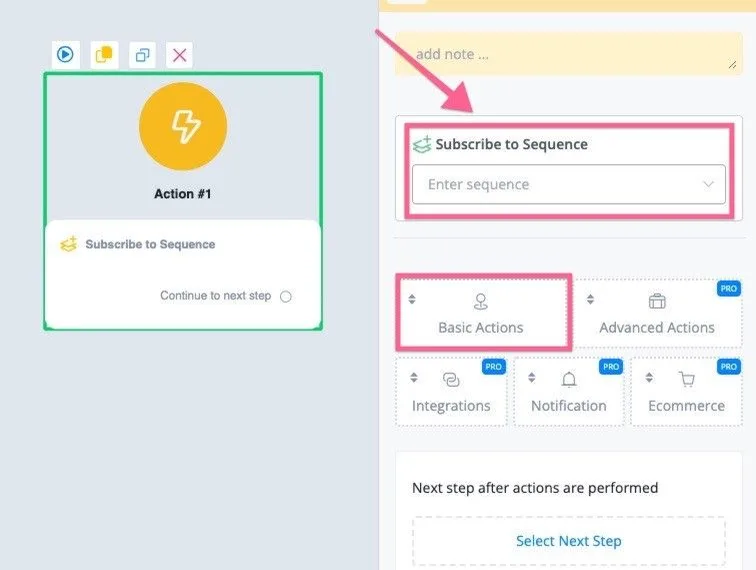
Once the contact subscribes again, use the Subscribe to Sequence action, under Basic Actions, to re-subscribe them, as in the screenshot below:
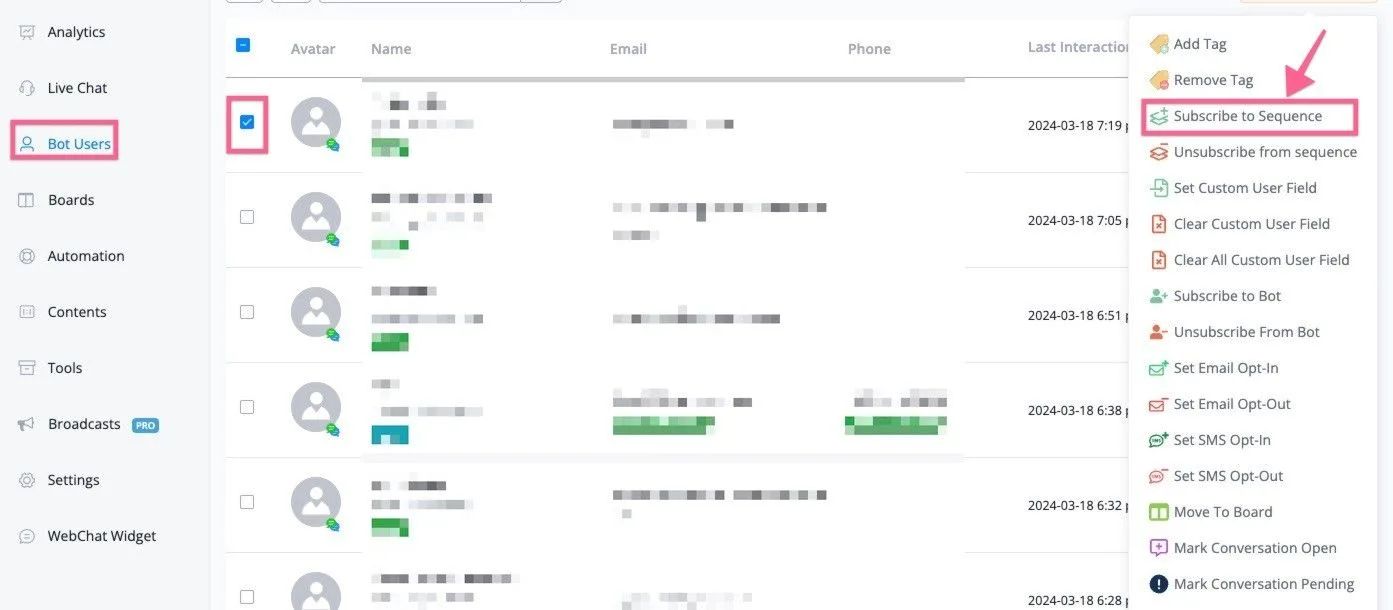
Or go to “Contacts”, select the contacts and, in the “Bulk Action” dropdown, choose “Subscribe to Sequence”.
For the contact custom field, the maximum storage limit is 20,000 characters. To fix the issue, reduce the number of characters you are trying to save.
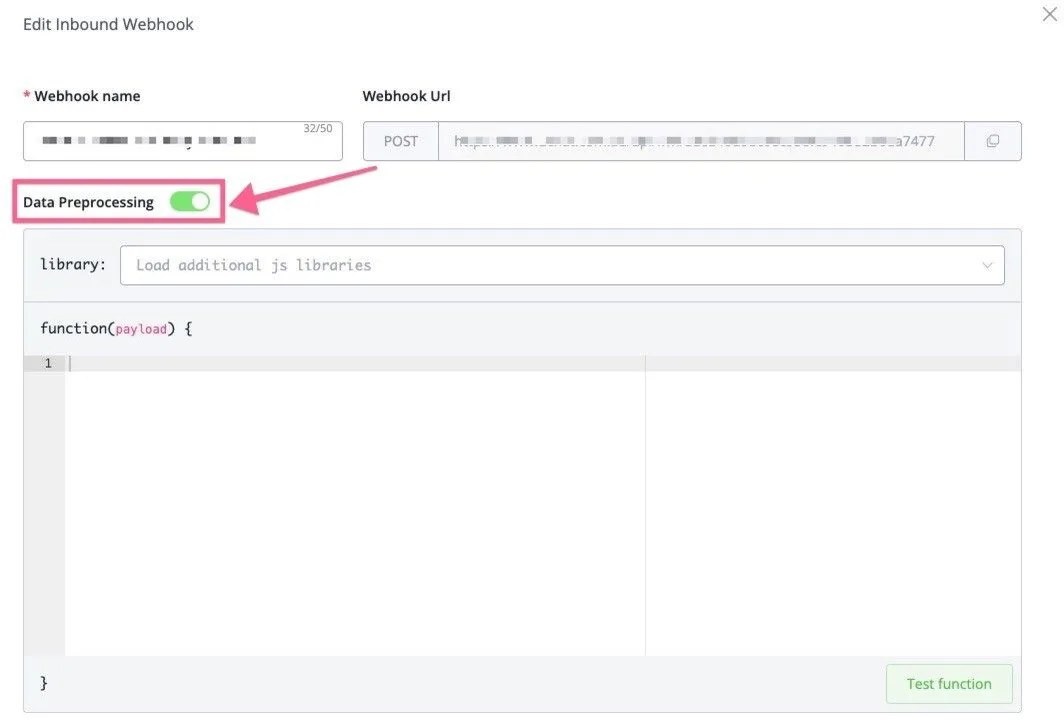
If you are saving the value coming from inbound webhooks or from our internal integration actions, use data preprocessing to narrow down the value you want to save.
You can find data preprocessing in the inbound webhook settings, as below:
You can also find data preprocessing in the external request, as in the screenshot below:
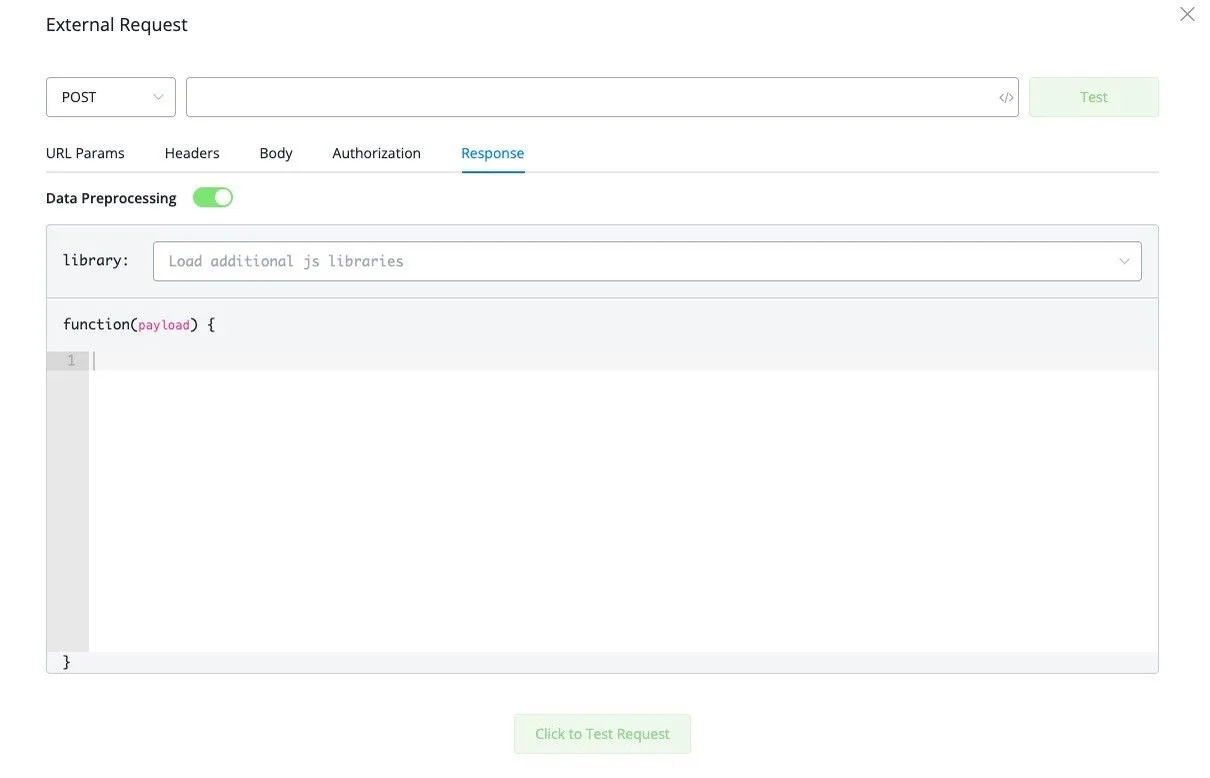
Note that you may need developer knowledge to use the data preprocessing feature above.
This error is usually triggered by an OpenAI integration action. OpenAI's default timeout is 30 seconds; after that, the NicoChat servers stop waiting. If the server times out before receiving a response from OpenAI, this error is logged.
To reduce the chances of this error happening, shorten the conversation history or optimize the prompts and system messages so that the request takes less time to run. You can also split a longer conversation history into smaller parts and use an intent detection system instead. For more information, watch the video:

This error usually happens when you try to integrate your database with NicoChat. The connection is established, but NicoChat cannot verify it. In most cases the reason is incorrect credentials. There are cases where the IP is not on the allowlist and, because of that, the connection is not established.
This error is triggered whenever you try to send a notification and the body/content of the notification is empty.
To fix it, make sure the notification body is not blank. If the body uses a custom field, check on the contact that this field was filled in correctly.
This error happens because the contact unsubscribed from your channel at the time the broadcast was sent.
If you don't want to see the error, add conditions to the broadcast flow and send only to the contacts subscribed to your channel.
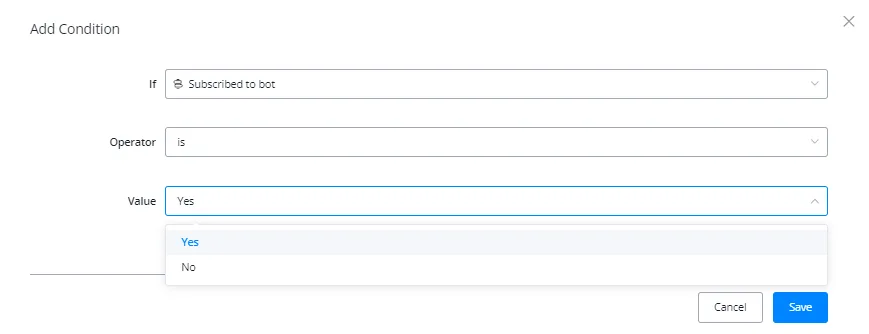
And you can also choose to delete the unsubscribed contact, to keep only engaged contacts in your chatbot.
You can create the trigger on the “Contact unsubscribed” automation and trigger a flow with the “Delete user” action inside it.
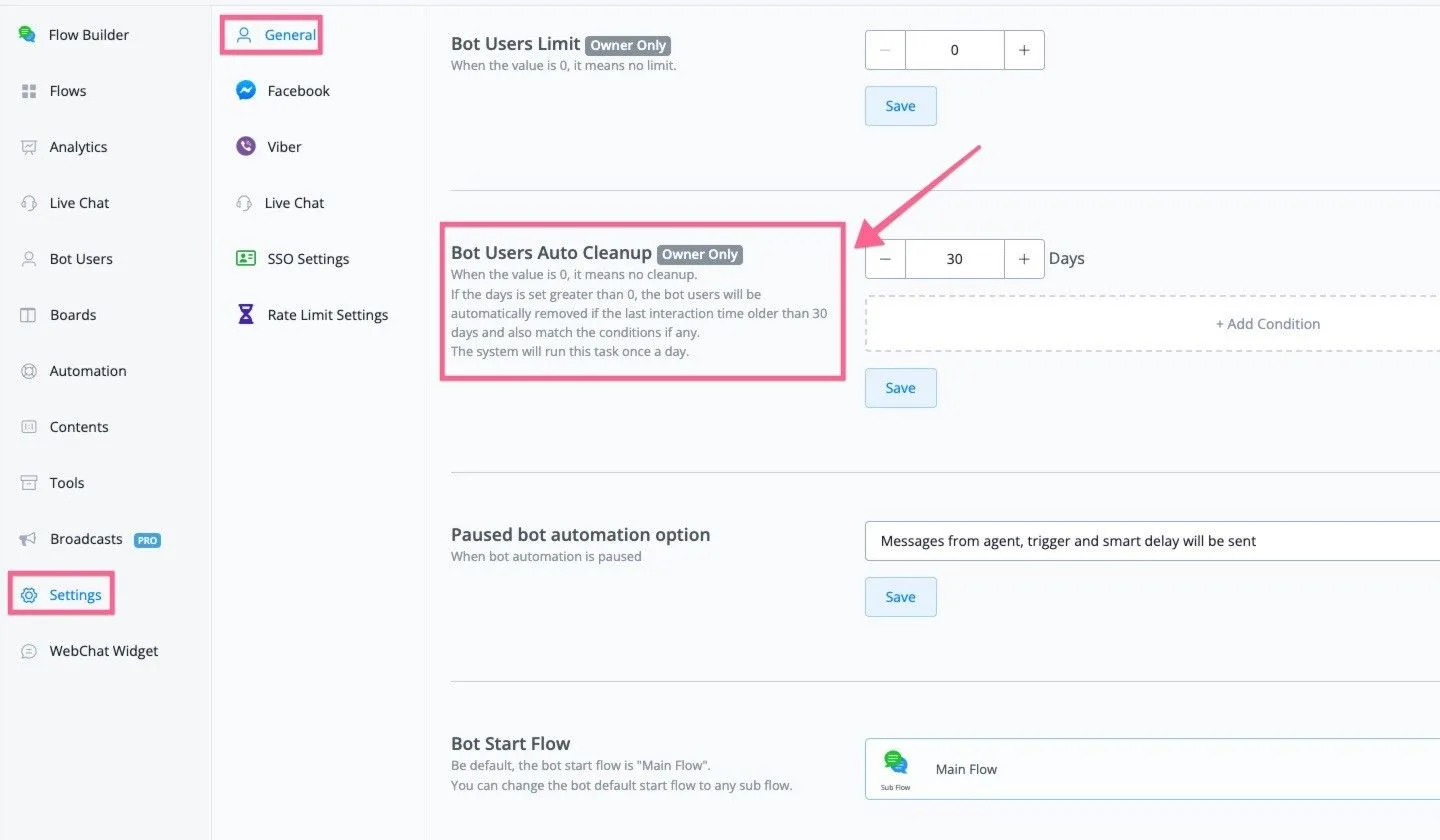
Our platform also has an auto clean feature. You can find the settings under “Settings” -> General -> Auto clean bot users (only the owner can see this setting).
This error is triggered when you try to use an OpenAI action but the workspace is not integrated with OpenAI yet.
To integrate OpenAI, click “Integration” on your workspace dashboard, look for OpenAI on the Artificial Intelligence tab and enter your OpenAI API Key.
Click Save and confirm that the connection shows as “Verified”.
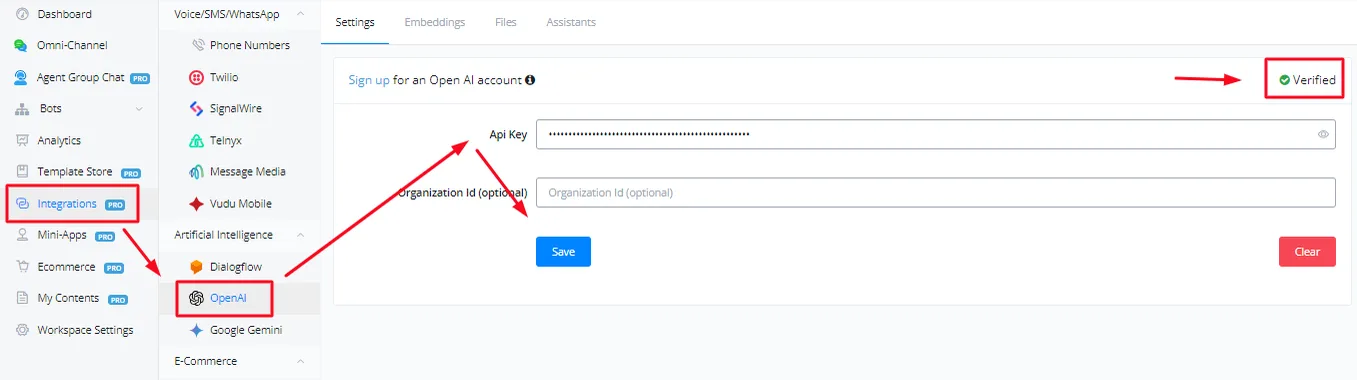
Note: the organization ID is optional; you can leave it empty.
You can watch the video below for more guidance:

This error is triggered when you try to use a Google Sheets action and no spreadsheet is selected.
There can also be several other reasons. This may happen if you install a template and the Google spreadsheet was not copied to your account.
This may happen if your workspace does not have Google Sheets integrated yet — in that case, the template installation cannot install a copy of the spreadsheet used into your account.
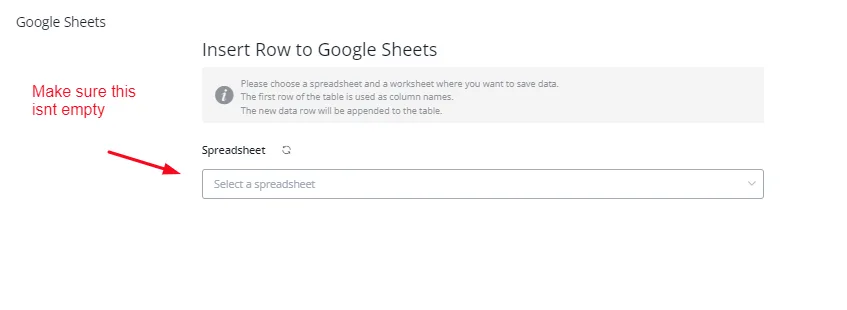
Make sure to connect your Google account under Integration -> Data/File Storage and to select the correct spreadsheet in the Google Sheets action.
This error is triggered when you try to use an action available only on the Pro plan. To use these actions, you will have to move your workspace from the free plan to a paid plan. See more at 💳Your Plan
This error is triggered when you use the external request action and the external API call does not return a response within 15 seconds.

The NicoChat servers stop waiting after 15 seconds. The solution is to make sure the API call finishes within 15 seconds. If you want to increase this limit, contact support to purchase it.
Note: you can handle this error in your flow using response code “0”.
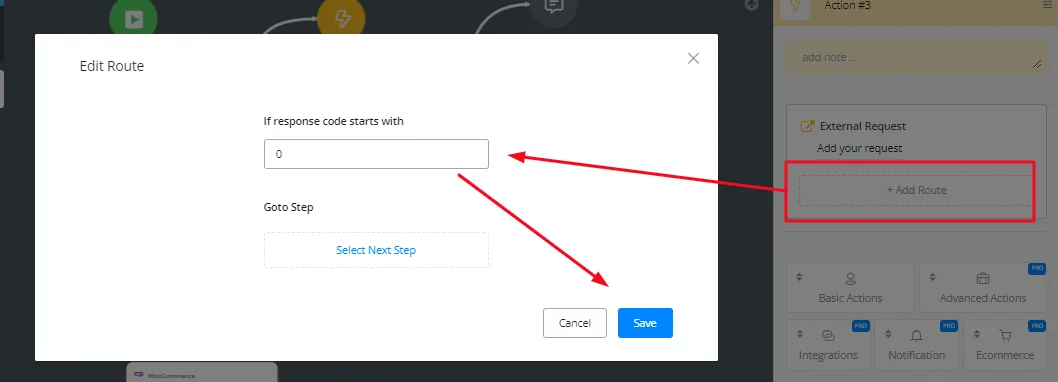
If you cannot optimize the response time, you can choose to purchase the timeout add-on. You can increase the timeout by 10 seconds for 30 credits each.
This error is triggered whenever the flow tries to send a message to a contact who is no longer subscribed to the channel.
You can use the “opt-in” action in the flow builder, under Actions → Basic Actions. You can also re-subscribe contacts with the “Subscribe to Bot” action, under Basic Actions.
The platform has a limit of at most 100 sequence subscriptions. If you subscribe the contact to the sequence more than 100 times, you will get this error.
You will need to optimize the “subscribe to sequence” action in your flow.
This usually happens when you are testing flows or when there is an infinite loop somewhere in the flow design. The limit is normally enough for chatbot automations. Check your flow logic to fix the issue.
This error is triggered when you try to use a Google Sheets action and it is not integrated with your workspace. Make sure to grant all the permissions requested when connecting your Google Sheets account.
This error means you reached your plan's contact limit. Because of that, the automations do not continue.
You will need to delete contacts manually or set up automatic deletion rules on the Channel: go to Settings, then “General”, and configure “Contact limit” and “Auto clean bot users”.
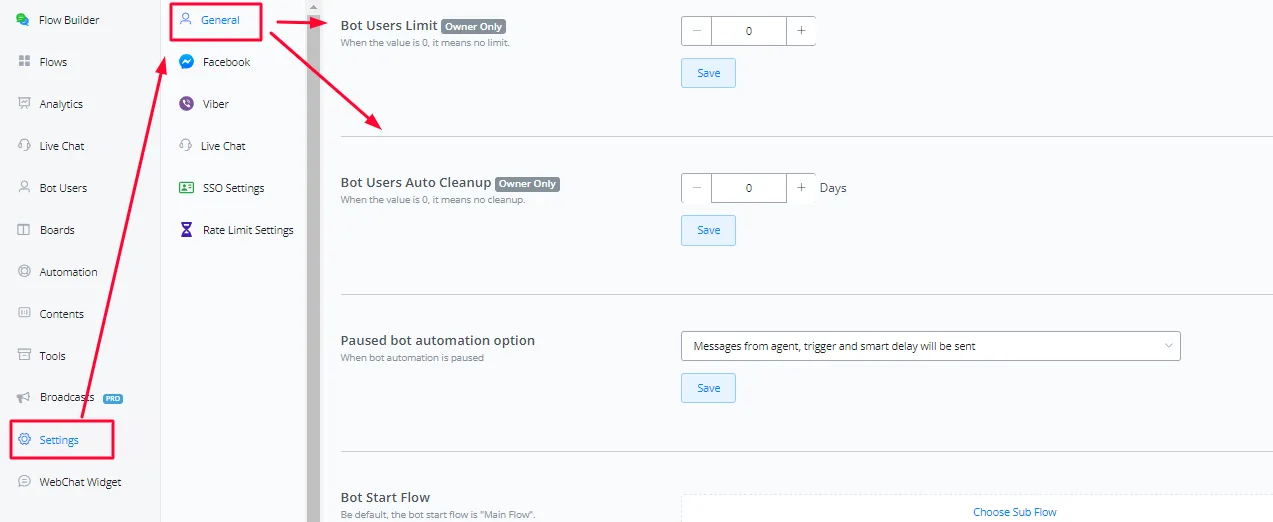
Note that the contact limit and the clean-up settings are available only to the workspace owner. You can also move to a higher plan, which has higher contact limits.
This error is usually triggered when a broadcast is being sent or when you have high live chat traffic and your channel reaches 100 errors every 5 minutes.
The broadcast will be paused temporarily.
NicoChat keeps counting the error messages every 5 minutes. If you have fewer errors than our limits, the broadcast or the channel is resumed.
To fix this error, optimize your flow to handle the errors.
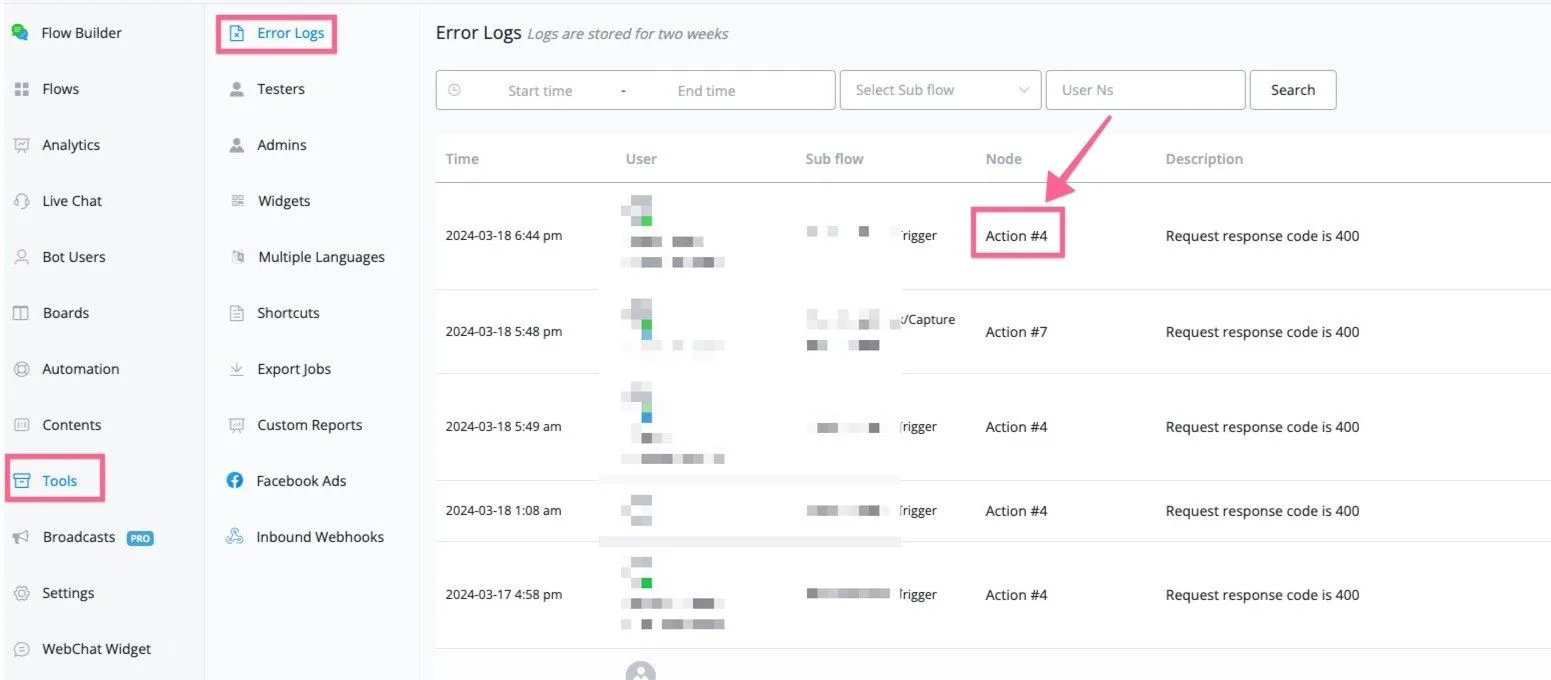
You can open your channel and go to “Tools” -> Error Logs. If you click “Node” in the error logs, you will be redirected to the flows and will be able to check and optimize the flow.
Note: if you are using the rate limits feature, this error will also be logged when you exceed those limits.
Watch this video to learn more:

This error is triggered whenever there is no contact interaction block for 40 seconds.
By default, NicoChat gives a maximum execution time of 40 seconds. That is, when a question node (which counts as contact interaction) is triggered, from that point on NicoChat runs the flow logic for at most 40 seconds. You will need another contact interaction (question block) within those 40 seconds; otherwise, you will see this error.
Some examples of contact interaction actions:
- Question node - asking questions
- Clicking buttons or quick replies
- The contact replying to your chatbot
Note that if you use an external request action or an OpenAI action, the response time of the external service also counts toward the timeout.
The solution is to add more contact interactions to the chatbot flow. Each contact interaction restarts the maximum execution time count.
You can also choose to purchase the maximum execution time add-on. You can increase the limit by 10 seconds for 30 credits/month each.
Note that the add-on is per channel. Contact NicoChat support once the payment is made and provide the workspace ID and the channel name in the email.
In NicoChat flow designs, each node counts as one step.
No matter how many actions you use in that node: between one contact interaction and the next, you cannot have more than 30 steps. This includes the background or parallel flows that are triggered.
Some examples of contact interaction actions:
- Question node - asking questions
- Clicking buttons or quick replies
- The contact replying to your chatbot
To fix this error, try to optimize your flow logic (by splitting larger automations into small flows, for example) and avoid endless loops.
If you are using the “card element” in the send message block, you need to make sure the card title has a value.
If you use a contact custom field variable in the card title, you need to make sure the variable has a value. To check, open the contacts overview and select the contact the error was triggered for. Confirm that the custom field used in the card title has some value. If it does not, it means there is an issue in some step before this node that you need to troubleshoot.
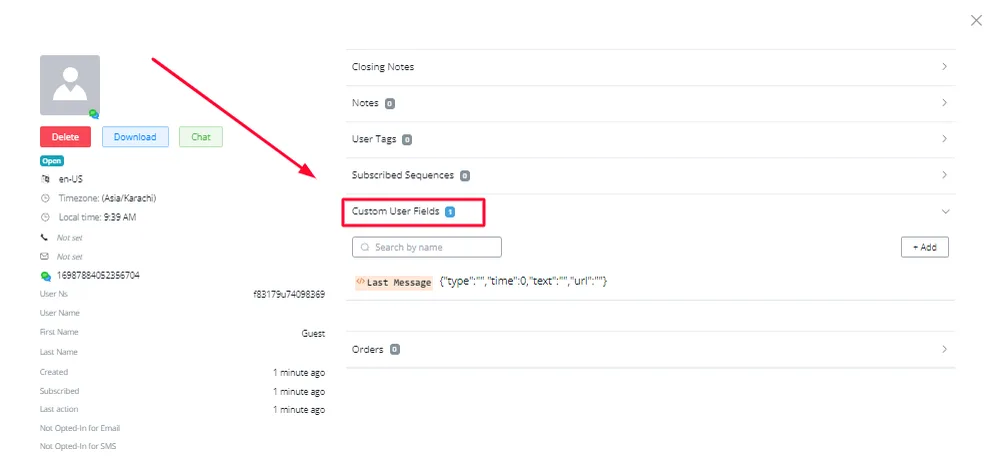
Otherwise, you will see the error. If you use a contact custom field in the card title, you can run a condition check before sending the card and notify the admin if there is any issue like this.
Our billing works like this. Say you subscribed to a $300 plan and the invoice was issued right away.
Some time later, you decide to move up to a $500 plan.
From that point on:
- The time you have not used yet on your current plan is calculated proportionally.
- That amount becomes a discount, not a refund.
- The discount is applied to the first invoice of the new plan.
- You pay the difference: the price of the new plan minus the proportional credit from the previous one.
For example: on a $300 plan covering 30 days, each day costs $10. If 5 unused days are left, the discount is $50 and the first invoice of the $500 plan comes to $450.
The same applies to annual plans: unused time becomes a proportional discount on the first annual invoice of the new plan.
You will not be able to see the credit on the NicoChat dashboard.
Each contact can trigger at most 100 smart delay actions. Inspect and adjust the node causing the issue to avoid an infinite loop that fires smart delay actions, making sure the limit of 100 actions per contact in 24 hours is respected.
Possible causes:
The error happens when the contact has received the maximum allowed of 100 smart delay actions in 24 hours, possibly because of an infinite loop triggered in your flow.
Possible solutions:
To fix it, inspect the specific node in your flow that is causing the error and check that you have not built an infinite loop automation.
You can also use “typing” or “wait” for times shorter than 10 seconds:
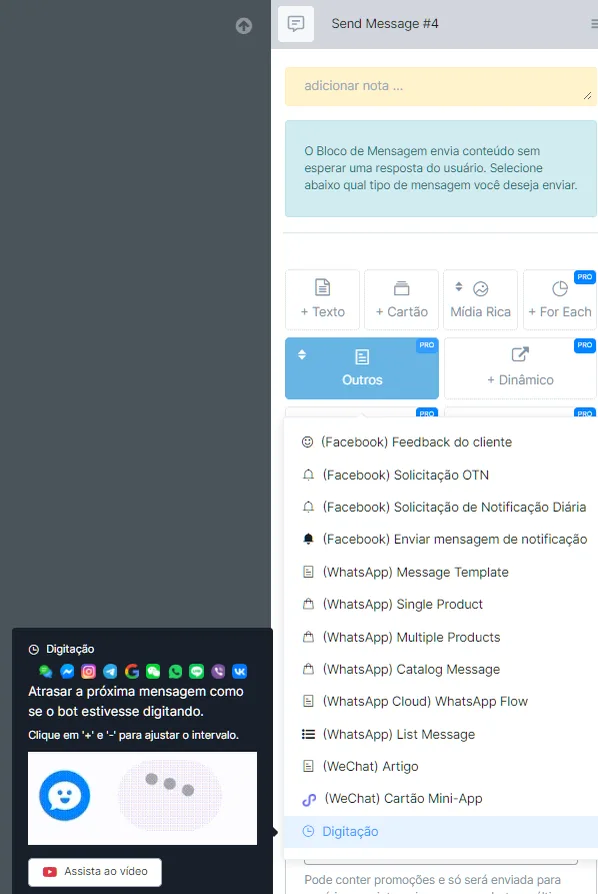
Adjust the automation logic to avoid firing smart delay actions continuously and to make sure the limit of 100 actions is not exceeded. This involves adjusting the flow to avoid repetitive or infinite loops that could lead to exceeding the smart delay action limit.
These errors show up mainly on channels such as WhatsApp, where there is no typing feature. We updated our typing block to convert it automatically into a wait delay when the channel does not support typing. This way you no longer need to use smart delay and the issue is solved.
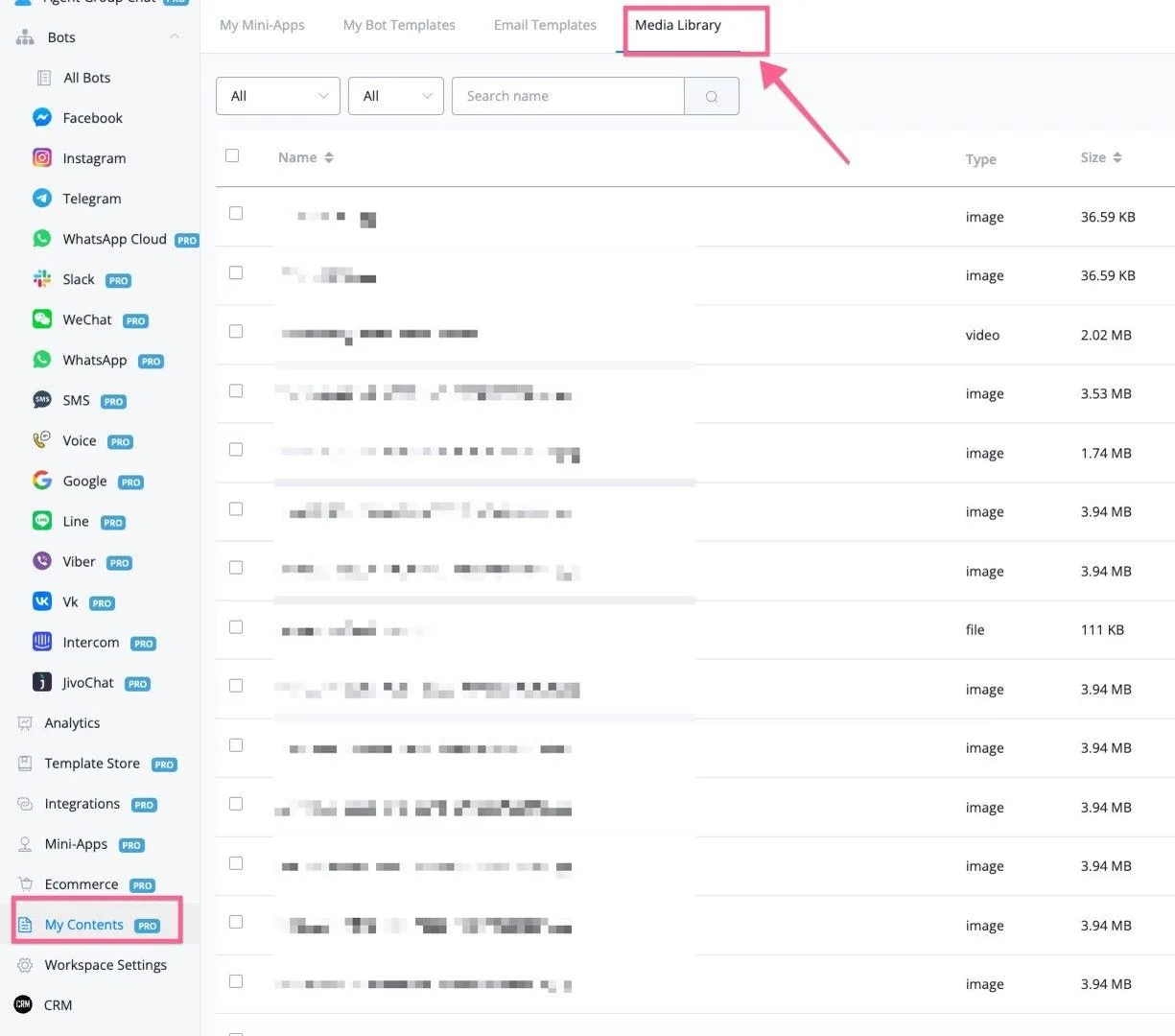
Error: “Upload failed. You have reached the limit of storage size(1GB). Connect to your S3 storage to continue upload”
We allow 1 GB of free storage for uploaded files. If you need more space, you can create a free Cloudinary or S3 account to store them.
You can also manage your media library by going to your workspace dashboard and clicking the My Content tab.
First of all, only tables with an auto-increment primary key ID are supported.
Also, once the table is synced with NicoChat, we do not delete it, even if it is deleted from your PostgreSQL database.
This is because you can still use it in the chatbot's data store action. If you want, delete the table manually on the NicoChat side.
Note that, once the table is deleted on the NicoChat side, the data store ID may change even if you sync the same table back.
The error message "Contact support (#10102)" only happens to NicoChat partners who try to purchase a plan without enough partner credit to cover the cost.
Possible reason for the error:
The error is linked to the lack of partner credit available at the moment your client tries to purchase a plan.
As a NicoChat partner, when your credit balance is insufficient, this error shows up and prevents the plan purchase.
Possible solution for the error:
To fix it, the recommended action is to top up the partner credit.
With the partner credit topped up, there will be enough balance to cover the workspace cost. This makes the purchase smooth for your clients, who will be able to change plans and purchase the plan they want without running into this error.
The error “This team has too many members for the selected plan” happens when you try to change plans and indicates too many channels or members on the current plan.
The solution is to remove the extra channels or members to fit within the plan limits before making the change.
Possible reason for the error:
The error usually comes up because the number of team members or channels exceeds what the desired plan allows. To fix it, you need to remove the extra members or channels until they fit within the limits of the selected plan.
Possible solution:
To fix the issue, before changing plans, make sure the number of team members or channels meets the limits of the desired plan.
This involves removing the extra members in the workspace settings and deleting the extra channels: go to "Channels", select the channel you want to delete and choose the delete option in the dropdown menu.
Once the extra members or channels have been removed, go ahead with the plan change and then add the members or channels you need back.
Or you can move to a higher plan, with higher limits than your current plan.
By default, the inbound webhook limit is 500 requests every 24 hours. Requests beyond that will be ignored.
If you want to check the inbound webhook limits, just use an external request to call the inbound webhook URL and check the response header: there you will find the limits and how many requests are left.
Increase the inbound webhook limits
If you need more inbound webhooks, you can buy them according to the information below:
500/day - Included -› 15 thousand requests per month
1,000/day - 30 credits per month -› 30 thousand requests per month
2,000/day - 60 credits per month -› 60 thousand requests per month
3,000/day - 90 credits per month -› 90 thousand requests per month
4,000/day - 120 credits per month -› 120 thousand requests per month
5,000/day - 150 credits per month -› 150 thousand requests per month
10,000/day - 300 credits per month -› 300 thousand requests per month
The add-on is per channel and, to purchase it, you have to contact the NicoChat team.
You may run into this issue when importing contacts into the Contacts section when the value is made up only of special characters. This usually happens with RTL languages, such as Hebrew and Arabic, because the encoding does not support these languages well.
You will first need to convert the import files to UTF-8 encoding.
The solution is:
(1) Open the Excel file where the information is (.xls, .xlsx)
(2) In Excel, choose "CSV (comma delimited) (*.csv)" as the file type and save as that type.
(3) Open the saved .csv file in Notepad
(4) Then choose -> Save as... and, at the bottom of the "Save as" box, there is a selection box called "Encoding". Select UTF-8 (do NOT use ANSI, or you will lose all the accents and the like). After selecting UTF-8,
choose any type under "Save as type" and save the file with a name slightly different from the original.
Important note: the title cannot be saved in Hebrew, because that causes an error on import. So save the title in English.
Error: “Unsupported post request. Cannot be loaded due to missing permissions, or does not support this operation”
You may see the error message like this:
Unsupported post request. Object with ID '100343472848953' does not exist, cannot be loaded due to missing permissions, or does not support this operation. Please read the Graph API documentation at https://developers.facebook.com/docs/graph-api
When you connect the channel to our platform, a screen shows up to grant the permissions we need. Make sure to check all the permissions requested on that screen.
Follow this video to connect your Facebook page:

Since Meta changed the number of permissions required, besides the Facebook page permission you will also need to connect your Facebook Business Manager under “Integration” -> E-Commerce -> Facebook Business.
The solution is to reconnect your Facebook page, select the page you want to connect and grant all the permissions our platform needs.
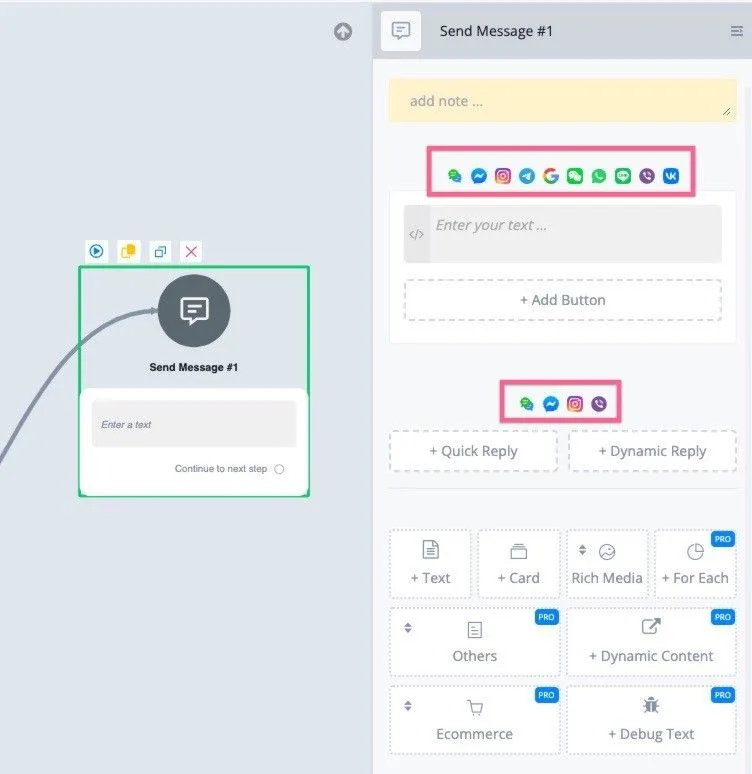
According to Meta's error code, this error happens because the data type you are sending is not allowed for your message type.
If you are on an omni channel, check the supported channel on each message element. There are network icons, as in the screenshot below:
You can get more information here: developers.facebook.com/docs/messenger-platform/error-codes/
Either the contact generated too many errors on our side, or they blocked your channel; either way, the message will not be delivered.
Learn more:
You may see the error message below:
Error sending payload: (#2022) You have been temporarily blocked from performing this action. It means that Facebook has issued a temporary block on your Facebook account.
We cannot send messages to any account blocked by Facebook. We recommend checking your Facebook Business Manager or the page's alert notification center for more information about this issue.
Error: “Hide comment error: (#200) Users can only edit their own comments published by the same app”
You will see this error if you are using the “hide comments” action in the flow.
You can hide most comments on posts, with the following exceptions:
· comments made by the Page
· comments made by the Page admins
· comments made by the Page on a user's post. The post belongs to the user.
· comments made by any user on another user's post on the Page. The post belongs to the user.
· comments made by an event creator. The post belongs to the event creator.
· comments made by a Facebook group. The post belongs to the group.
· comments made by anyone on a review
Some users have issues when they connect a page to one workspace and it disconnects when they add another page to a different workspace.
Possible reason for the error:
90% of the time, the reason is that the user unchecks the Facebook page already connected in the other workspace during the connection process.
Possible solution:
Make sure to select all the pages connected to NicoChat. Even if an error message such as “page xx is connected to workspace xx” shows up, that is not a problem.
But you will lose the previous page connection if you do not select those pages. So always select all the pages that are connected to NicoChat.
Error: “Comment reply error: You've already posted this. Posting the same content repeatedly on Facebook isn't allowed”
You cannot post the same content repeatedly.
You can add a randomizer to send different messages or use OpenAI to generate personalized content dynamically.
This limit applies to Meta channels (Messenger, Instagram, WhatsApp) and is in effect when the contact has not interacted with your channel for more than 24 hours.
In that case, you cannot contact them directly and you will see this error message.
On WhatsApp, you will need to send a message template; on Messenger, a recurring or one-time notification.
For the Instagram contact, you can capture their email or phone number and talk by email or SMS, even outside the 24-hour window.
More information here:
The solution is to use a condition like the one in the screenshot below, making sure you always reach whoever interacted with your chatbot in the last 24 hours and using other methods to talk to whoever is outside the 24-hour window.
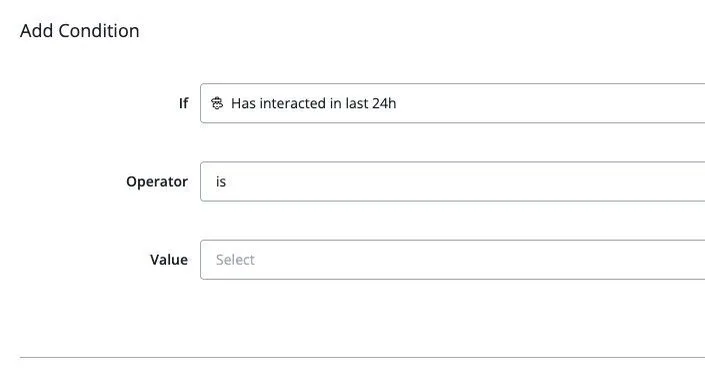
You can also talk to the contact by email or SMS. You have to be sure they opted in to receive SMS and email.
The reason is that Facebook has a limit: you can only send one opt-in request per week with the same title to the same person. That includes the default value "Updates and promotions".
So, if you are testing the recurring notification request, you may receive the message the first time it is triggered, but it may not be triggered on the next test.
Also:
- Do not send duplicate opt-in requests to a person. A duplicate request is one with the same title, in the case of notifications from a Facebook page, or with the same title and image_url, in the case of notifications from an Instagram Professional account
- You can only send opt-in requests during the standard messaging window
- If a person opts in to marketing messages, that action does not open a standard messaging window
- You can only see whether a person opted in to receive marketing messages, but not the status of pending opt-in requests
- If a person opts out of marketing messages, your notifications stop being delivered to them and you will get an error message
- A person can block, mute or report your messages
- For marketing messages sent from an Instagram Professional account, generally up to 10 opt-in requests with different titles can be sent per user in a 7-day period, with a sub-limit of up to 5 requests per user per day. Even so, consider whether each request will be relevant and useful to the user before sending it.
These requirements and limitations may change, because we are always looking for the best experience for the user and for the business. More information:
This error comes from Meta, not from NicoChat: the number of API calls within a short window went over the limit Meta allows.
Sending resumes on its own once the limit window resets. If the error keeps coming back, reduce how often the calls are made — it usually shows up during testing, when the same flow is triggered many times in a row.
You may see the error message below:
[{"code":131053,"title":"Media upload error","message":"Media upload error","error_data":{"details":"Sticker file could not be processed. Please choose a different file."}}]The reason is:
The issue may be in the URL you are using in the message or in the message template, which may not be publicly accessible.
Also, the file format you are using may not be supported by WhatsApp.
Solution:
The media could not be uploaded for one or more reasons, such as an unsupported media type. Check the error.error_data.details value to find out why the upload was not possible.
Check the URL you are using: it must start with https and end with the file extension, and the media file has to be publicly accessible at all times.
If you see this error message, it may have been triggered by an attempt to use the “WhatsApp Flow” feature. In that case, check whether your Meta Business Manager is verified.
For certain features, such as WhatsApp Flow, Meta requires a verified Business Manager to grant access.
The request included one or more unsupported or misspelled parameters.
You may see an error message like this:
Error sending payload: 2018047 (#100)
Error sending payload: 2018062 (#100) The provided URL is not on the Messenger extensions allowlist
You may be using contact custom field variables and some of them may have no value.
You can add a conditional check for all the variables you are going to use and notify the admin if there is any error.
You can also go to the error logs, find the contact, check the value of the variable used in the message and confirm that everything is correct.
Find more information here: developers.facebook.com/docs/whatsapp/cloud-api/support/erro
Error: “Message failed to send because there are restrictions on how many messages can be sent from this phone number”
You may see the error message like this:
[{"code":131048,"title":"Message failed to send because there are restrictions on how many messages can be sent from this phone number.This may be because too many previous messages were blocked or flagged as spam.","href":"https:\/\/developers.facebook.com\/docs\/whatsapp\/cloud-api\/support\/error-codes\/"}]This may happen because many previous messages were blocked or flagged as spam.
It is because you sent too many messages to other users and many of them were blocked or marked as spam.
Because of that, Meta placed limitations on your number. You need to keep a healthy account quality; otherwise, your account or your WABA number may be blocked.
Error: “The message could not be sent. You do not have enough funds on your conversation prepaid balance to engage in any paid conversation”
You may see the error message like this:
The message could not be sent. You do not have enough funds on your conversation prepaid balance to engage in any paid conversation. Go to http://hub.360dialog.com -> 'Insights & Billing' to top up your balance and, optionally, enable auto renew, which will prevent you from running out of funds in the future.
The reason is that you do not have enough balance in your 360dialog account. You will need to buy more credits: go to your 360dialog account, open Insights & Billing and add more credits.
If you see this error, the reason is that the permission was not granted or was removed.
When connecting your WhatsApp account, you need to select all the required permissions.
You may see the error code:
(#131008) Required parameter is missing. The parameter of type text is missing the text value.
Reason:
The request is missing a required parameter.
Solution:
You may be using contact custom field variables and some of them may have no value.
You can add a conditional check for all the variables you are going to use and notify the admin if there is any error.
You can also go to the error logs, find the contact, check the value of the variable used in the message and confirm that everything is correct.
Find more information here: developers.facebook.com/docs/whatsapp/cloud-api/support/erro
This means you used a WhatsApp message template, but we could not find it in your WhatsApp account.
The template may have been changed or deleted in the WhatsApp Business Manager and the changes may not have been synced back to NicoChat.
It looks like your WhatsApp business account was locked by Meta. You need to contact Meta for support.
You can also go to your WhatsApp Manager, inside the Meta Business Manager, to see the notifications related to this error.
You may see the error message like this:
[{"code":130472,"title":"Failed to send message because this user's phone number is part of an experiment","href":"https:\/\/developers.facebook.com\/docs\/whatsapp\/cloud-api\/support\/error-codes\/"}]The message was not sent because it is part of an experiment. See Marketing message experiment.
Learn more here: developers.facebook.com/docs/whatsapp/cloud-api/support/erro
Error: “Message failed to send because more than 24 hours have passed since the customer last replied to this number”
You may see the error message like this:
[{"code":131047,"title":"Re-engagement message","message":"Re-engagement message","error_data":{"details":"Message failed to send because more than 24 hours have passed since the customer last replied to this number."},"href":"https:\/\/developers.facebook.com\/docs\/whatsapp\/cloud-api\/support\/error-codes\/ "}]
[{"code":470,"href":"https:\/\/developers.facebook.com\/docs\/whatsapp\/api\/errors\/","title":"Message failed to send because more than 24 hours have passed since the customer last replied to this number"}]
This happens because more than 24 hours have passed since the last message started by the contact: the session was closed and you can no longer use free-form messages. Find a way to restrict sending when there is no message received from the user/phone number in the last 24 hours. Alternatively, you can talk to the contact using a message template.
You may see the error like this:
(#131056) (Business Account, Consumer Account) pair rate limit hit
The reason for this error:
Too many messages sent from the sender number to the same recipient number in a short period.
Solution:
Wait and try again, if you want to send messages to the same phone number. You can still send messages to another number without waiting.
Learn more here:
You may see the error message like this:
Error validating access token: the session has been invalidated because the user changed their password or Facebook has changed the session for security reasons.
The user who connected WhatsApp changed the Facebook account password. For security, Meta disconnects all third-party platforms; just reconnect once to re-establish the connection and fix the issue.
The solution is to reconnect the channel. Since the user may have changed the password, the previous token is no longer valid.
You may see the error like this:
[{"code":131048,"title":"Spam Rate limit hit","message":"Spam Rate limit hit","error_data":{"details":"Message failed to send because there are restrictions on how many messages can be sent from this phone number.This may be because too many previous messages were blocked or flagged as spam."},"href":"https:\/\/developers.facebook.com\/docs\/whatsapp\/cloud-api\/support\/error-codes\/"}]Reason:
The message was not sent because there are restrictions on how many messages can be sent from this phone number. This may happen because many previous messages were blocked or flagged as spam.
Solution:
Check the quality status in the WhatsApp Manager and see the Quality-based rate limits documentation for more information.
You will usually see the error message like this:
[{"code":131026,"title":"Receiver is incapable of receiving this message","message":"Receiver is incapable of receiving this message","error_data":{"details":"Message Undeliverable."}}]
Possible reasons:
The message could not be delivered. The reasons may be:
· The recipient's phone number is not a WhatsApp phone number.
· The recipient has not accepted our new Terms of Service and Privacy Policy.
· Recipient using an old WhatsApp version; they need to use this WhatsApp version or higher:
o Android: 2.21.15.15
o SMBA: 2.21.15.15
o iOS: 2.21.170.4
o SMBI: 2.21.170.4
o KaiOS: 2.2130.10
o Web: 2.2132.6
Solution:
Confirm with the recipient that they agree to be contacted by you on WhatsApp and that they are using the latest WhatsApp version.
Find more information:
This error happens because the user did not grant enough permissions.
This limit applies to Meta channels (Messenger, Instagram, WhatsApp) and is in effect when the contact has not interacted with your channel for more than 24 hours.
In that case, you cannot contact them directly. On WhatsApp, you will need to send a message template; on Messenger, a recurring or one-time notification.
There are no good options to talk to the Instagram contact outside the 24-hour window.
More information here: developers.facebook.com/docs/messenger-platform/policy/polic
Error code 131026, Message Undeliverable
Possible reasons:
The message could not be delivered. The reasons may be:
· The recipient's phone number is not a WhatsApp phone number.
· The recipient has not accepted our new Terms of Service and Privacy Policy.
· Recipient using an old WhatsApp version; they need to use this WhatsApp version or higher:
o Android: 2.21.15.15
o SMBA: 2.21.15.15
o iOS: 2.21.170.4
o SMBI: 2.21.170.4
o KaiOS: 2.2130.10
o Web: 2.2132.6
Solution:
Confirm with the recipient that they agree to be contacted by you on WhatsApp and that they are using the latest WhatsApp version.
Find more information:
The message could not be delivered. The reasons may be:
· The recipient's phone number is not a WhatsApp phone number.
· The recipient has not accepted the new Terms of Service and Privacy Policy.
· Recipient using an old WhatsApp version; they need to use this WhatsApp version or higher:
Confirm with the recipient that they agree to be contacted by you on WhatsApp and that they are using the latest WhatsApp version.
The full error may look like this:
[{"code":131042,"title":"Message failed to send because there were one or more errors related to your payment method.","href":"https:\/\/developers.facebook.com\/ docs\/whatsapp\/cloud-api\/support\/error-codes\/"}]
This error usually happens on the Cloud API, on the WhatsApp channel.
You will need to go to your Facebook Business Manager, then to the WhatsApp Manager, and check whether there is any payment issue in your billing. Since Meta charges for WhatsApp message templates, you need to register a valid credit card in the billing section of the WhatsApp Manager.
You may see the error message like this:
(#100) Unexpected key "Index" in parameter "template['components'][0]['parameters'][0]".
Reason:
The request included one or more unsupported or misspelled parameters.
Solution:
See the reference for the endpoint to determine which parameters are supported and how they are spelled.
When setting the business public key, make sure it is a valid 2,048-bit RSA public key in PEM format.
Make sure there is no mismatch between the phone number ID you are registering and a previously stored phone number ID.
This error means the template does not exist: either it does not exist in the specified language, or it was not approved.
Make sure your template has been approved and that the template name and the language locale are correct. Make sure to follow the message template guidelines.
This error comes up when a third-party storage (Cloudinary, S3, etc.) is integrated and a file is shared by a flow without the required permissions, which prevents files of certain formats from being delivered to the contacts.
To fix it, disconnect the storage integration or enable the settings that allow us to share the files.
Below, an example with Cloudinary:

This limit applies to Meta channels (Messenger, Instagram, WhatsApp) and is in effect when the contact has not interacted with your channel for more than 24 hours.
In that case, you cannot contact them directly. On WhatsApp, you will need to send a message template; on Messenger, recurring or one-time notifications.
There are no good options to talk to the Instagram contact outside the 24-hour window. One alternative is to collect their email and get in touch by email.
More information here: developers.facebook.com/docs/messenger-platform/policy/polic
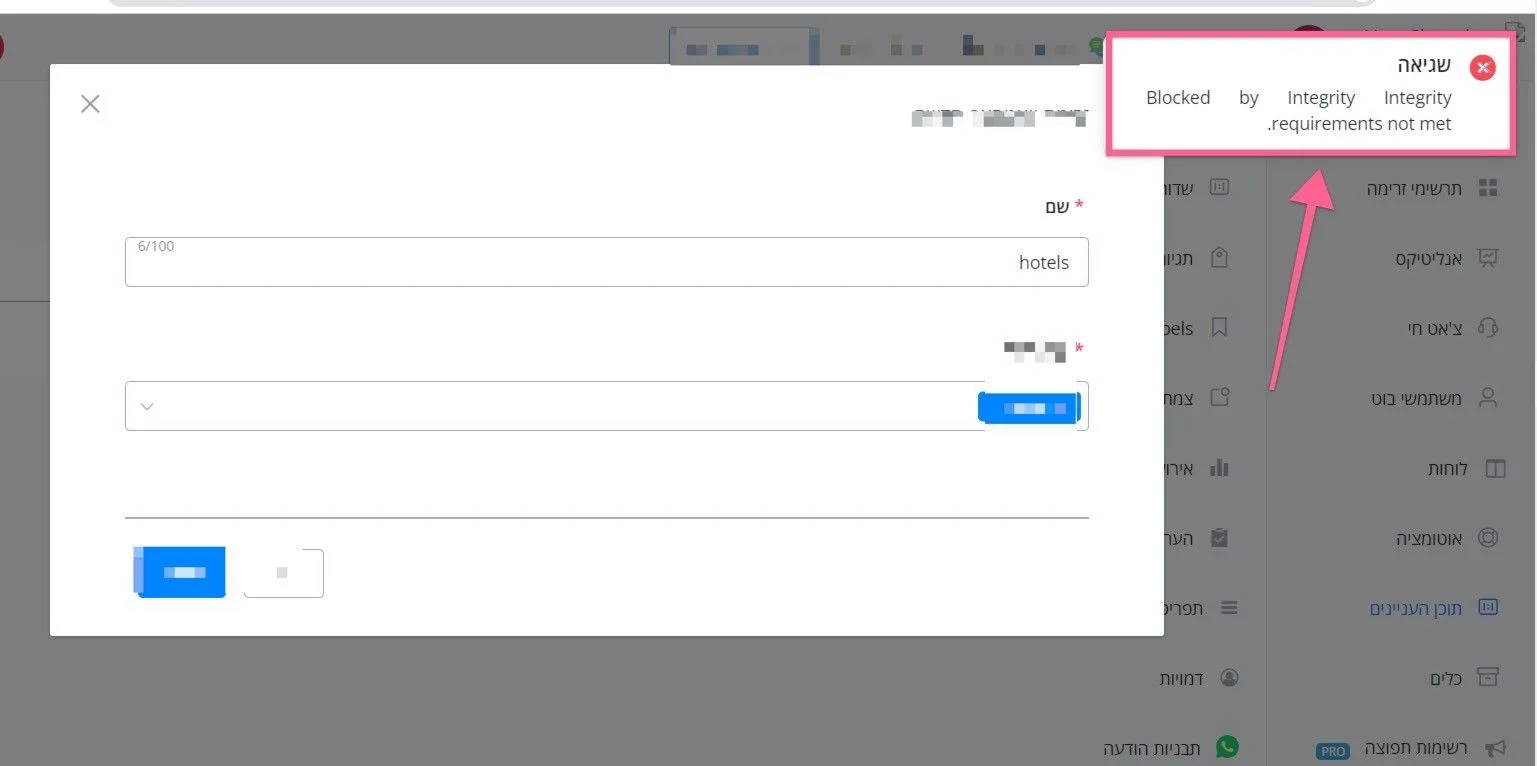
The reason may be one of the two below:
· You did not put your website domain on the allowlist
· You did not install the script correctly on your website or on your landing page.
You can find the “Allowlist domain” setting as in the screenshot below
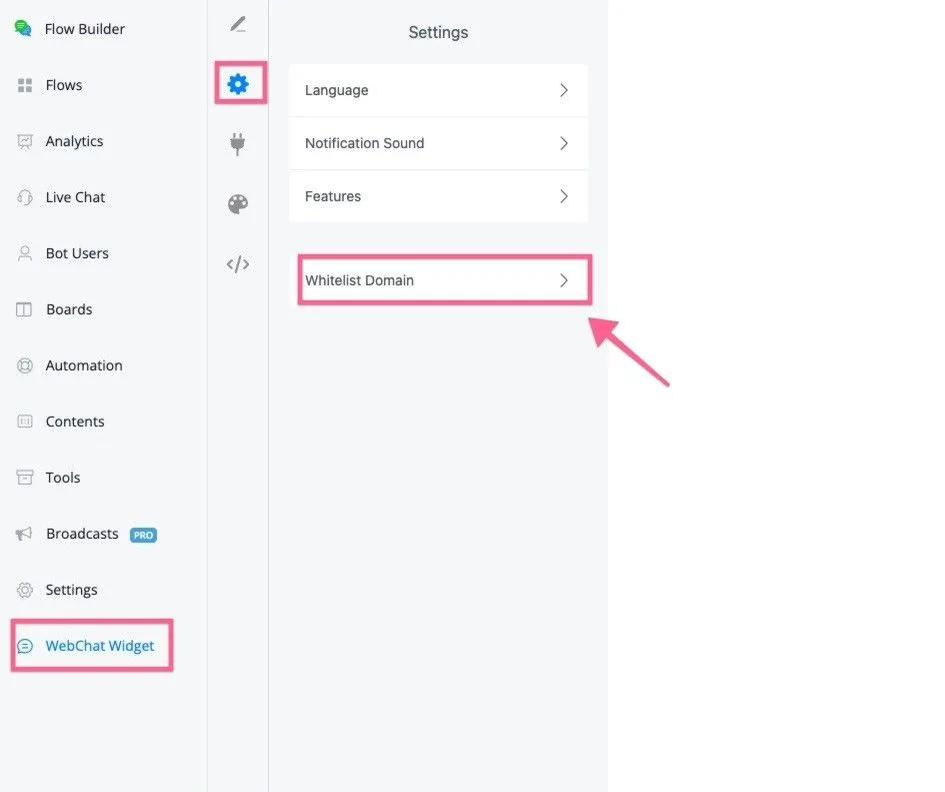
To check the script you need to install on your website, inspect the page source code and check that the script is there.
Website chat channels use cookies to identify the contact. These cookies are valid for 30 days. After 30 days without the contact visiting your website and refreshing the cookies, the cookie (that is, the contact) expires.
Any message you try to send through the website chat cannot be delivered, and you will see this error in your error logs.
If you asked the contact to use SSO when entering the website chat and linked that same contact to other social channels, it is still possible to talk to them outside the 30-day window.
On the SMS channel there is a telemarketing hours setting; you can find it in the SMS channel settings, as in the image below
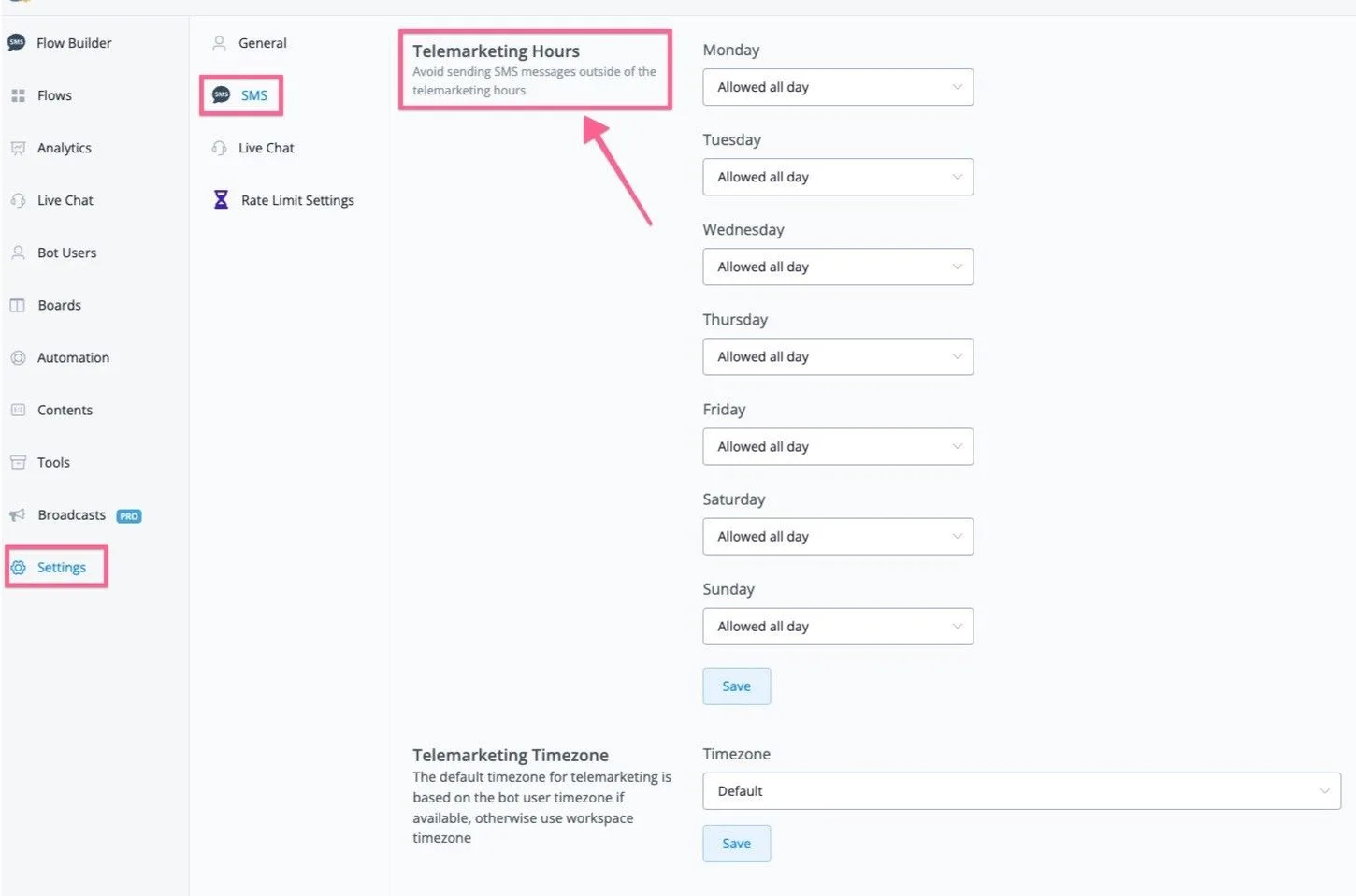
You need to select the business hours. Pay attention to the timezone selection: if the SMS message is sent outside the telemarketing hours, it will not be delivered.
Once the telemarketing hours are set, all messages sent on the SMS channel (flow, sequence, broadcast) will be blocked if they fall outside those hours.
However, if you use Action -> Notification -> SMS Notification or Action -> Advanced Action -> Send SMS Message, these two actions are not affected by the telemarketing hours.
The person you are trying to send the message to opted out of receiving messages from your Twilio number, from the channel sender or from the messaging service.
You tried to send a message to a 'To' number that replied "STOP" to one of your previous messages. You will not be able to send to the number given in the 'To' parameter until the subscriber identified by that number replies "START".
Possible reason:
The end user's device replied "STOP" or another opt-out keyword
Possible solutions:
· Consider removing this phone number from your recipient list.
· Ask the recipient to subscribe to your messages again by sending "START" or another opt-in keyword
· Before sending messages to a recipient, make sure they consented to receive messages from you.
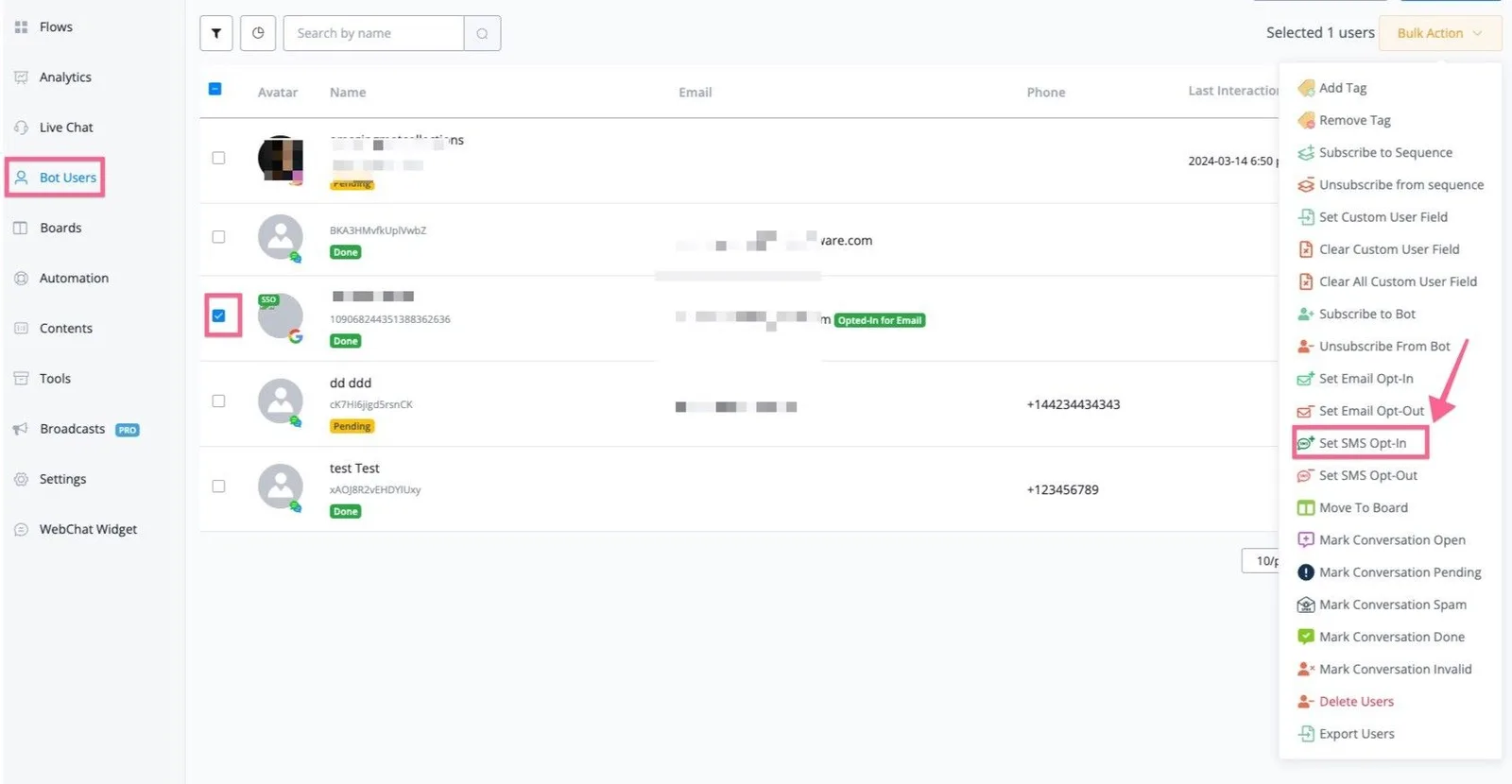
This error usually happens when you try to send an SMS to contacts who did not opt in. You can mark the opt-in manually or use the “SMS Opt-in” action inside the action node block.
You can go to “Contacts”, select the contact and choose the “Define SMS Opt-In” action.
If you are calling your voice channel on NicoChat and hear “application error”, these may be some of the reasons:
· Your Twilio account is still on the free trial, and the trial account has some limitations. The solution is to move to a paid Twilio account.
· You used some slow action right at the start, such as OpenAI or chat completion, and the response takes a while to arrive; Twilio times out and plays the application error. The solution is to send a message first and/or use the “hold music” as early as possible.
By default, Twilio has geographic location restrictions for international calls and SMS.
You will need to enable the geo permissions of your Twilio number:
They are available on the Twilio dashboard.
You are trying to run an action on a user account that was deactivated or deleted by
Telegram.