API
Check the API details in the Swagger Documentation
The interactive reference for every endpoint lives in the NicoChat Swagger Documentation. It covers 247 operations across 230 endpoints, grouped into 25 product areas.
You can also import the Postman Collection by clicking here!
The NicoChat API is used to retrieve data from the flow you build. Here are some examples of what you can do with it.
- Pull the flow you have built from NicoChat.
- Create, delete or obtain data, including flow tag and flow field.
- Handle the subscribers' data: get the subscriber's information and edit their tag or field, as well as the subflow sent to them.
- Configure all the data used in e-commerce, such as carts or products.
If you need to handle the data below, the next sections present the steps to use the NicoChat API.
Every call starts from the base URL https://app.nicochat.com/api, is authenticated with Bearer plus your API key, and answers in JSON. Each group requires a scope on the key — Manage Flow, Manage Team or Send Message — shown in the endpoint description in Swagger.
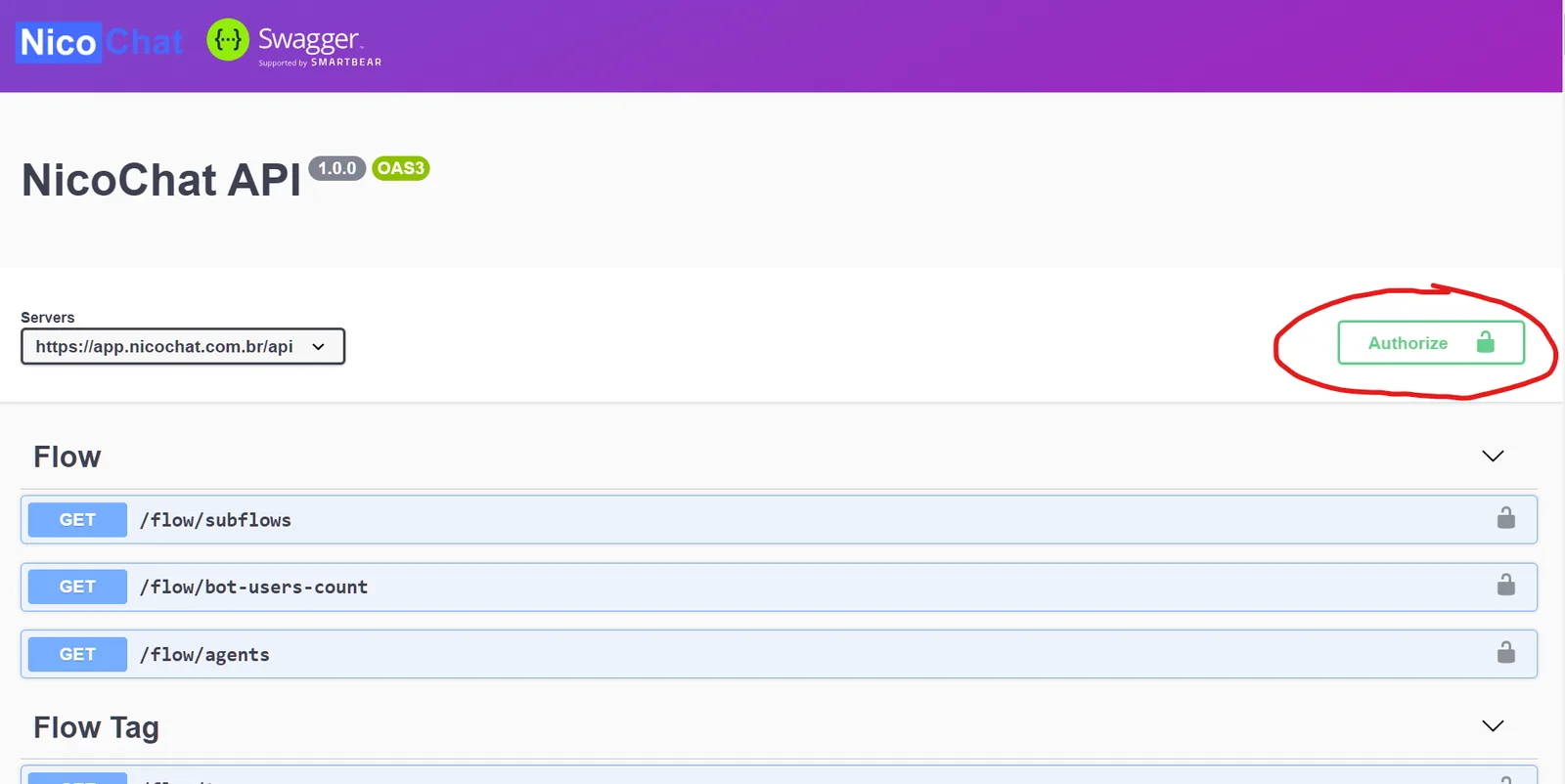
Since data protection is important for the API, it needs several attributes to authorize your identity. Therefore, the first step is to enter the authorization information. Click the Authorize button, as shown in the figure below.
Next, there are three attributes you need to fill in the text box.
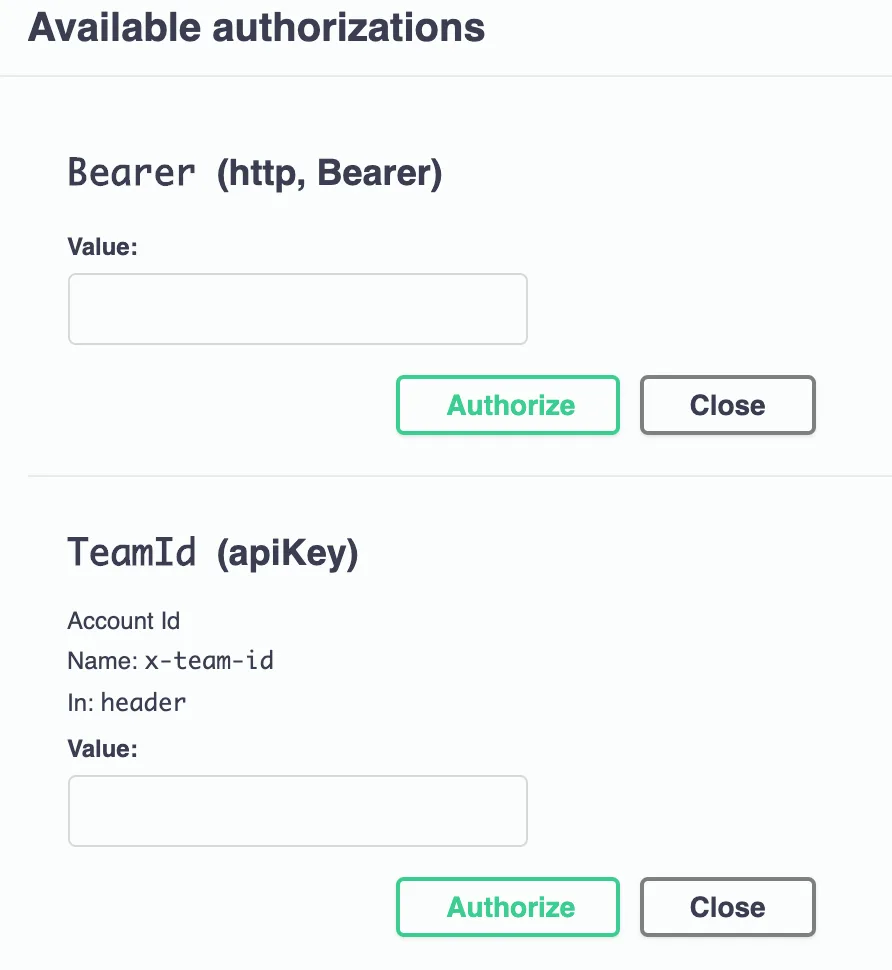
See in the following section how to find these attributes.
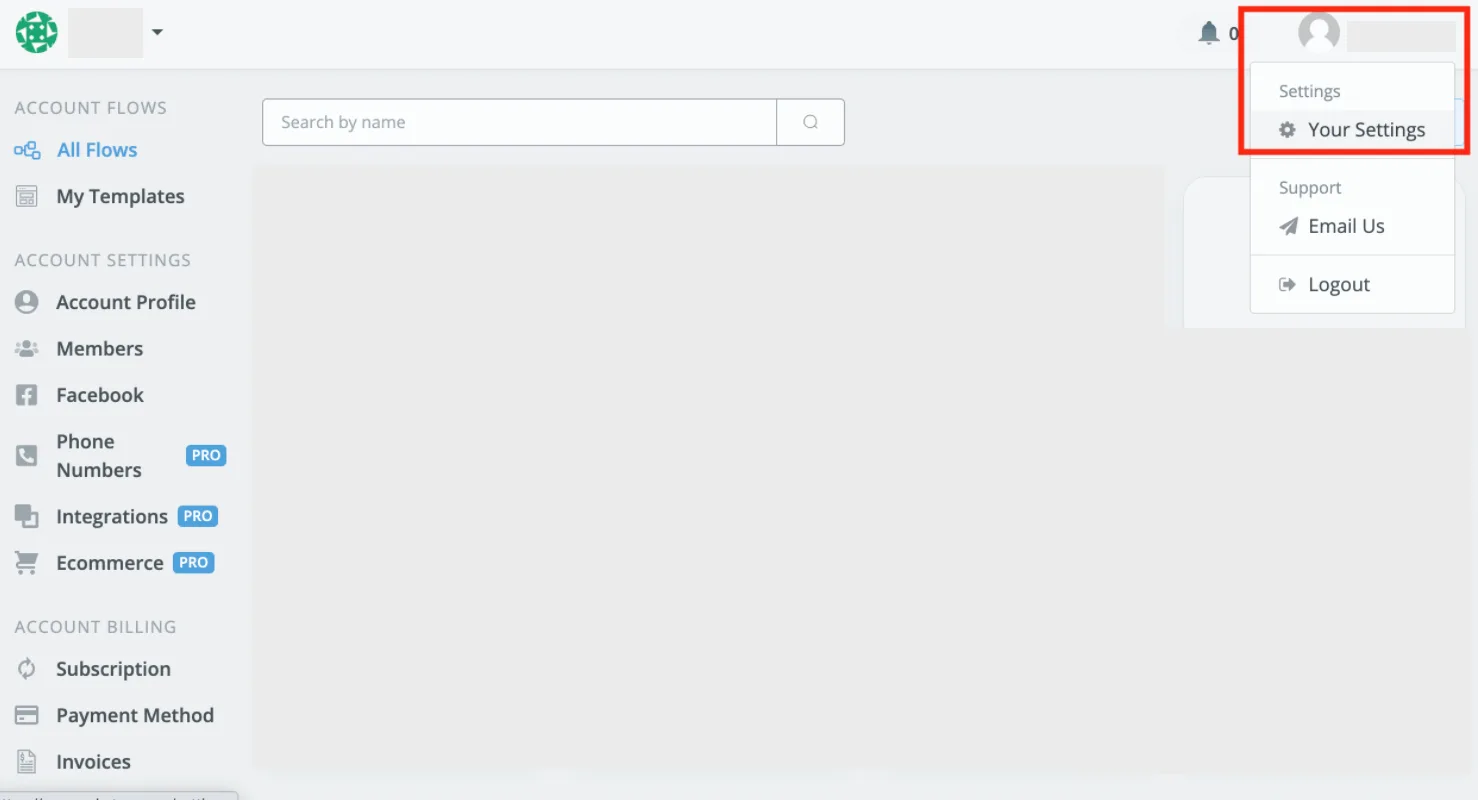
Step 1. After logging in to your NicoChat account, the account name and avatar appear in the top right corner. Click them and choose Account Settings from the dropdown list.
Step 2. Go to the API Keys section by clicking the button in the user settings. Enter the name of the key you want to set and click the Create button.

Step 3. You will receive the key in a pop-up window.
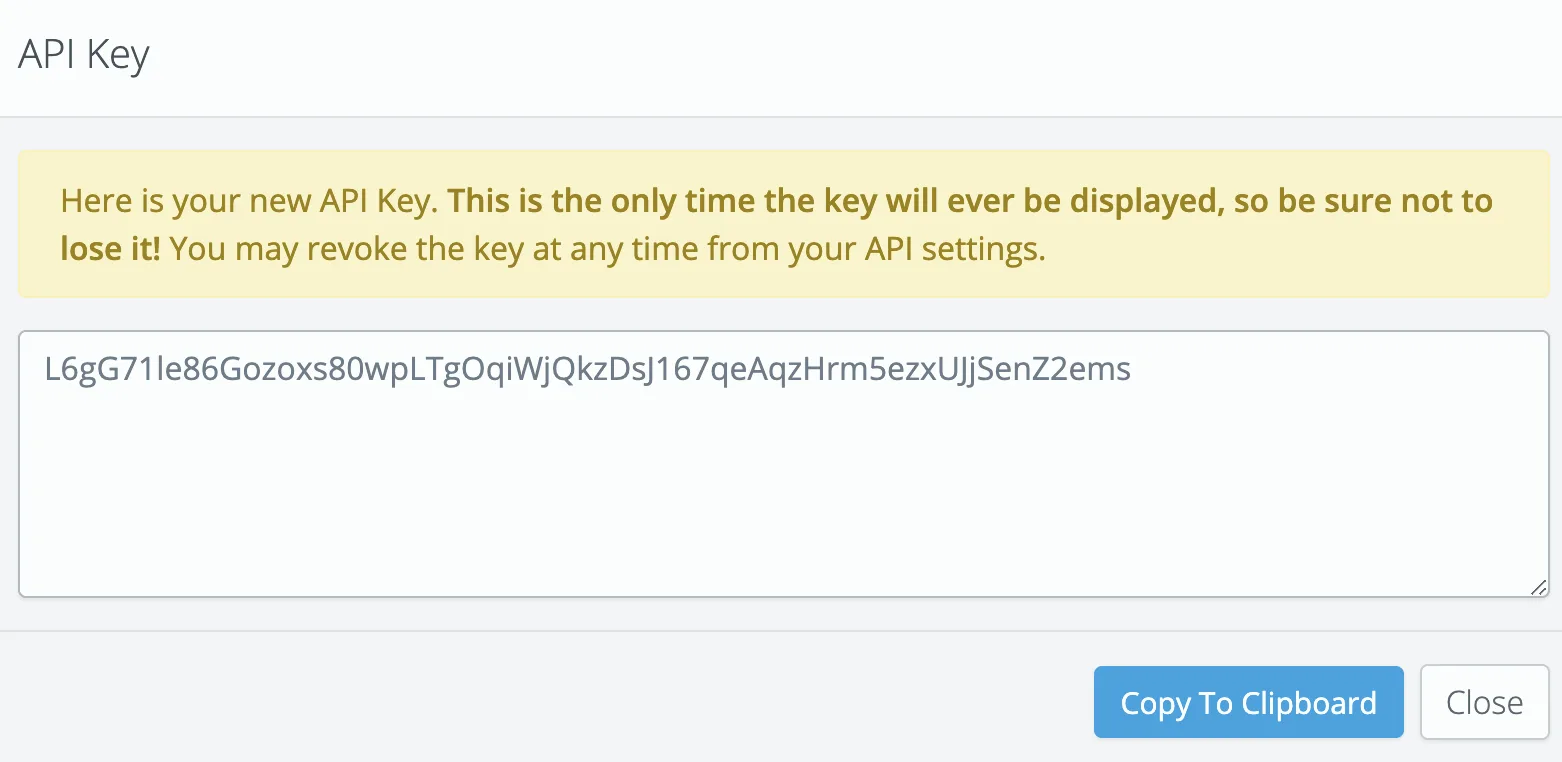
Close the window and you will get the basic information about the key, except the key value.
Curl is used in API requests. In the NicoChat API documentation, you need to perform a few operations before getting it.
Here, we use Get Flow Tag as an example.
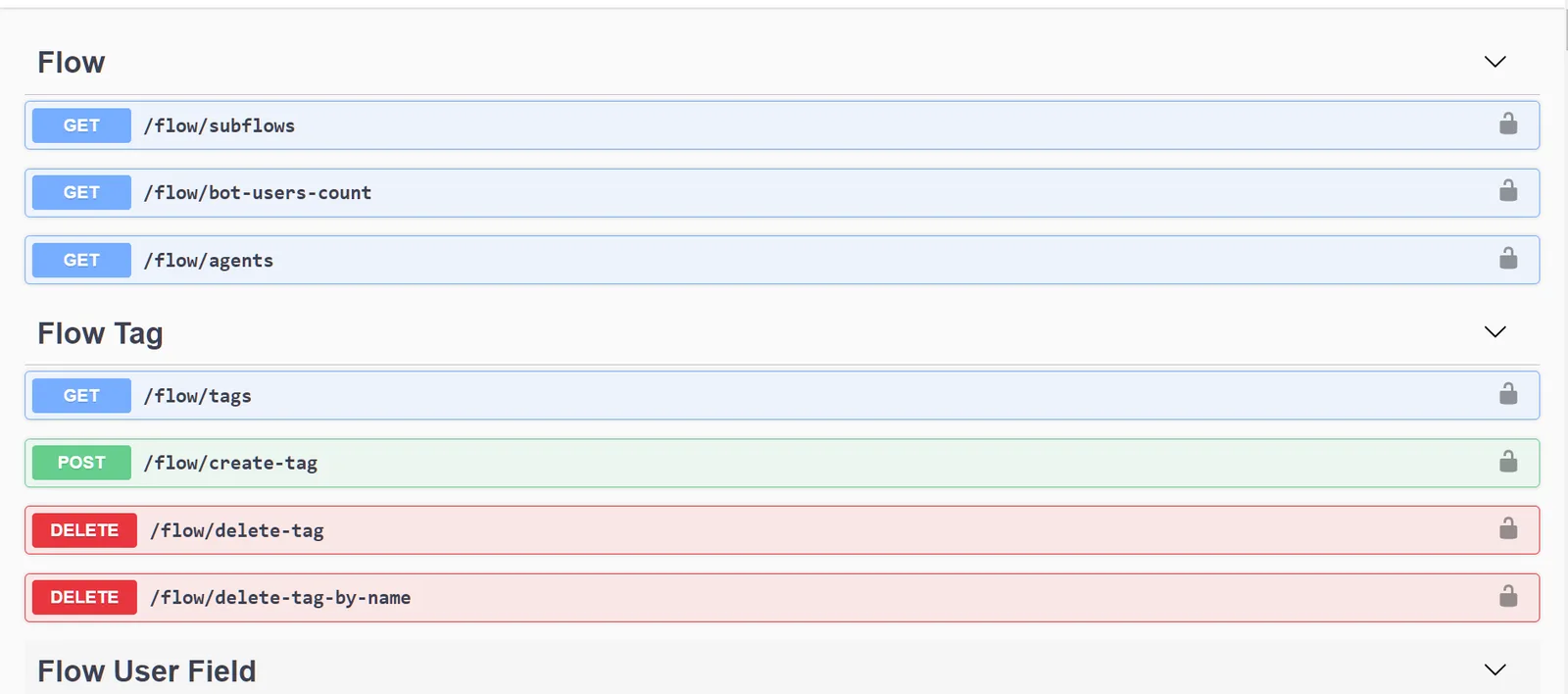
Step 1. Click to expand the category, in this case Flow Tag. Then find the action and the resource Get /flow/tags. Click the row and a dropdown page will be displayed, as follows.
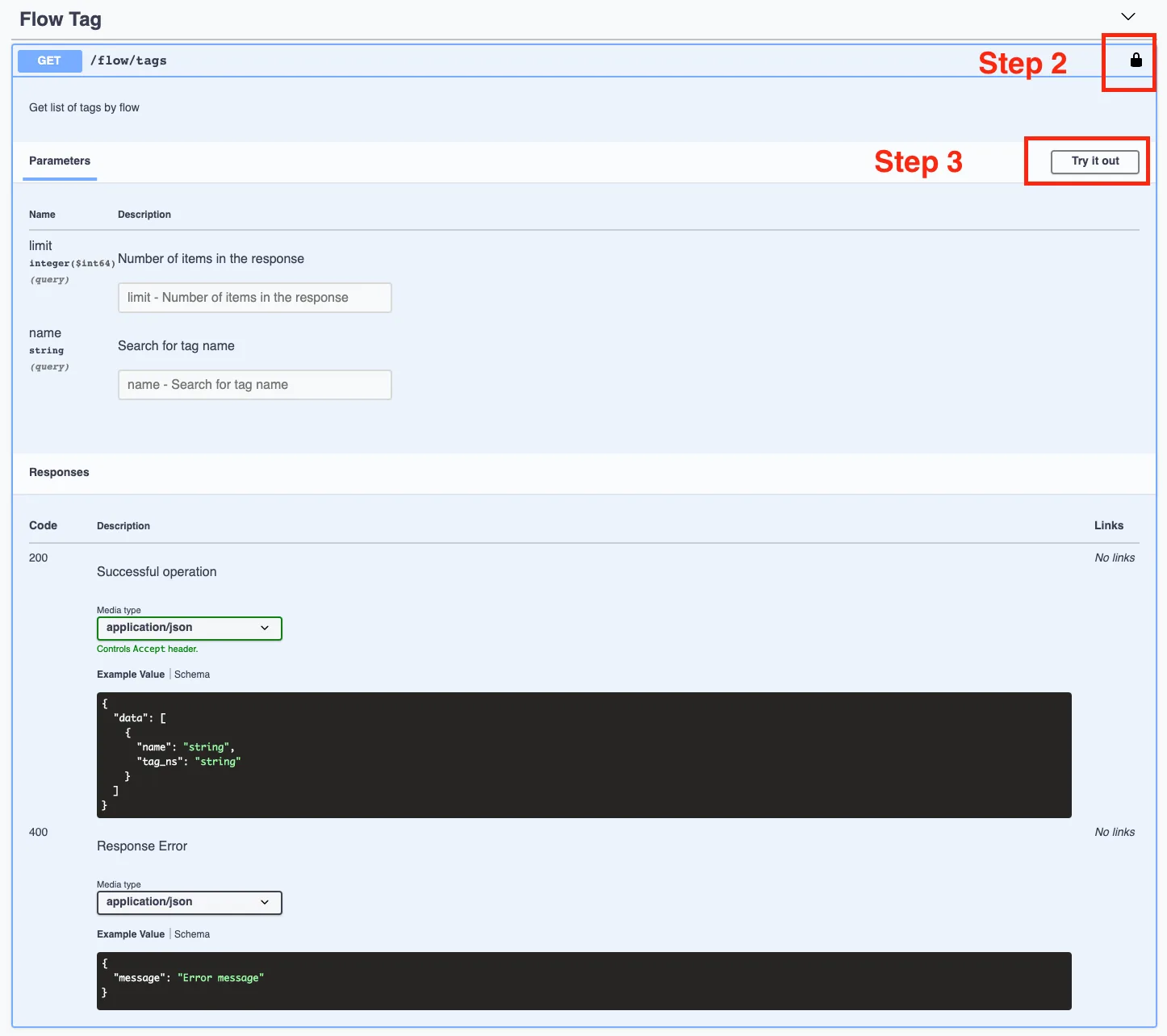
Step 2. This icon means authorize. If you have already done this before, this step is not required. Otherwise, repeat what was described in the section Authorize.
Step 3. Click Try it out. Then you will see that the Parameters or Request body part can be filled in and that the Execute button appears at the bottom of this area.
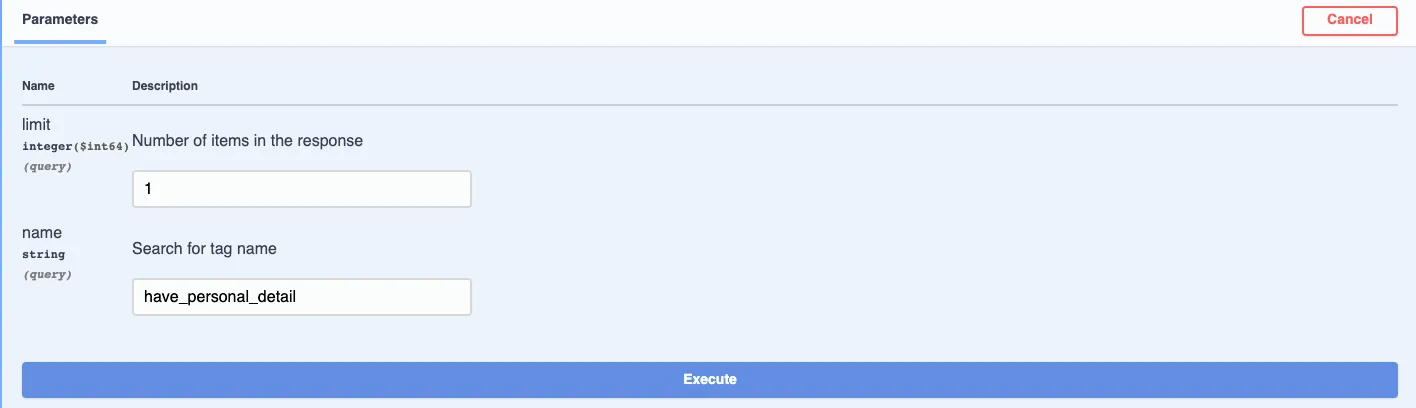
Step 4. Enter the required parameters or request body and click the Execute button. Finally, you will get the Curl and the Request URL.
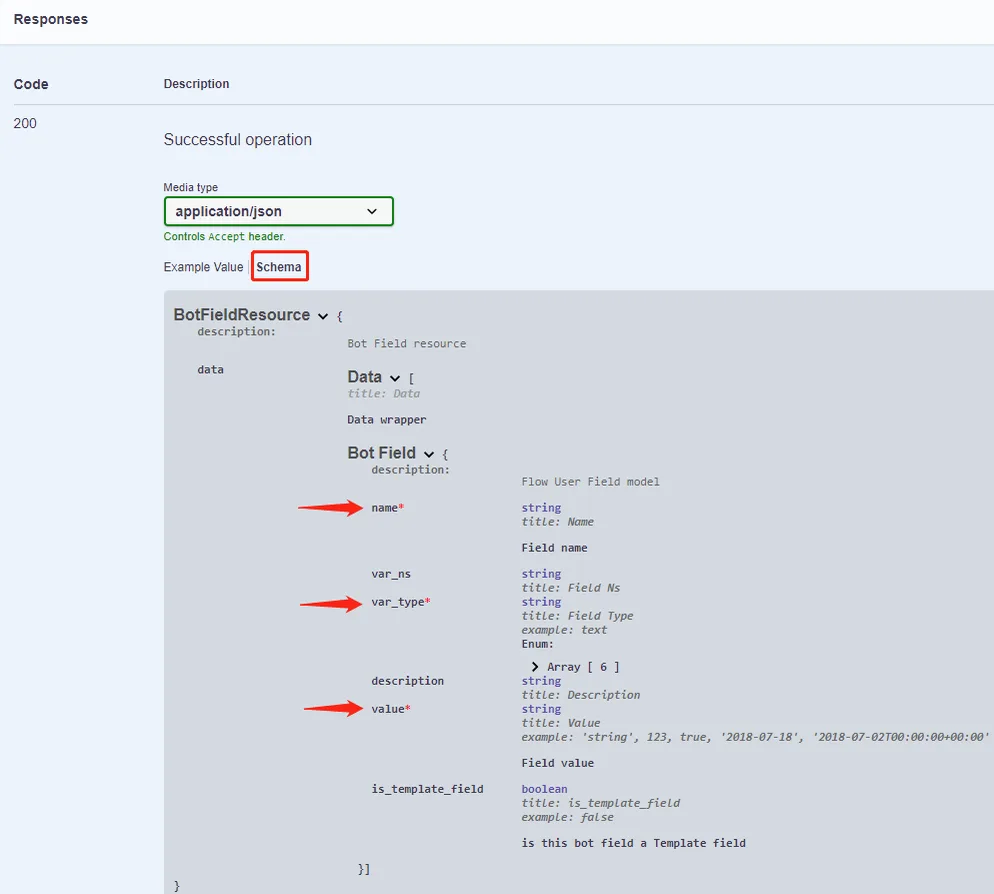
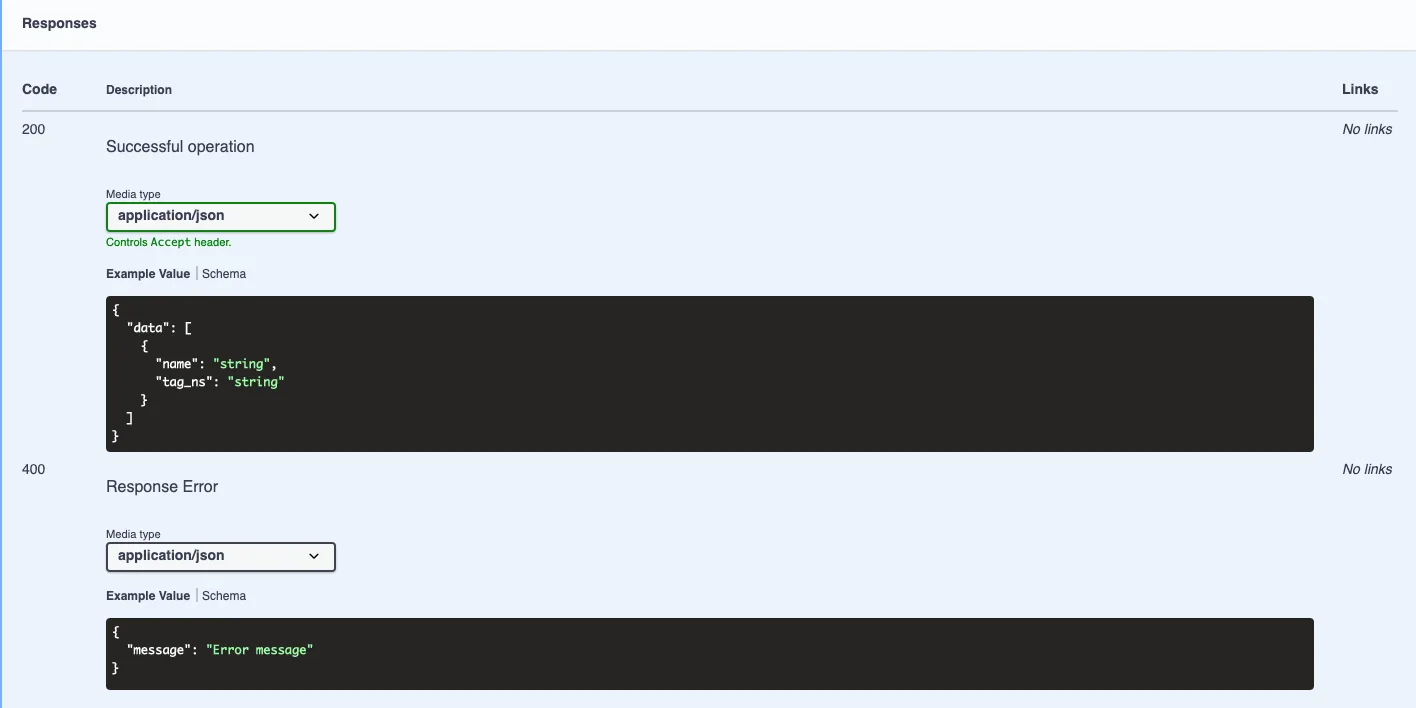
This part displays the JSON result you will get from the NicoChat API. Normally, if the code is 200, it means you got the response successfully. If the code is 400, it means there is an error in your response.
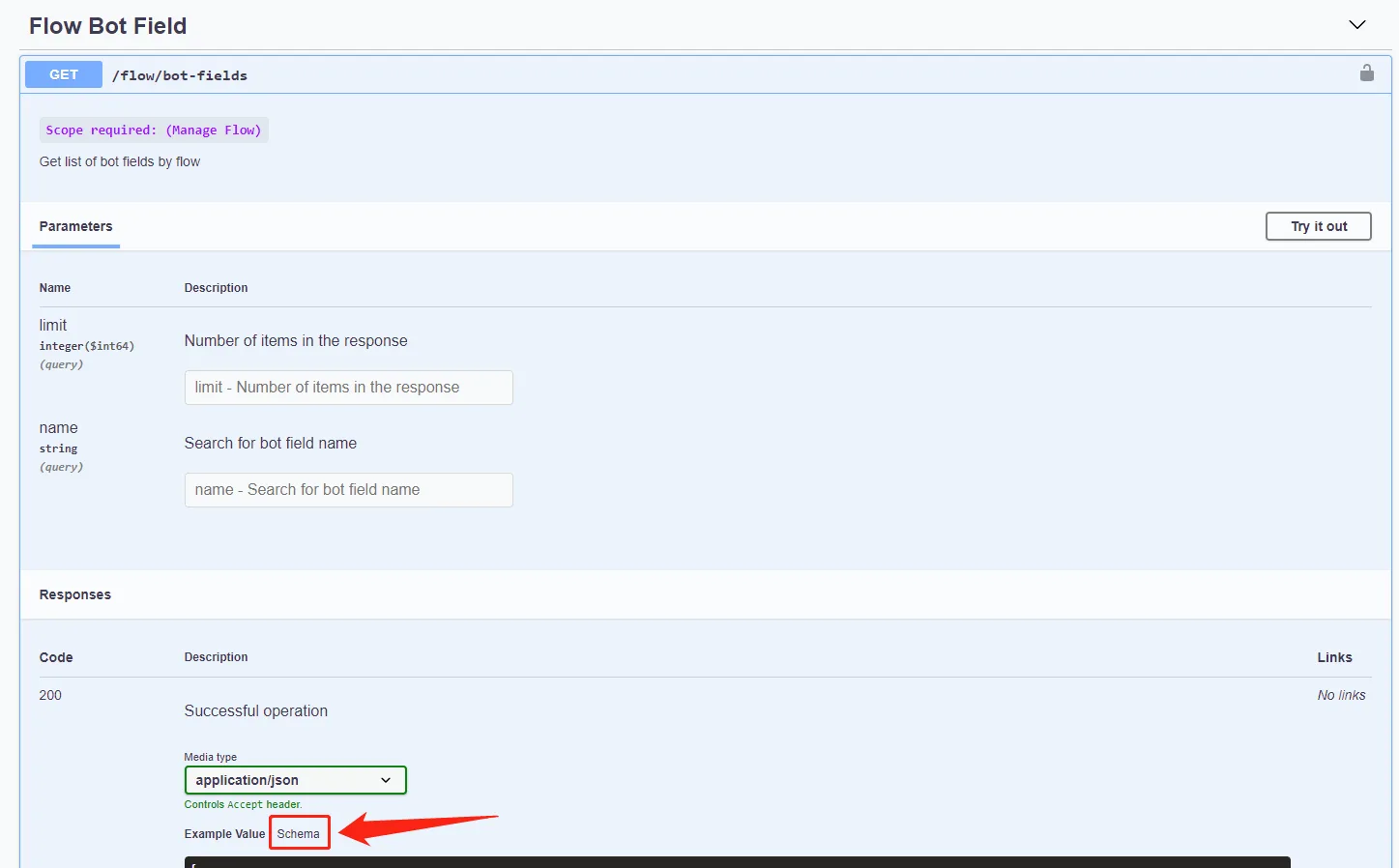
In addition to the example value, you can click “Schema” to see more details, such as which value is required.