Voice Channel
The Voice Bot is simply an automated voice response to calls and messages that streamlines the way customers interact with a company. It has been proven to be an essential tool in various businesses.
- Customer service: the Voice Bot assists customers by providing automated responses to common questions.
- Appointment scheduling: people can use the Voice Bot to easily book any type of appointment.
- Billing and payments: the Voice Bot handles bill inquiries and payment processing.
- Surveys and feedback: companies use the Voice Bot to collect customer feedback and conduct surveys.
- Product information: customers obtain product details and pricing.
- The Voice Bot allows users to access and manage voicemail messages.
After logging in to your NicoChat account, look for the Voice Bot icon on the left-hand side.
Click the voice icon to open the voice number settings.
- After opening the voice settings, a dashboard for adding numbers to the Voice Bot will be visible. To add the numbers, NicoChat offers several options: the two most used are Twilio and SignalWire, but the user can also enter their own number.
- To add a phone number, click the button (Add Phone Number)
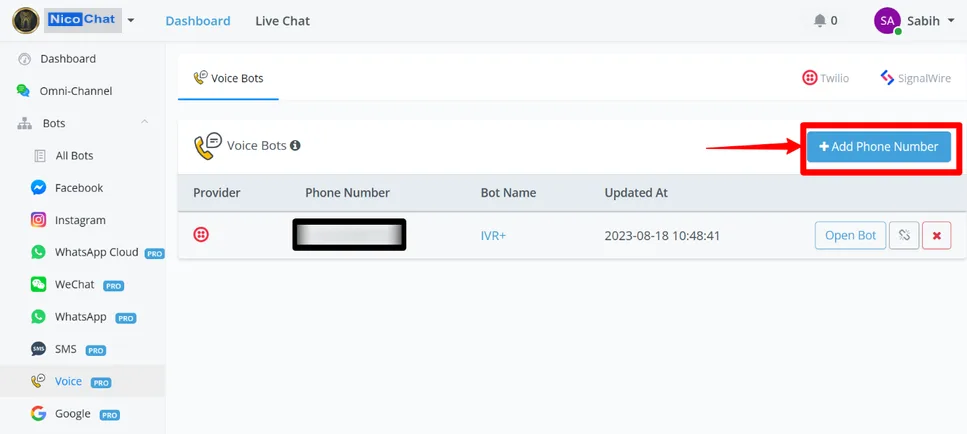
Here more options for adding numbers become visible for you to choose from.
NicoChat should configure the webhook automatically in Twilio, but you can also configure it using the following URL:
https://voicebot.dfktv2.com/bot/voice/[ID_DA_WORKSPACE]Replace with your workspace ID
Interactive voice response flows are similar to those of any text automation bot, but two nodes change — and that is the main distinction between a text automation bot and the Voice Bot.
The Voice Bot starts like any text bot: the start node is the first node in the flow.
The Voice Bot question node is different from text bot question nodes. It has basically five parts, each with different uses.
- The first represents speech
- The second represents DTMF
- The third represents recording
- The fourth represents transfer
- Lastly, the Payment option.
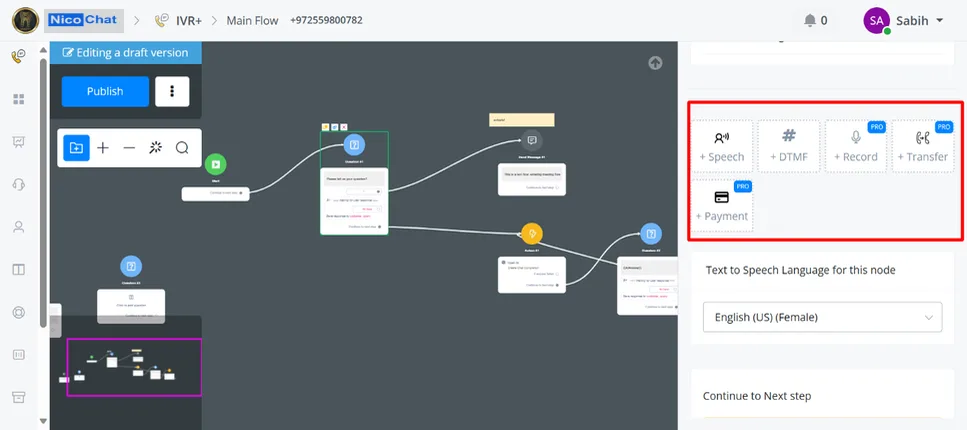
As the button name indicates, this option uses the speech format and is meant for short questions and answers.
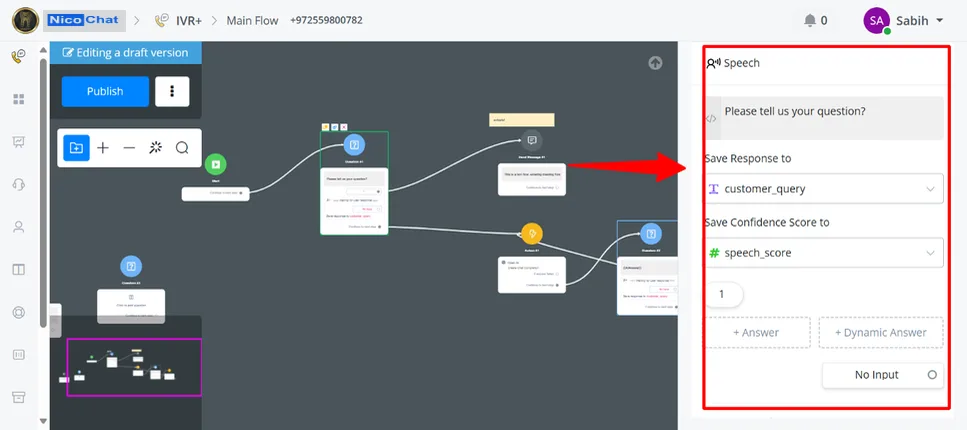
- In the question box, the user can type a short question that will be asked to the customer.
- The customer's answer will be saved in a text variable that the user can create as they prefer.
- An important component of the speech option is the speech confidence score, which measures the quality of the customer's spoken answer in relation to the question. The scale used to determine the quality of the spoken answer ranges from 0.1 to 0.99. This score can be used in several ways, with a condition node or a function, as the user prefers.
- Just like the buttons on question nodes in text bots, the Voice Bot question node also has Reply Buttons, and users can use them to go to another node or trigger another flow.
Advanced Settings give access to more customized adjustments, which can increase the accuracy of Voice Bot responses in specific conversations.
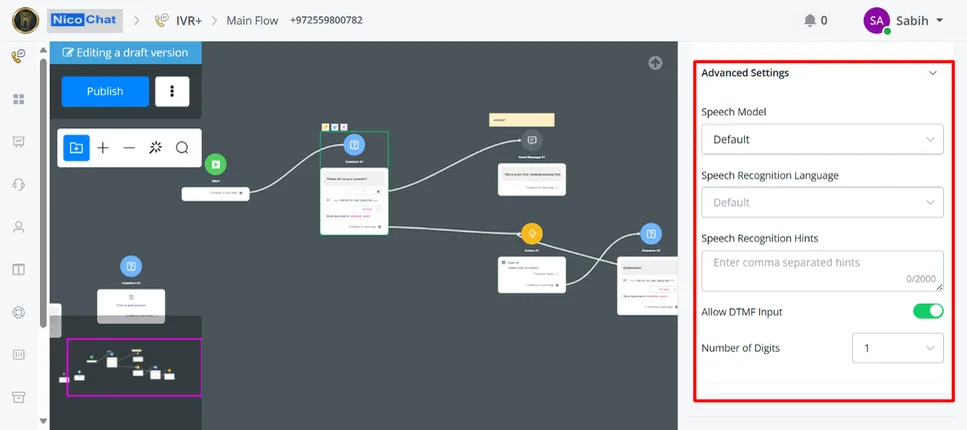
The Speech Model has three options to choose from: the first is numbers and commands and the second is phone calls.
Each option is tailored to respond according to the conversation at hand. If you are not sure, use the default settings and experiment with the speech models until you get the desired results.
- The second is the Speech Recognition Language: with it the user chooses from a large number of languages and dialects to get more accurate responses.
- The Speech Recognition Hints let the user enter data so the Voice Bot understands the specific type of answer it will receive and identifies the customer's answer more accurately by comparing it with those hints.
- Lastly, by allowing DTMF input, the user can set the number of digits that will be entered, such as a phone number, ticket number or card details.
The DTMF option lets the user put long questions in the question box and, at the same time, offer options for the customer to choose from. The customer can only use the numeric options provided by the user.
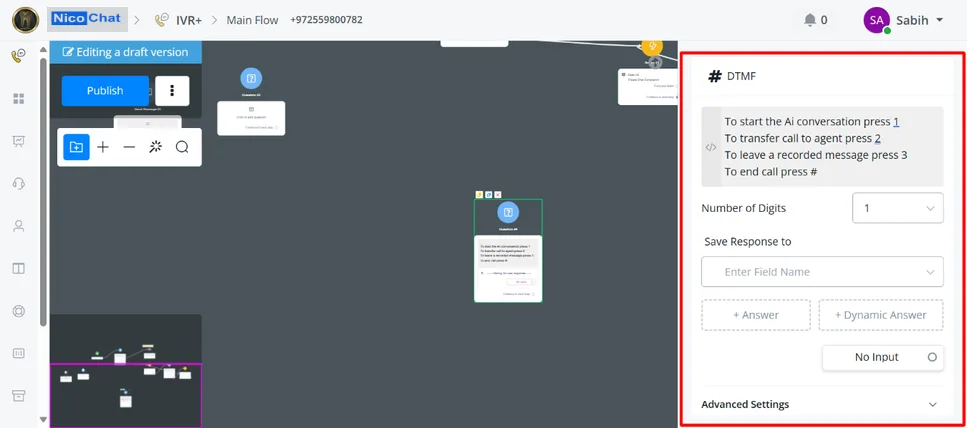
- The question box can be used to explain to the customer which numeric options are available.
- The user can set the number of digits the customer will enter, depending on the conversation.
- The answer can be saved in numeric and text variables, indicating the chosen variable in the save response field.
- The DTMF Reply Buttons can be used to jump to another node or flow, depending on the answer.
- Advanced Settings only have the stop gathering button option, which the user can use to interrupt the Voice Bot process or the question node, telling the customer the number or key.
The record option in the question node lets the user receive the customer's answer as a recording. Likewise, the user can set the message length to receive the recorded data they want.
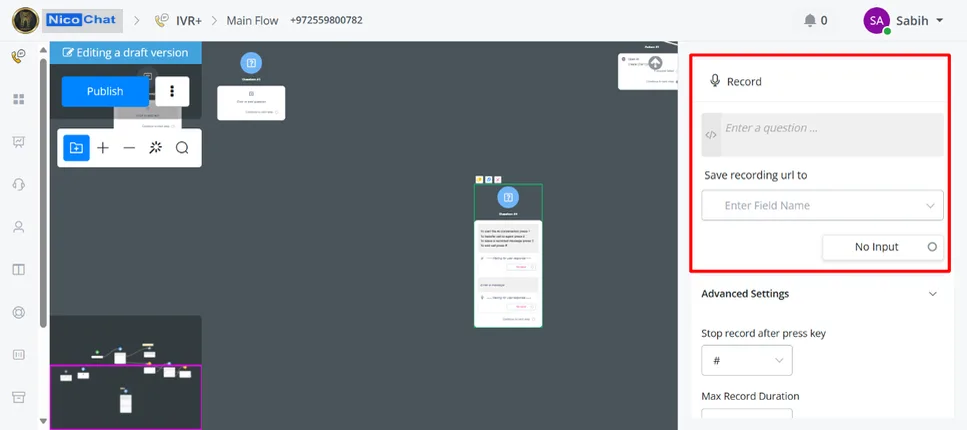
- The question box can be used to tell the customer that the message is being recorded or simply to ask for a suggestion or an answer.
- The recordings will be saved on the NicoChat platform and can be downloaded, but they are stored as a URL in a text variable.
- In Advanced Settings, the user can define a specific key to stop the recording or specify the maximum recording duration, as well as use other options to trim the silence or play a beep marking the start of the recording for customers.
The recordings are stored on the NicoChat platform and users can access them from the left menu, looking for the recordings menu.
From there, users access all the recordings made by the bot in conversations with customers. The recordings can be used as the user wishes.
The transfer option lets the user transfer the call to another number and, at the same time, record the customer's answer.
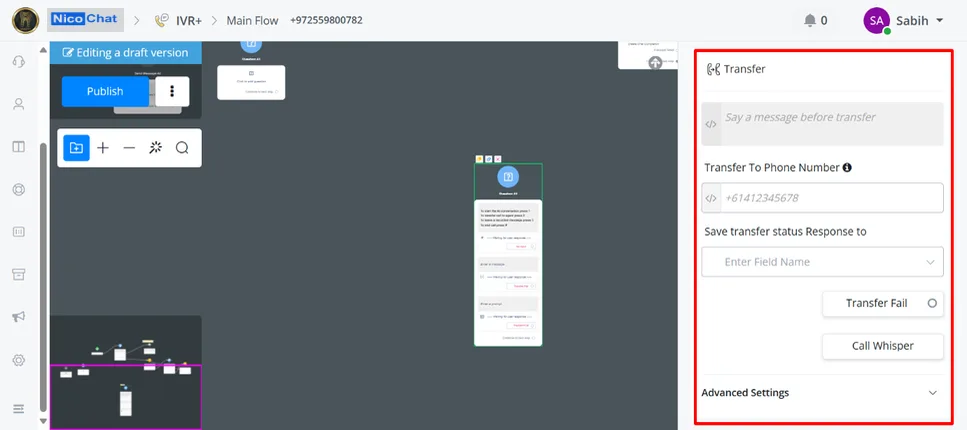
- The message box lets the user send a message to the customer before the call is transferred to the given number.
- The destination number can be given as a regular phone number or through a phone number variable.
- The transfer status can also be saved in a variable, in the save transfer status option.
- If the transfer fails, the next step can be defined by the user in the Transfer Fail button.
- To increase conversation accuracy, call whisper can also be used.
- In the advanced Transfer options, the user can record the call, end the call by specifying a number or a key, and choose to display the caller ID.
The payment option lets the user receive the customer's payment on the spot, during the call, in the Voice Bot. The Voice Bot will ask the customer for the payment card details or another option defined by the user.
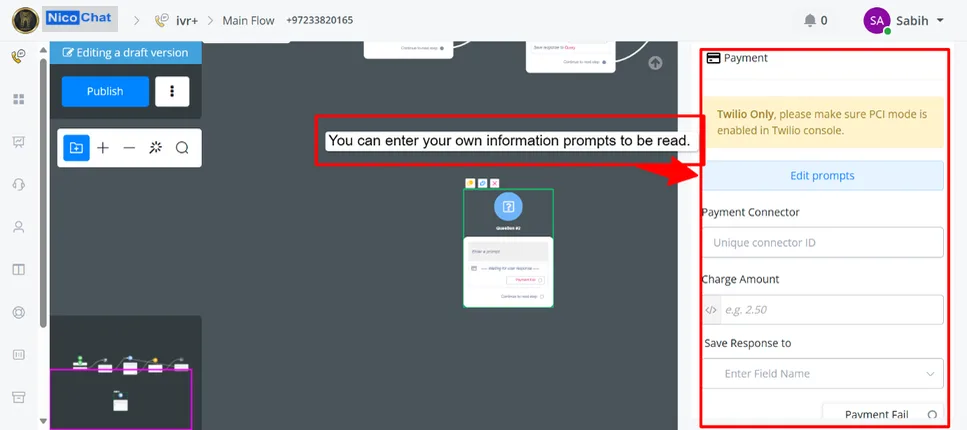
- The Edit prompt option lets the user define their own custom options and the texts that will be read to the customer. Prompts can be written as text or in any variable.
- Prompts only work when the user's Twilio account has PCI mode enabled.
- After connecting the desired payment option, obtain a unique connector name from the selected payment service.
- Enter this unique name in the Payment Connector option, in the payment question node, and the payment option will start working.
- The amount to be charged can be written in numeric form or defined by a variable.
- Lastly, the customer's answer will be saved in a JSON variable, in the save response field.
- If the payment fails, the Payment Fail button can be used to inform the user that the payment transfer did not go through; the payment operation can be retried or other operations can be performed.
The Voice Bot message node is very different from the node in text automation bots: it converts the text entered in the message box into speech.
The message node has three different but very simple options.
- The first is simply the message option,
- the Audio option and, lastly,
- the text settings after hold music.
The speech language can be changed to specific languages in this node's Text to Speech (TTS).
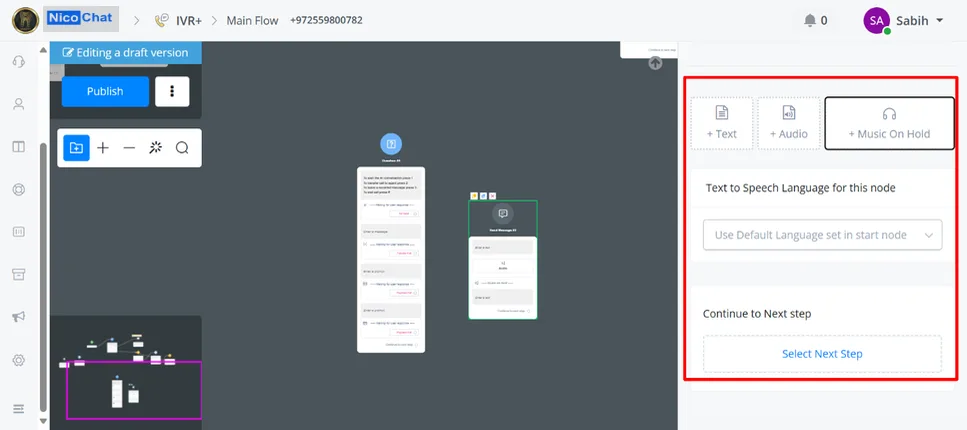
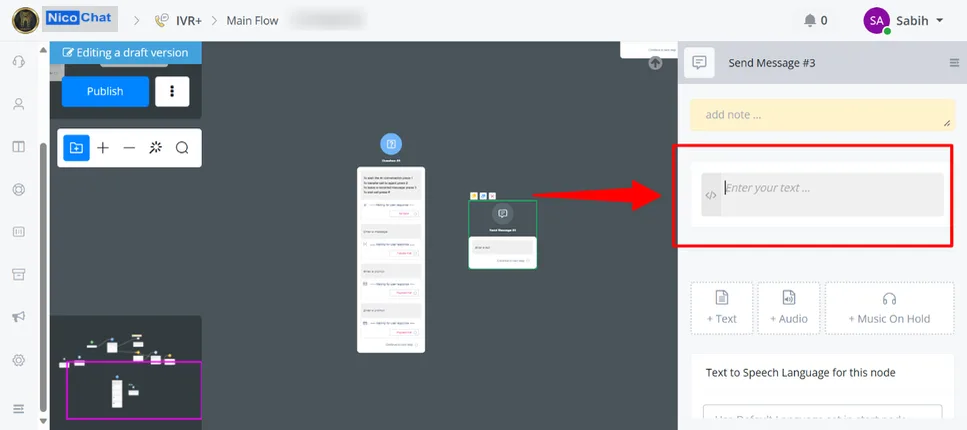
The text option is a simple message box that turns text or variables into speech. The user can use several variables or even a long text, which will be converted into speech.
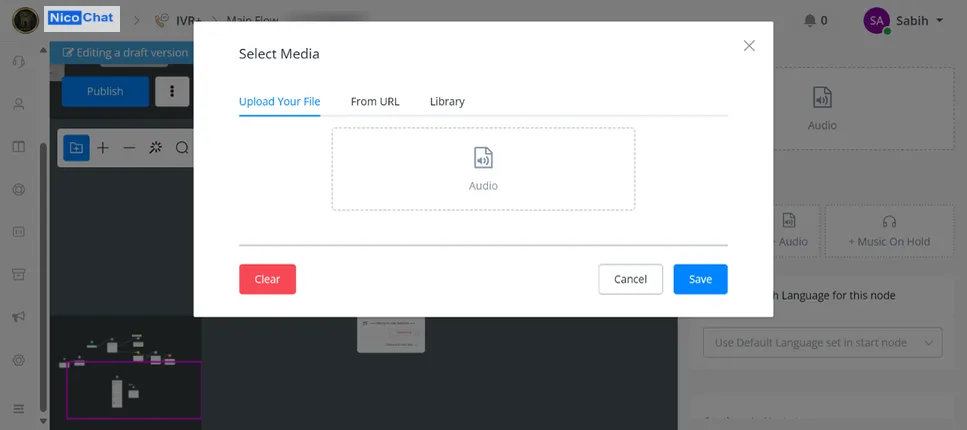
The Audio option lets the user use a recording to increase conversation accuracy.
- By uploading your own file
- By choosing from a URL
- By using a recording from the NicoChat library
Users can choose whichever option they prefer.
This option lets you turn a text message into voice after the hold. The message can be written in the text box or defined in a variable.
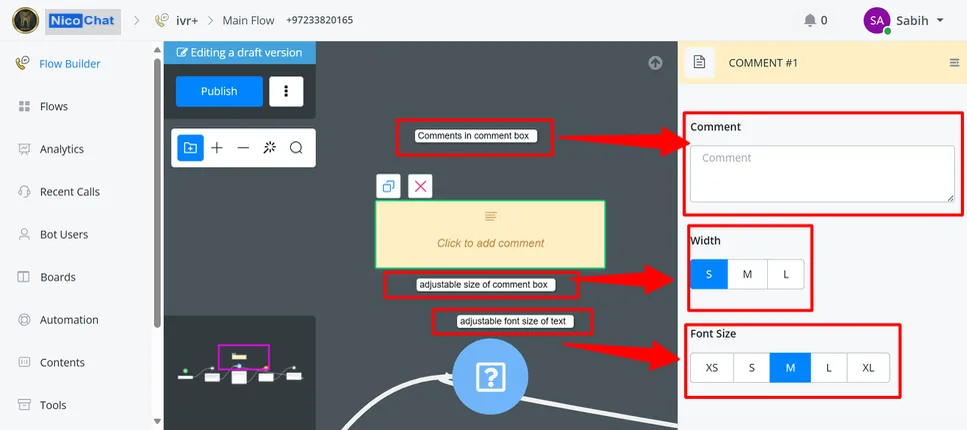
A new addition among NicoChat nodes is the comment node. It lets you insert comments in flows or on specific nodes, to help understand better what was done and what changes can be made. Comment nodes can be added on top of nodes or in the flow and do not take part in node processing.
The comment node has only three options, which give users the adjustment they need to use it well day to day.
- The comment node's comment box lets the user type the text that will be displayed by the comment node in the flows.
- The Width option lets the user adjust the box size between the small, medium and large options.
- Likewise, the font size option lets the user choose the text font size. The options range from extra small to extra large text. The user can decide which is most suitable for their use.