

VK
The process will be as follows:
- create a community, get the group ID and the access token
- enable community messages and bot abilities
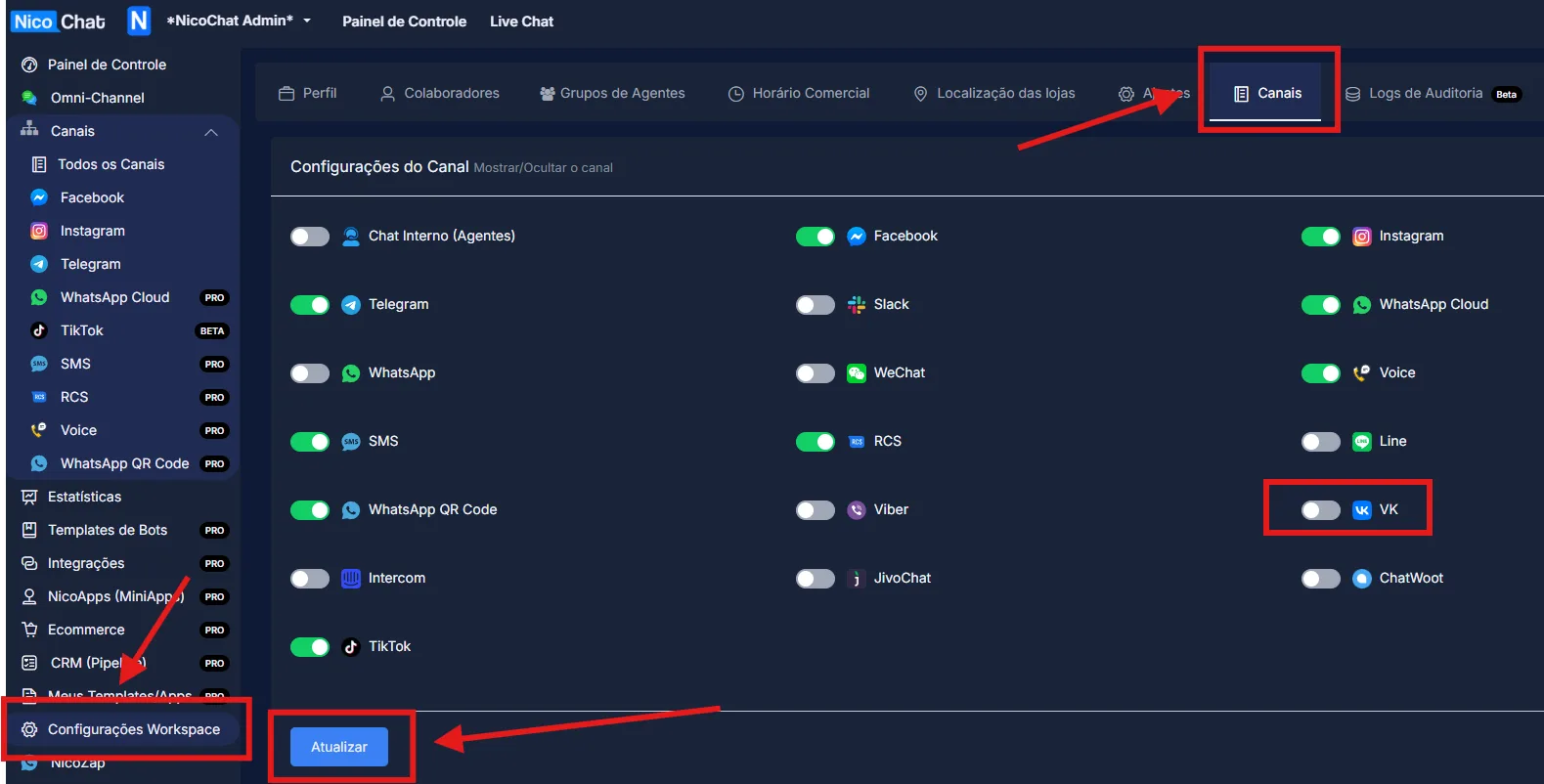
To enable NicoChat’s additional channels, go to “Workspace Settings” > “Channels”, enable the channel you want and click “Update”, as shown in the image:
First you need a personal VK account. Go to https://vk.com (opens a new window), register and log in.
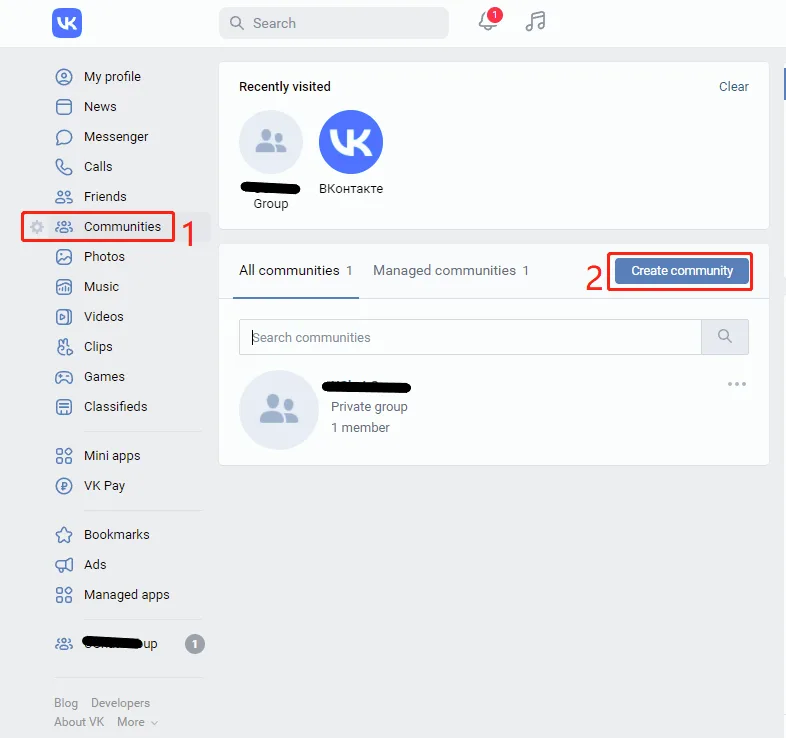
Go to “Community” in the left sidebar, and then to “Create Community” for your chatbot.
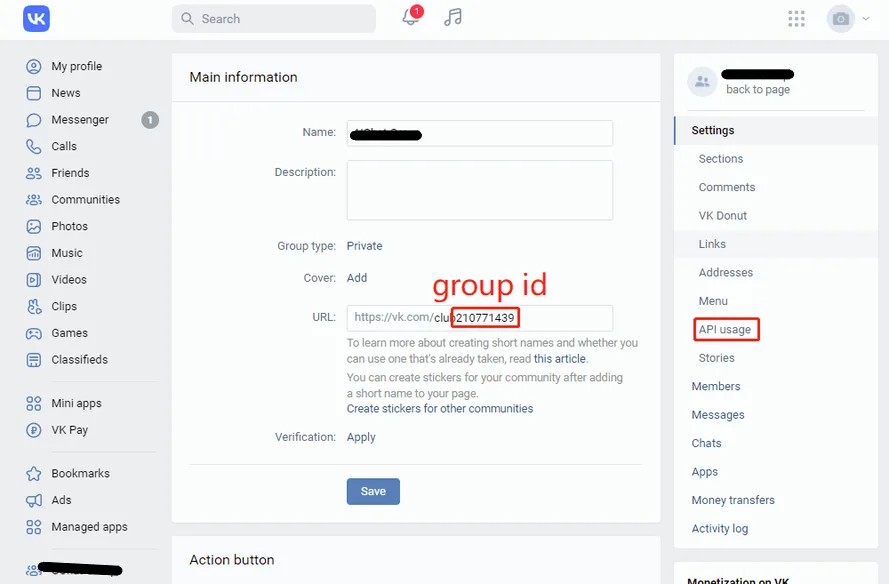
You will find your group ID in the URL (see the image above). Click on “API usage” and let’s create an access token. Select all permissions to have a smoother experience.
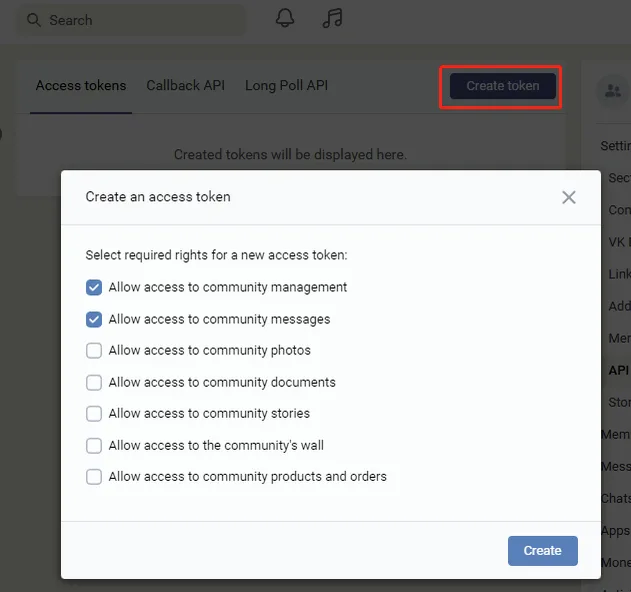
Click on “Create token”, tick the options and click “Create”.
Copy the token and the group ID and go back to NicoChat.
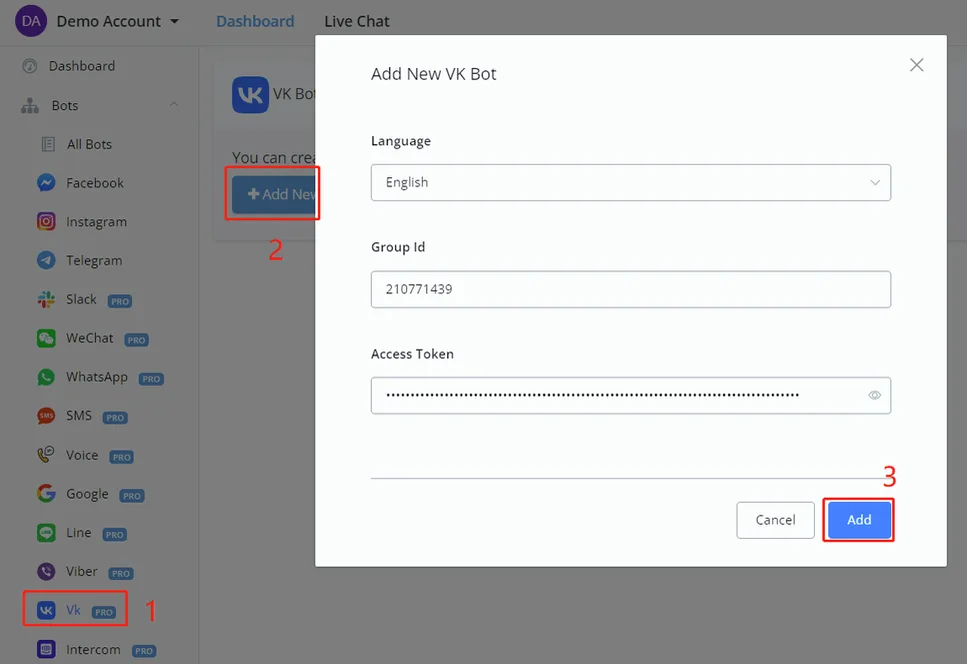
Go to the VK channel, click “Add New Bot”, fill in the group ID and the access token and click “Add”.
Forgot the group ID? You can find the community information page here:
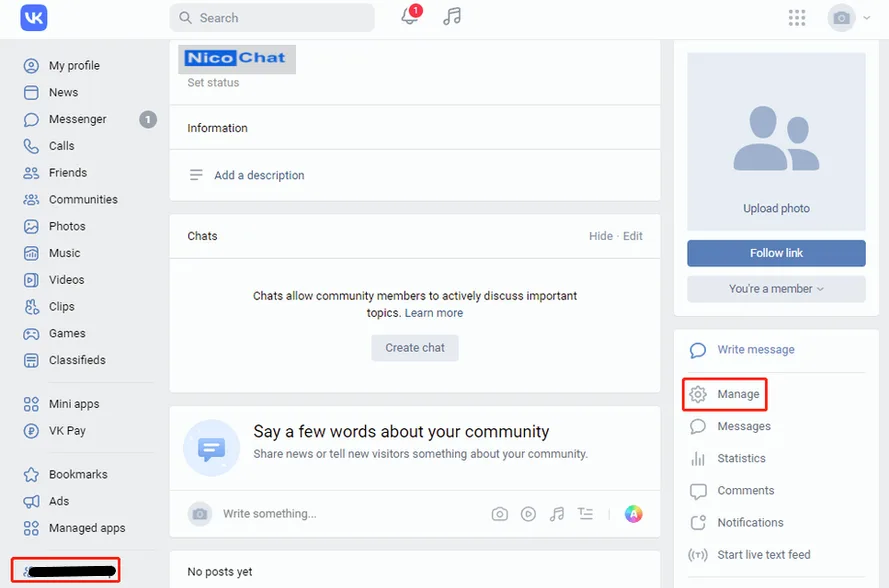
After the connection, your page will look like this:
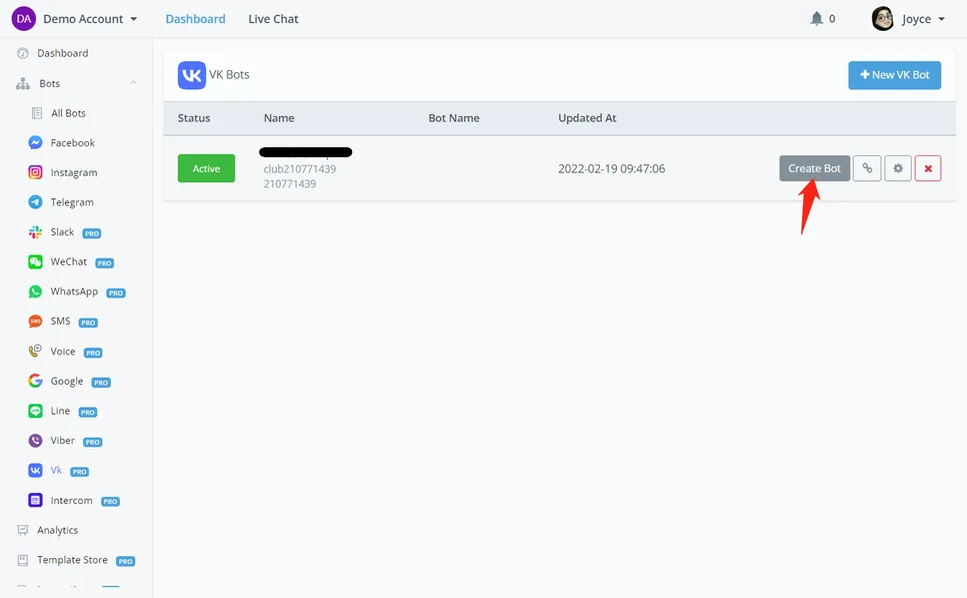
Click “Create Bot”, select a template, and you are done.
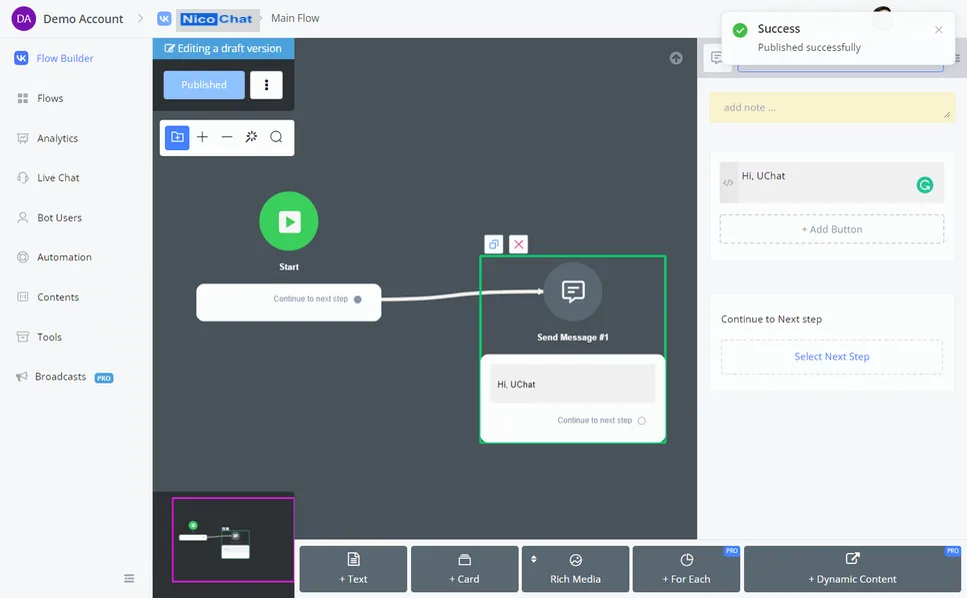
Add a simple greeting message for testing.
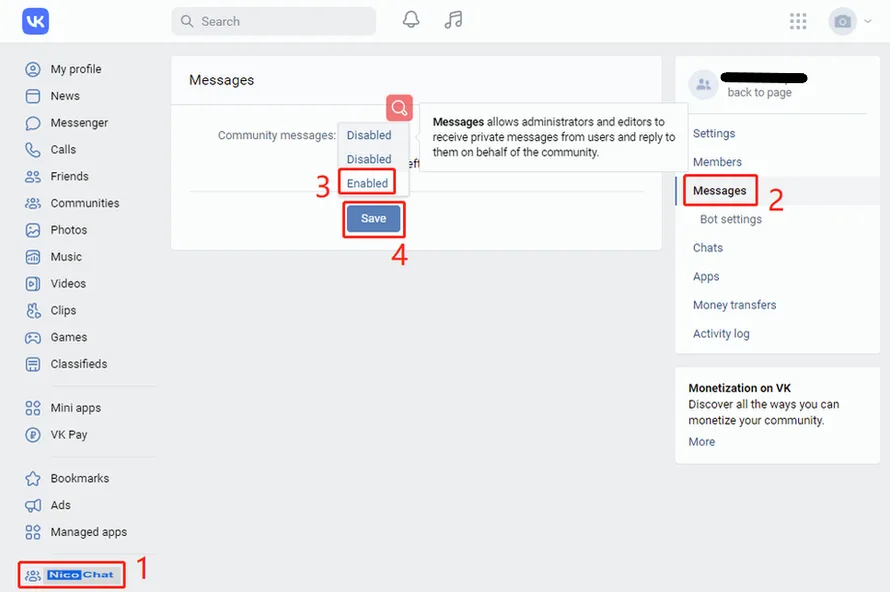
To talk to your bot, you first need to enable community messages. Follow steps 1 to 4 in the image above to do so.
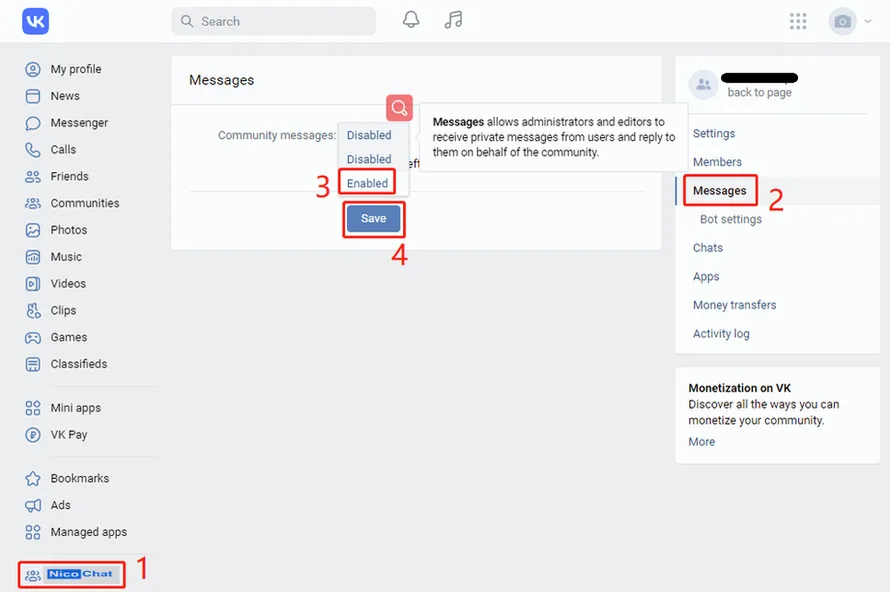
Then go to "Bot settings", change the bot abilities to "Enabled", click the "Save" button and confirm that the green "Changes saved" message appears. It is important to enable the bot abilities so that it can send buttons, questions and cards, and not just text and media messages.
Now you can open the VK app on your phone, search for your community name and click on it:
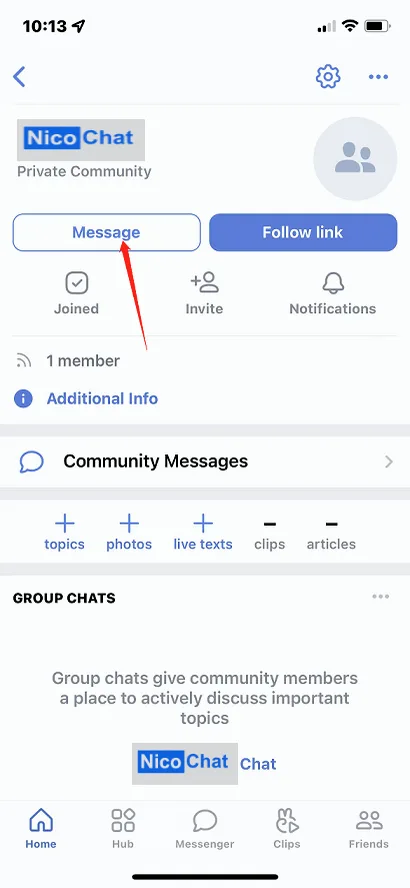
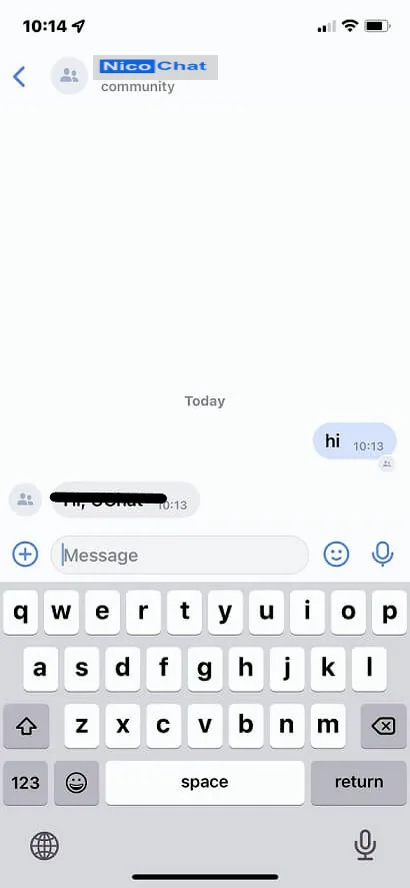
Click “Message” to start the conversation.
The VK channel has several limitations, according to the VK API:
- In a card, the image must have a 13/8 ratio and there must be at least one button, otherwise the card will not be displayed.
- In a question step, there are at most 5 quick replies.
- In a file question, the file uploaded by the user is sent to VK, and VK returns to NicoChat a URL pointing to the file. Note that this URL is not a direct file link. Therefore, you cannot send a file-type message based on it. Instead, you can display the URL: by clicking it, users access the file.