

SMS
Welcome to the world of SMS chatbots! These bots offer a direct and efficient way to communicate with your audience by text message, opening the door to a closer relationship with customers and simpler communication.
- Ubiquity of SMS: SMS (Short Message Service) is one of the most widely used communication methods in the world. It is available on almost every mobile phone, which makes it a universal tool for reaching a broad audience.
- Direct and personal: unlike emails or social media, SMS messages are usually perceived as more personal and direct. That makes SMS an excellent channel for talking to customers in a closer way.
- High open rates: SMS messages have high open rates, much higher than email. This ensures that your messages are not only delivered but also read by your audience.
- Speed and convenience: SMS allows instant communication. It is an efficient way to send updates, alerts and replies at the right time, improving the customer experience.
- Versatility: from marketing campaigns to customer support, SMS serves several purposes, which makes it a versatile tool in your communication arsenal.
These are the providers we currently work with. Different providers support different channels. Choose yours according to your needs, create an account with them and pick your number.
Note that some providers also support Voice or WhatsApp.
In this example, we will use Twilio.

Let's take Twilio as an example. On their website, sign up and log in; you will reach your dashboard:
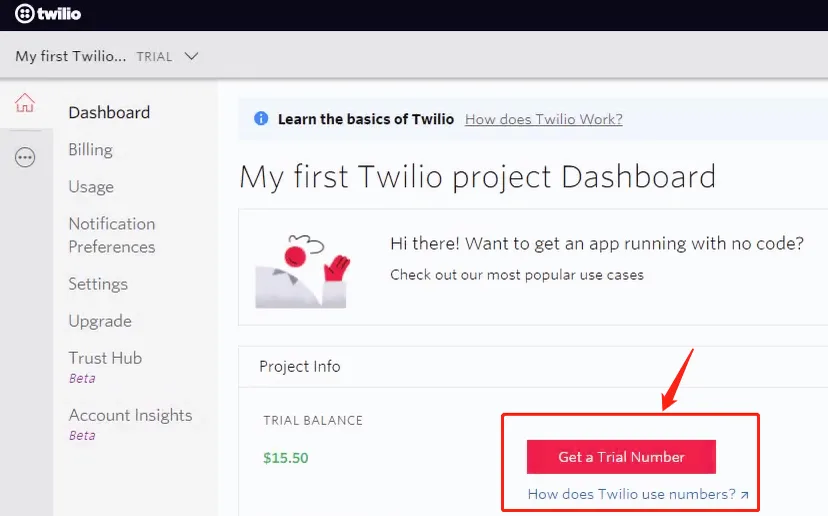
Click "Get a Trial Number".
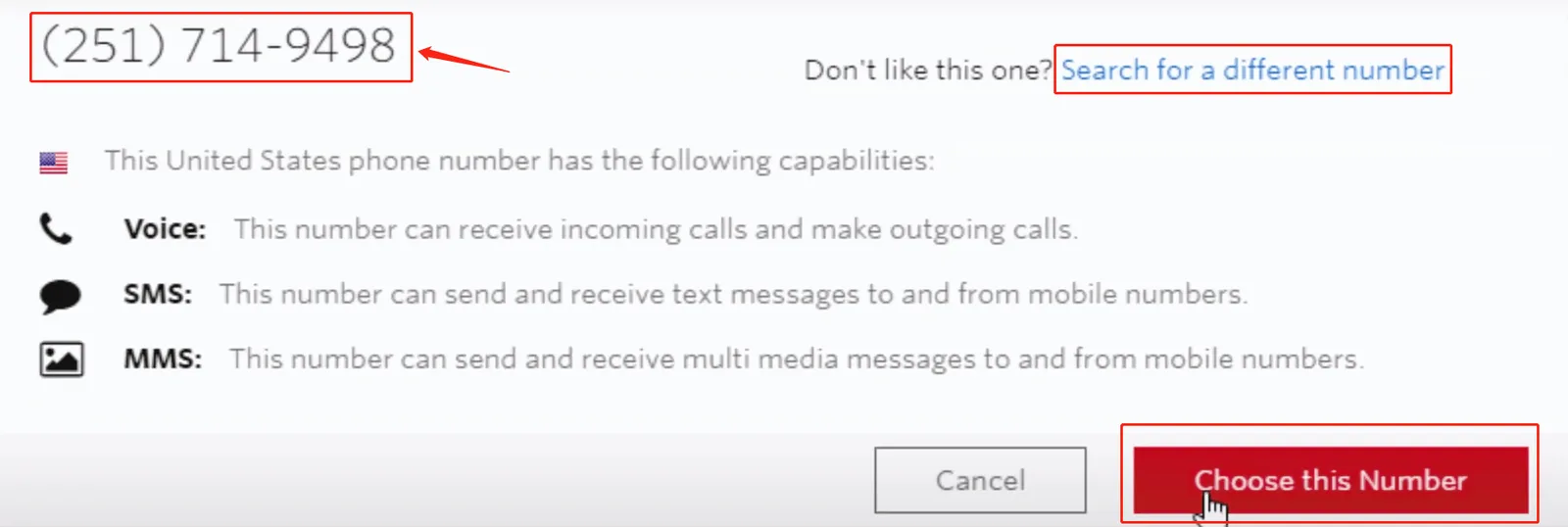
In the pop-up window, the number appears in the upper left corner. Click “Choose this Number” or “Search for a different number”. That's it, you already have your own number!
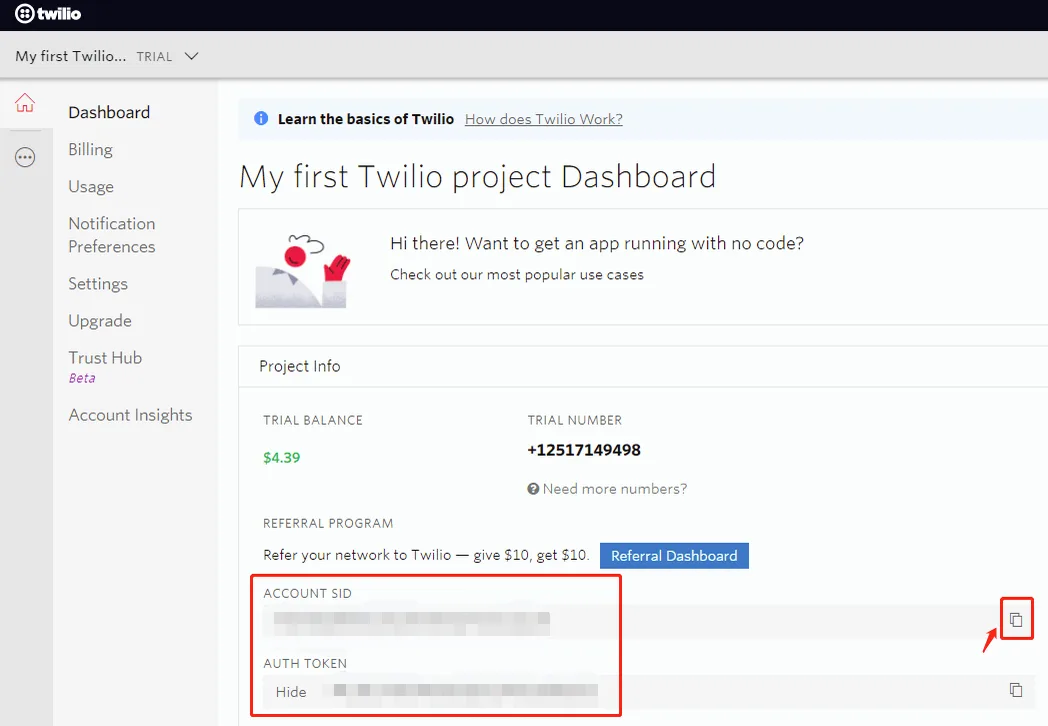
In your Twilio account, copy the Account SID and the Authentication Token, as shown in the screenshot below:
Now, go to the NicoChat dashboard and select Twilio as the provider:
- put your copied values in the corresponding fields.
- click "Save".
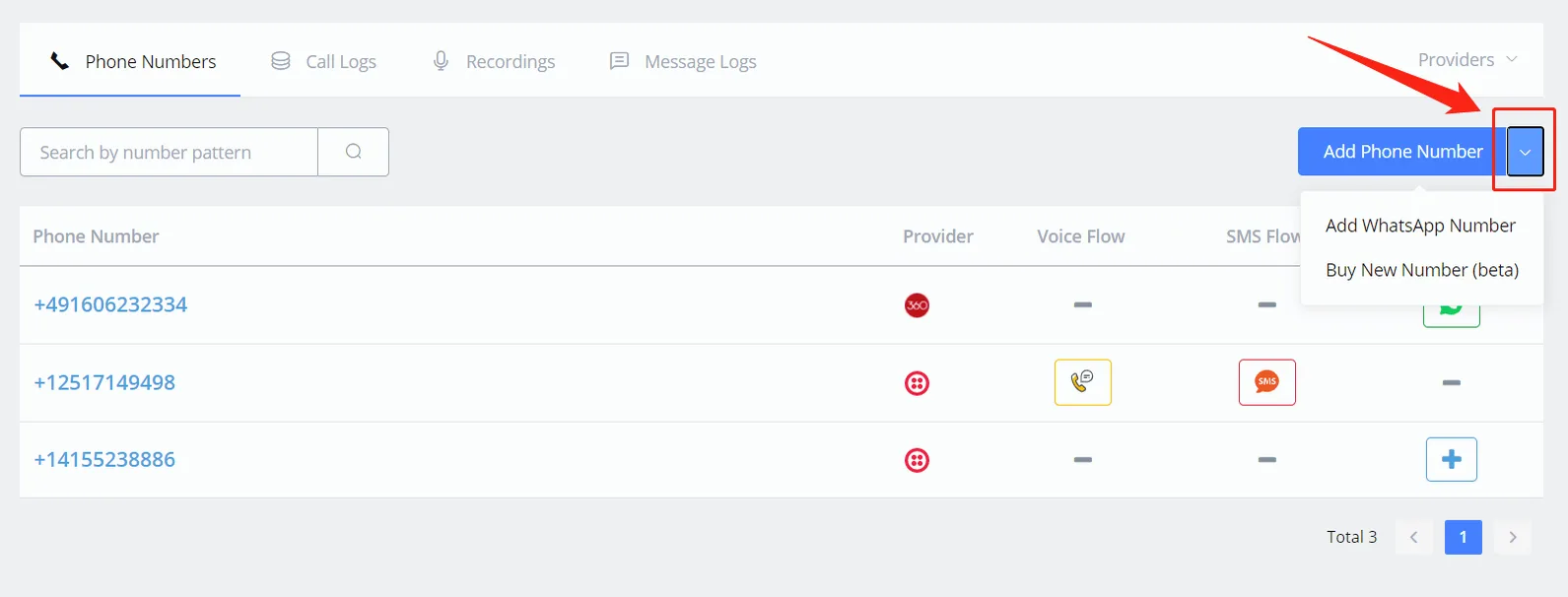
- click “Add Phone Number” if you are creating an SMS Bot or a Voice Bot; otherwise, click “Add WhatsApp Number”.
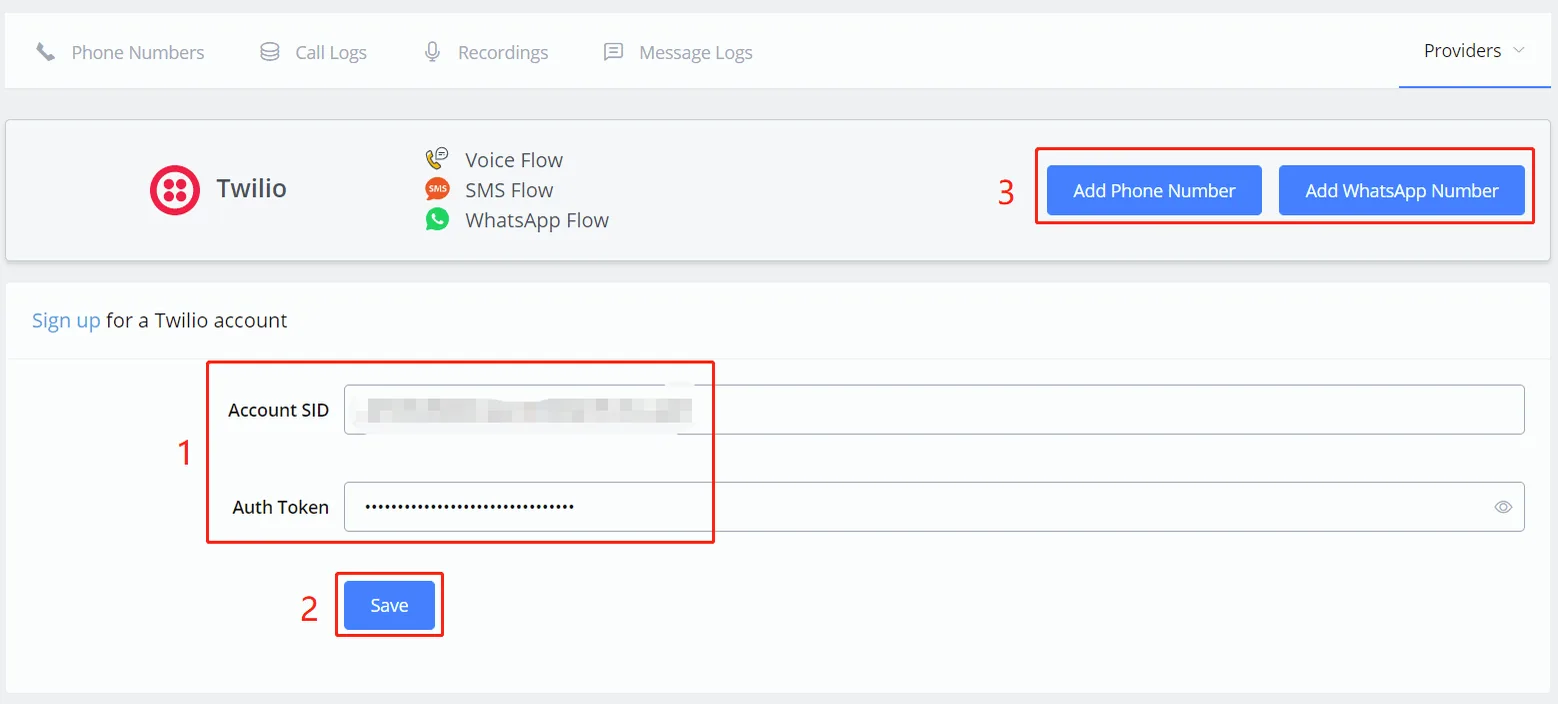
Click “Add Number” in area 3 of the picture above after connecting your provider to NicoChat.
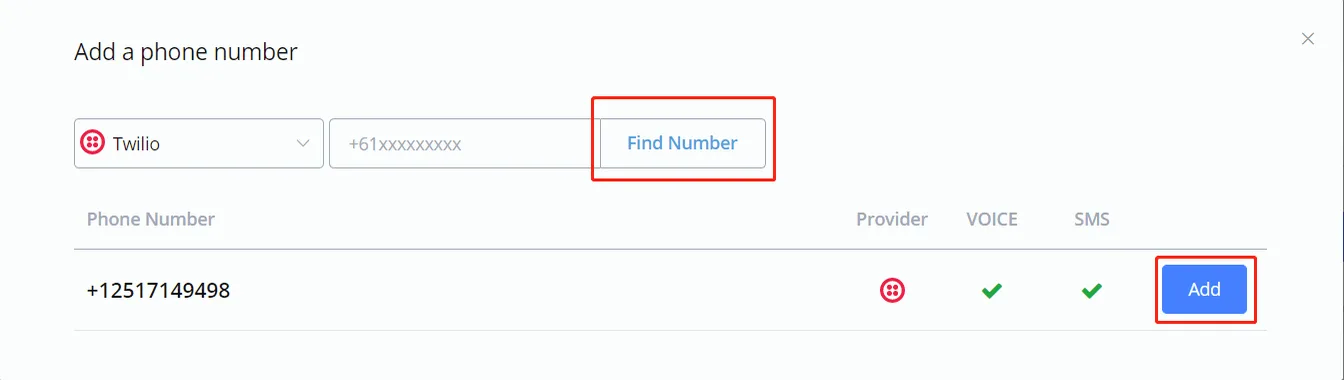
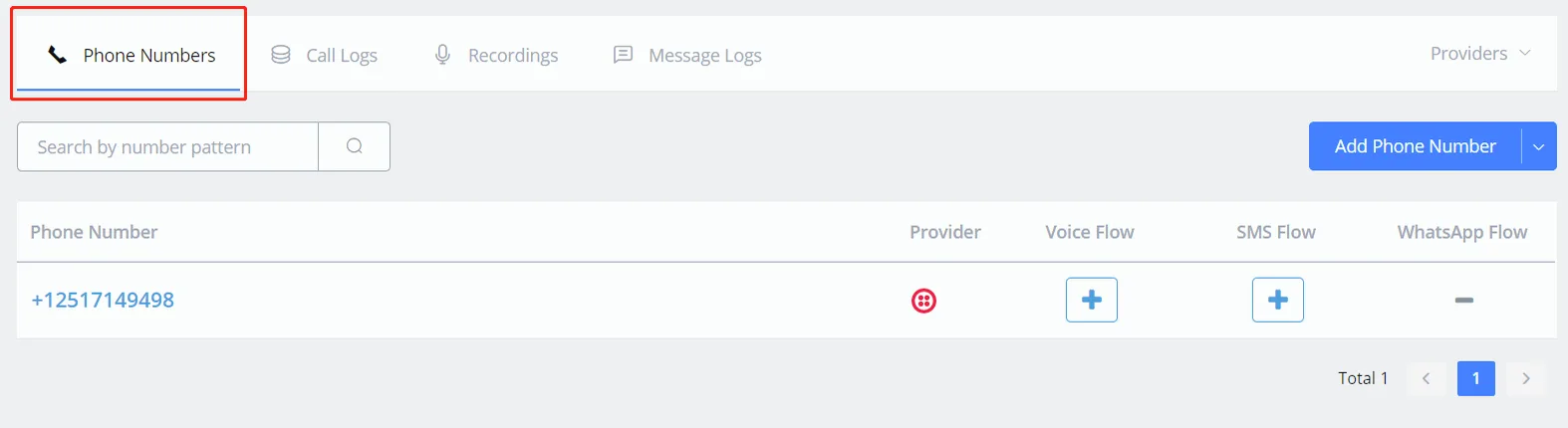
After that, you will be able to see all your connected numbers on the “Phone Numbers” page, under “Integration”.
Add new numbers from the drop-down list as below: ("Buy Number" is disabled at the moment)
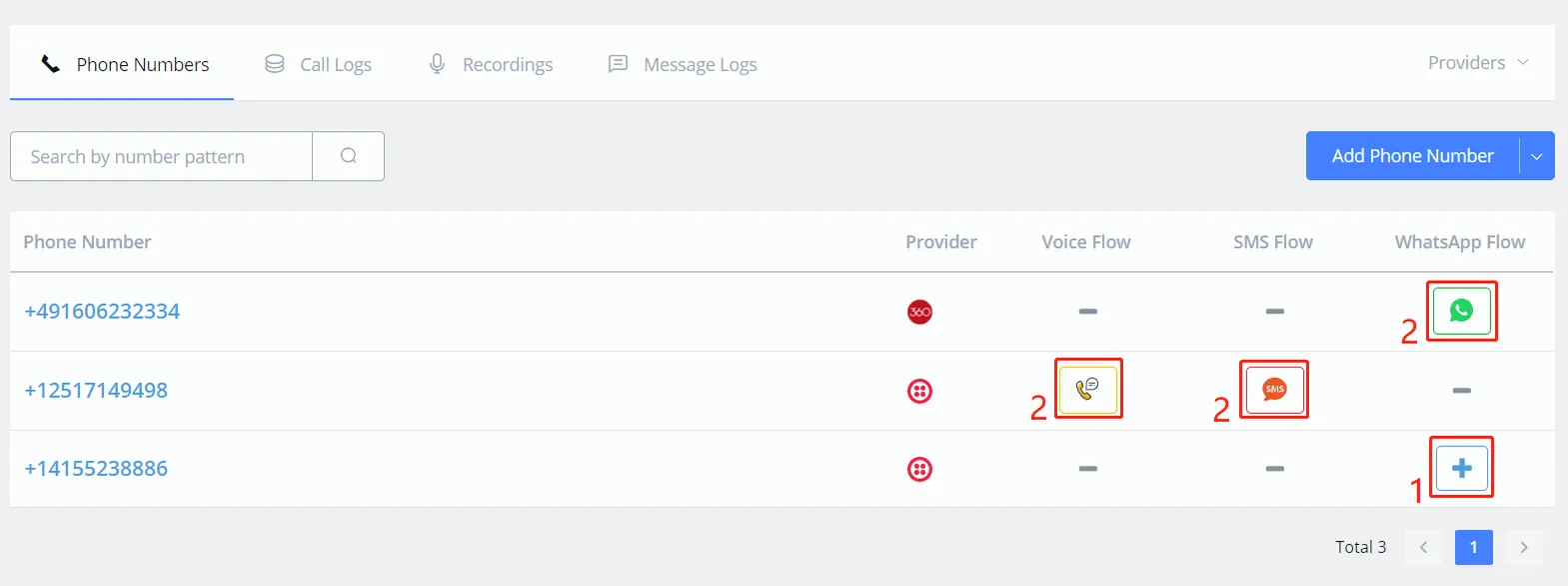
After adding phone numbers:
- use the + button to create a new flow.
- button 2 is the “Open Flow” of this phone number.
NicoChat should configure the webhook automatically in Twilio, but you can also configure it using the following URL:
https://bot.dfktv2.com/bot/sms/[ID_DA_WORKSPACE]Replace with the workspace ID.
In the SMS channel, we mainly have two different message types:
- Send Message
- Question Node
You can find more information about the Send Message node in the video below:
You can find more information about the question node in the video below:
The SMS message was not delivered
If you use Twilio on the SMS channel and notice that the message was not delivered.
You can follow the checklist below:
- Check the Error Log in NicoChat
- Check the Error Log in Twilio
- Make sure geo-permission is enabled in your Twilio account
Sometimes you need to enable geo-permission in your Twilio account: you select the regions and countries you will allow the message to be sent to.
See more details about how to send international SMS messages and enable geo-permission in your Twilio account: