

Line Channel
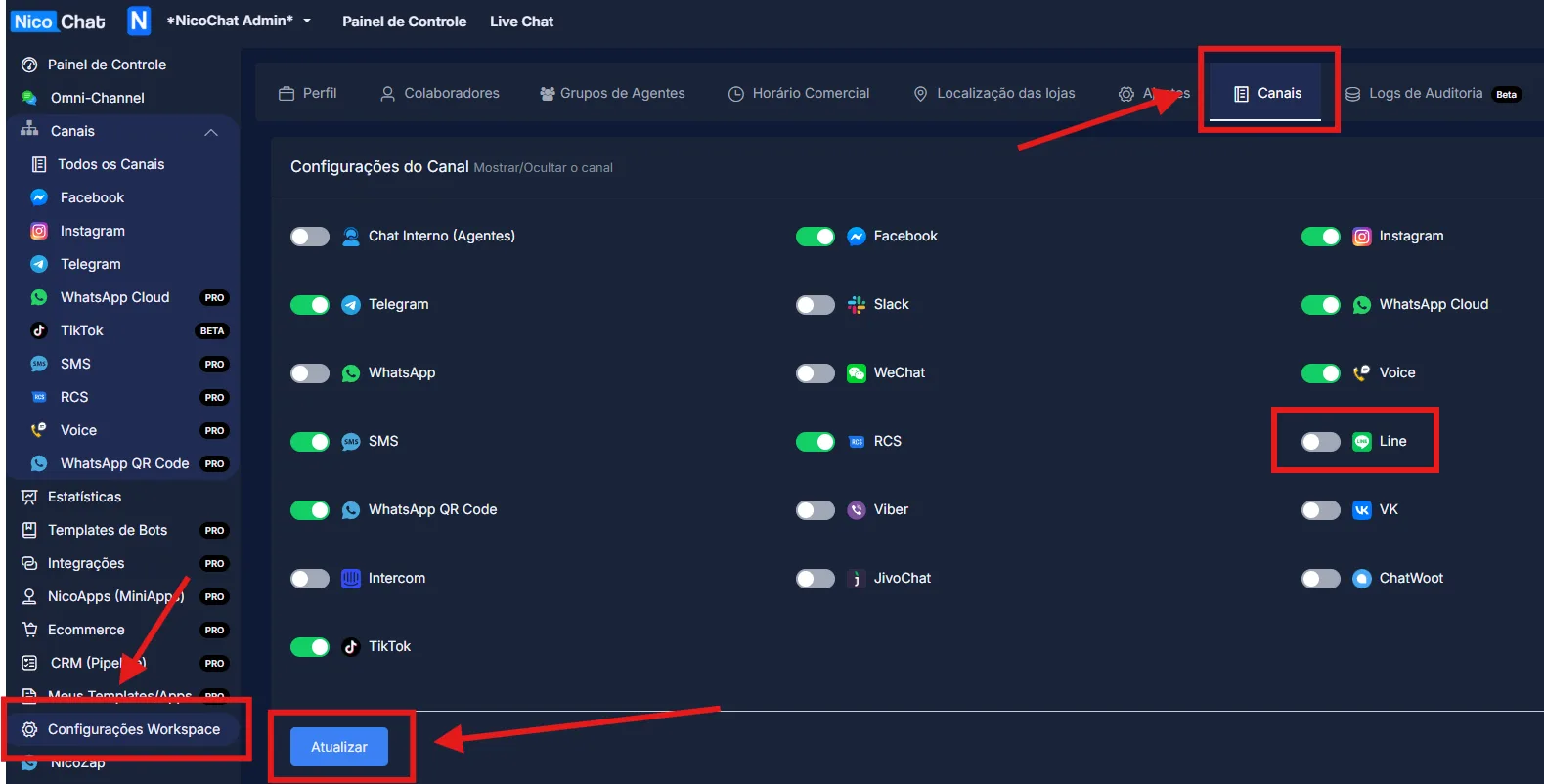
To enable NicoChat’s additional channels, go to “Workspace Settings” > “Channels”, enable the channel you want and click “Update”, as shown in the image:
To enable NicoChat’s additional channels, go to “Workspace Settings” > “Channels”, enable the channel you want and click “Update”, as shown in the image:
Line is the newest addition to NicoChat’s channel portfolio. In the NicoChat dashboard, click the Line channel option, on the left side of the screen, where all channels are listed.
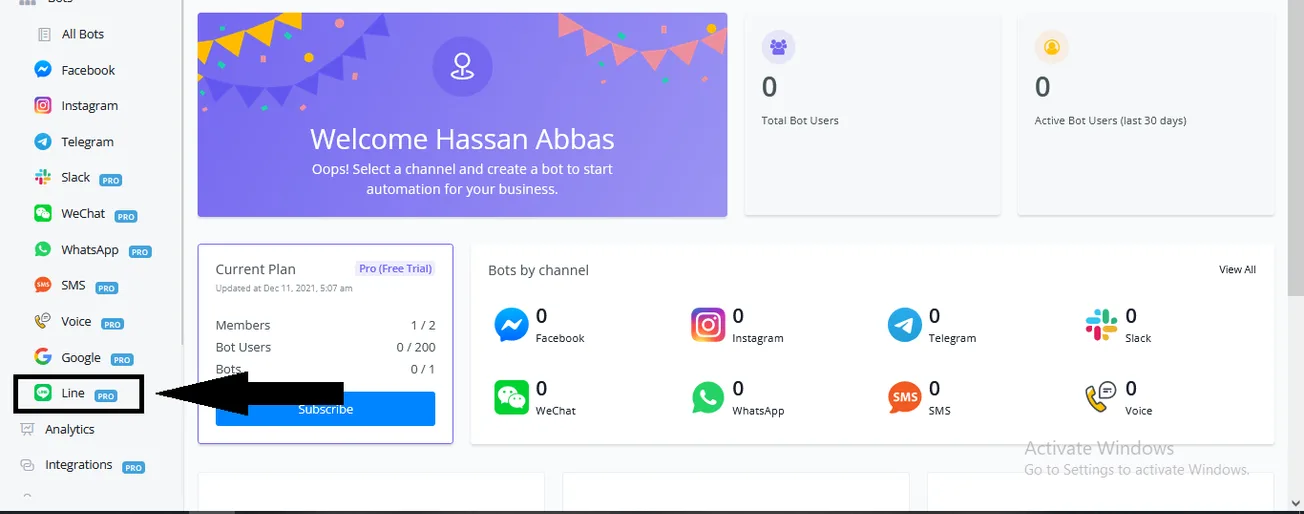
How to access the Line channel from the NicoChat Dashboard
When you click it, the Line channel page opens. On that screen, click the “Add New Line Bot” button, as shown in the image below.
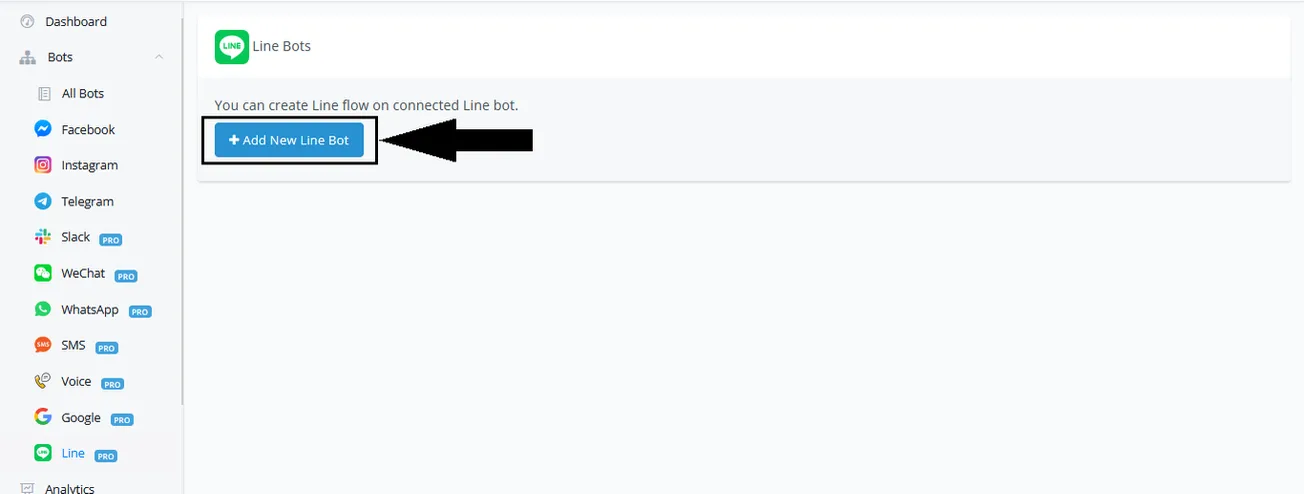
Click "Add New Line Bot" to enter your Messaging API keys
A pop-up window will open with two options.
1- Line Business account registration link, for users without an account. (Click here for the video guide on how to register and integrate the Line account.)
2- Three API fields so that users with an active Line Business account can enter the Line Messaging API keys and integrate the channel.
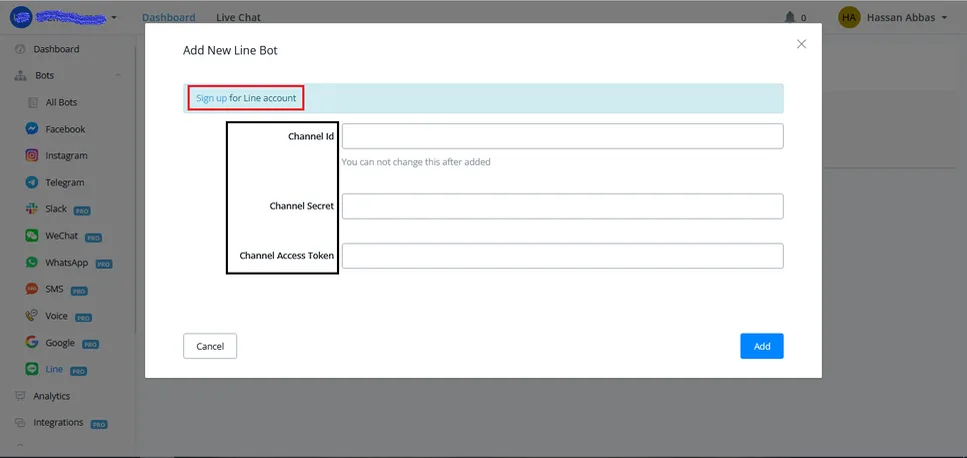
A pop-up window will appear for you to enter the Messaging API details
To integrate and connect your Line account to NicoChat, the only information required is the following:
1- Channel Id
2- Channel Secret
3- Channel Access Token
Some users are unsure about the Webhook URL requirement in the Line Business account and end up opening support tickets.
After entering the required information, click “Add”, in the bottom right corner of the pop-up window, as shown in the image below.
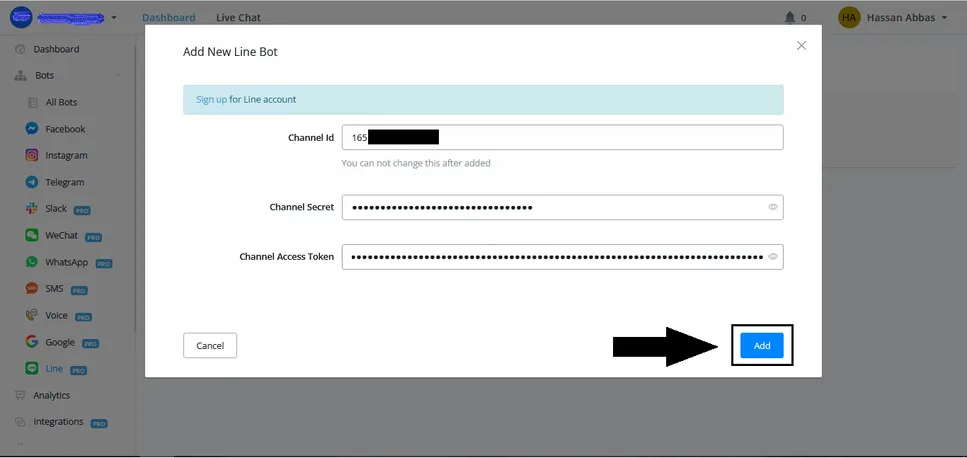
Enter your Messaging API keys and click "Add", in the bottom right corner of the pop-up window
Done: the Line Business account is integrated with NicoChat. As shown in the image below, you can click the “Create Flow” button, on the right side (highlighted in red), and start building the flow of your Line chatbot.
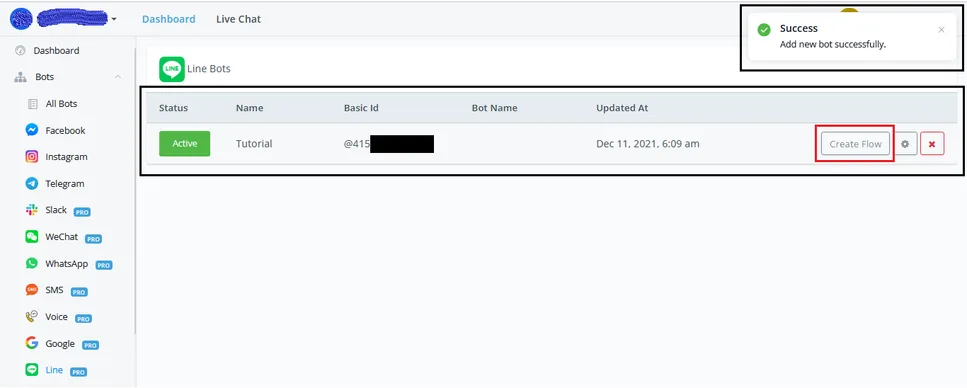
A message confirming the successful integration of the Line account
To preview and test the interaction experience we are creating for our audience, follow the steps below.
On the flow builder page, click ‘Preview’, at the top.
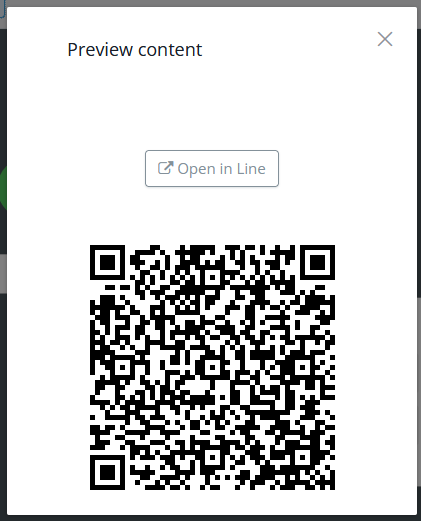
A pop-up window will open with 2 options (as shown in the image below).
Open in Line
It takes the user to the official Line website, where you can download the Line Desktop app. Unfortunately, the Line Desktop app does not support “quick reply buttons”, which will not be visible.
QR Code
Scan the QR code with the Line app on your phone: the chat will open with a string already filled in the typing field.
When you send this string, a 24-hour test window opens between you and your channel. This way you can test the flow without worrying about using up the messages in your plan.
The string will look like this: /start -uflow::main::draft::123
You only need to scan the QR code once every 24 hours. Within that period, whenever you click Preview, the flow will be triggered directly in the mobile app.
For more help and support, contact the NicoChat community or send us an email: we will be happy to help.