

JivoChat (Channel)
In this document, you will learn how to build your web chat chatbot with JivoChat. You can use our visual drag-and-drop flow builder to design your own chatbot automation.
We will talk about 3 different points below:
We have a lot to cover, so let's get started.
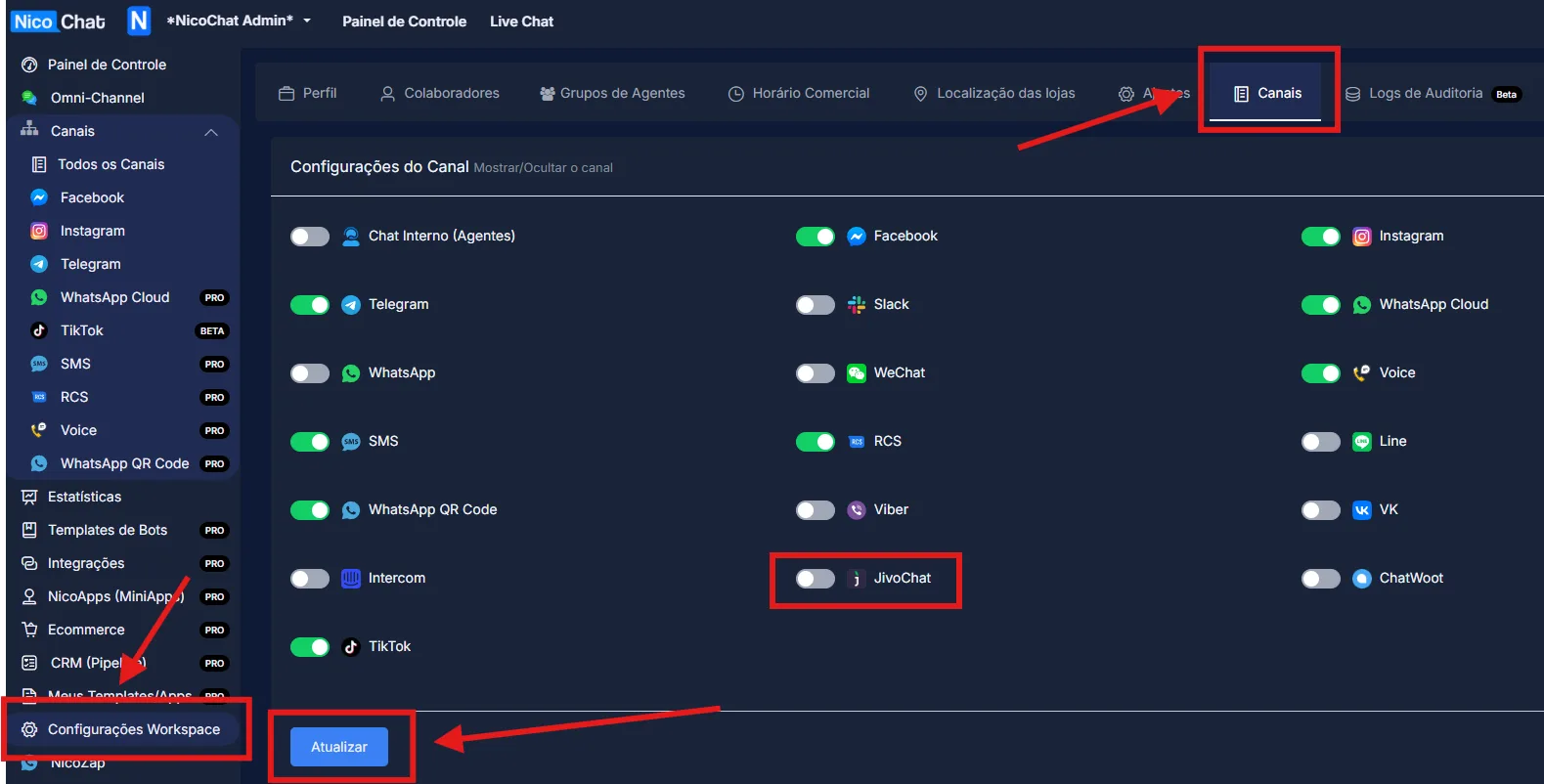
To enable the NicoChat additional channels, go to “Workspace Settings” > “Channels”, enable the desired channel and click “Update”, as shown in the image:
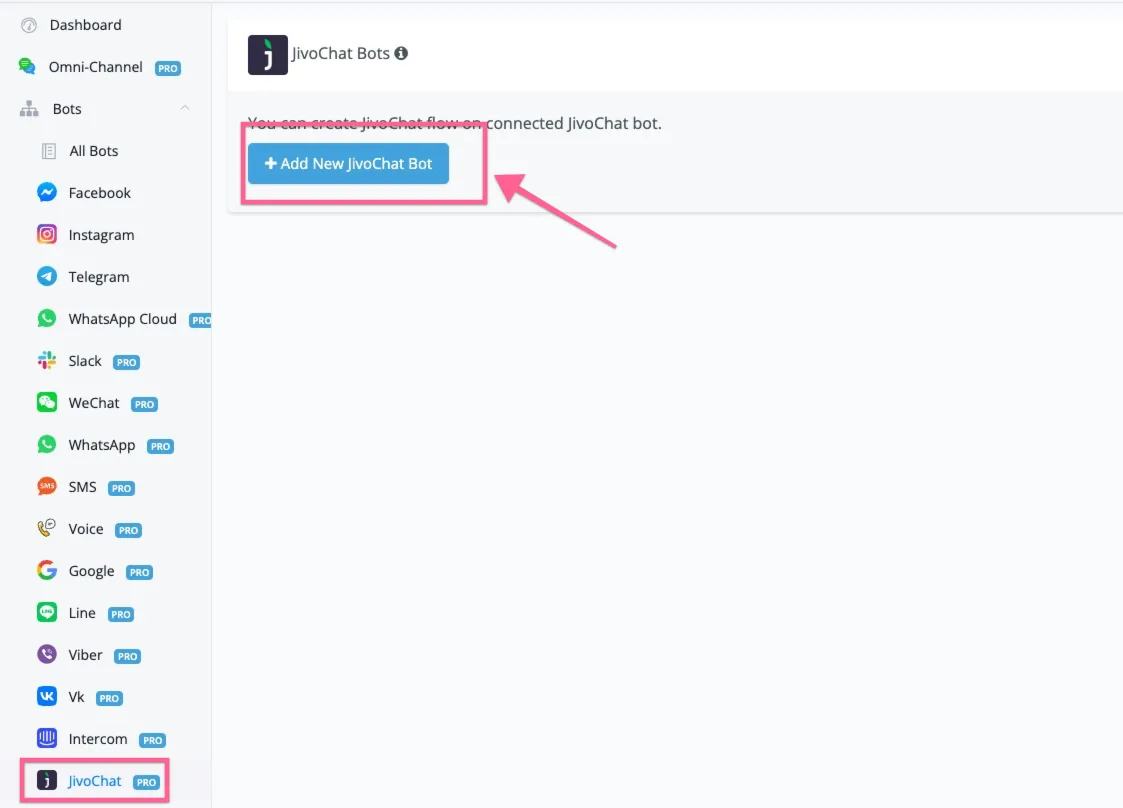
In the dashboard, you can find JivoChat among the channels and click the “Add New JivoChat Bot” button.
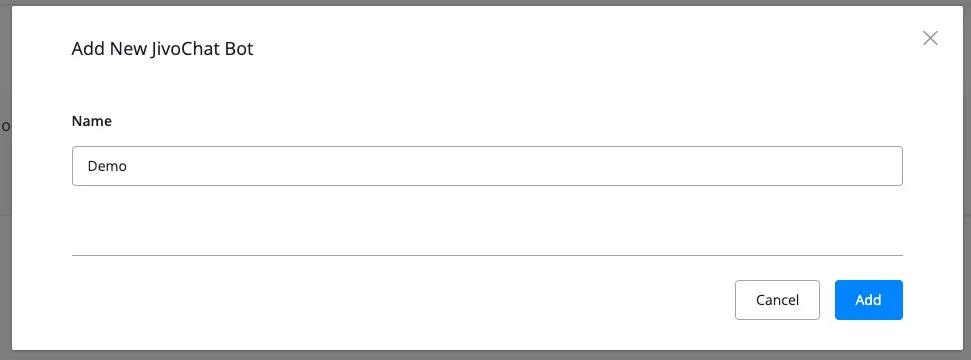
Then give your new JivoChat bot a name.
You will then reach the screen below.

You need to copy the token generated in NicoChat.
Now you can go to your JivoChat app and log in, then go to manage → Extension → Integration.
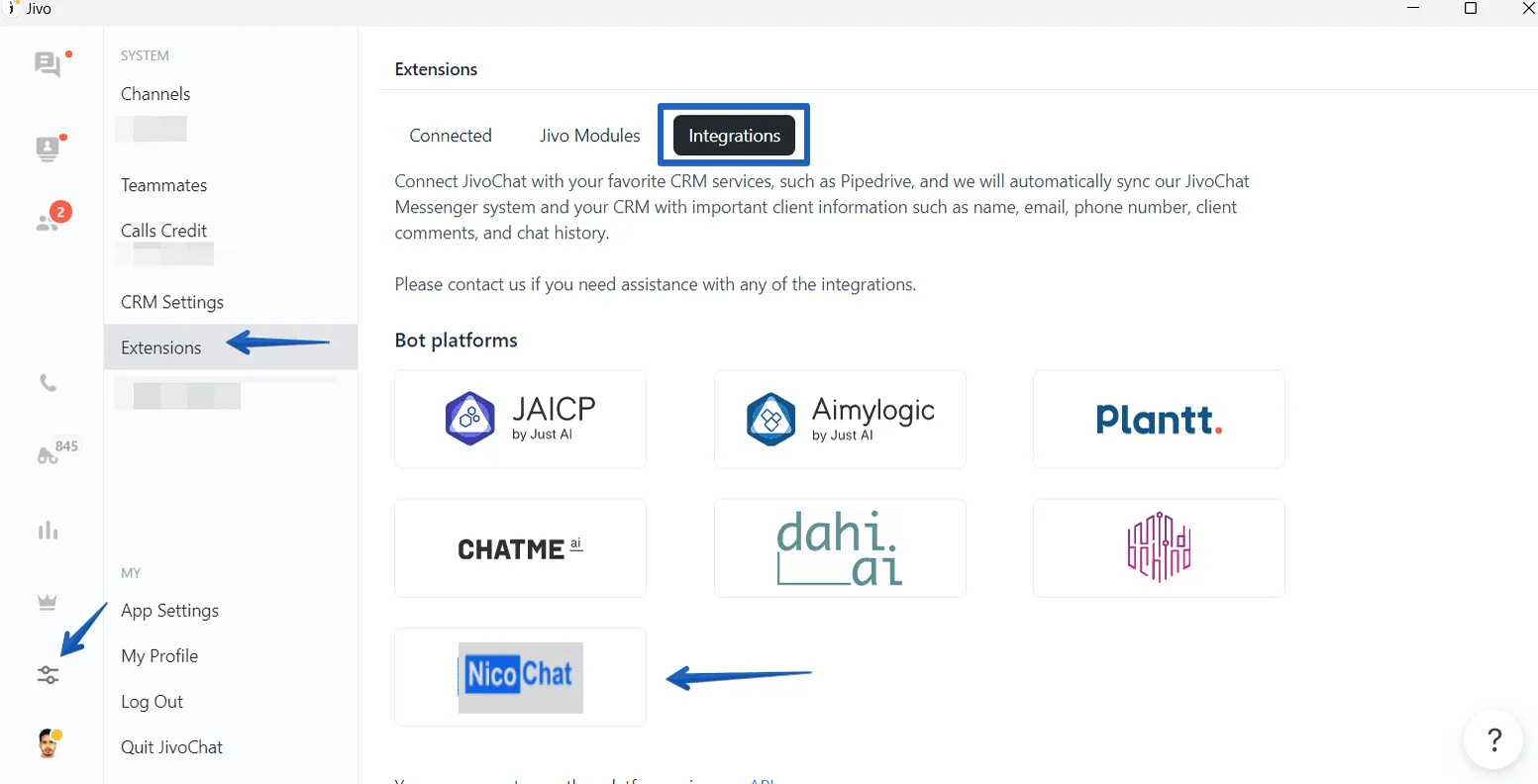
In this menu, you will be able to add a picture of your bot, the name and other data. Do not forget to paste your NicoChat token here. Just click “save” and the bot will be linked to Jivo.
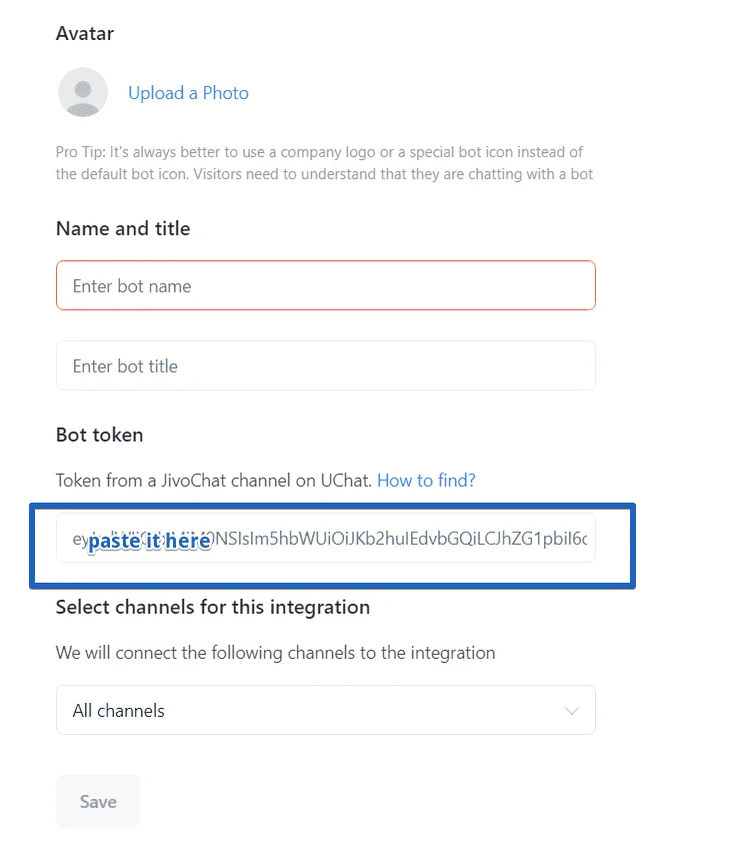
After pasting your token on the screen above, you need to go back to NicoChat to create a bot flow inside it.
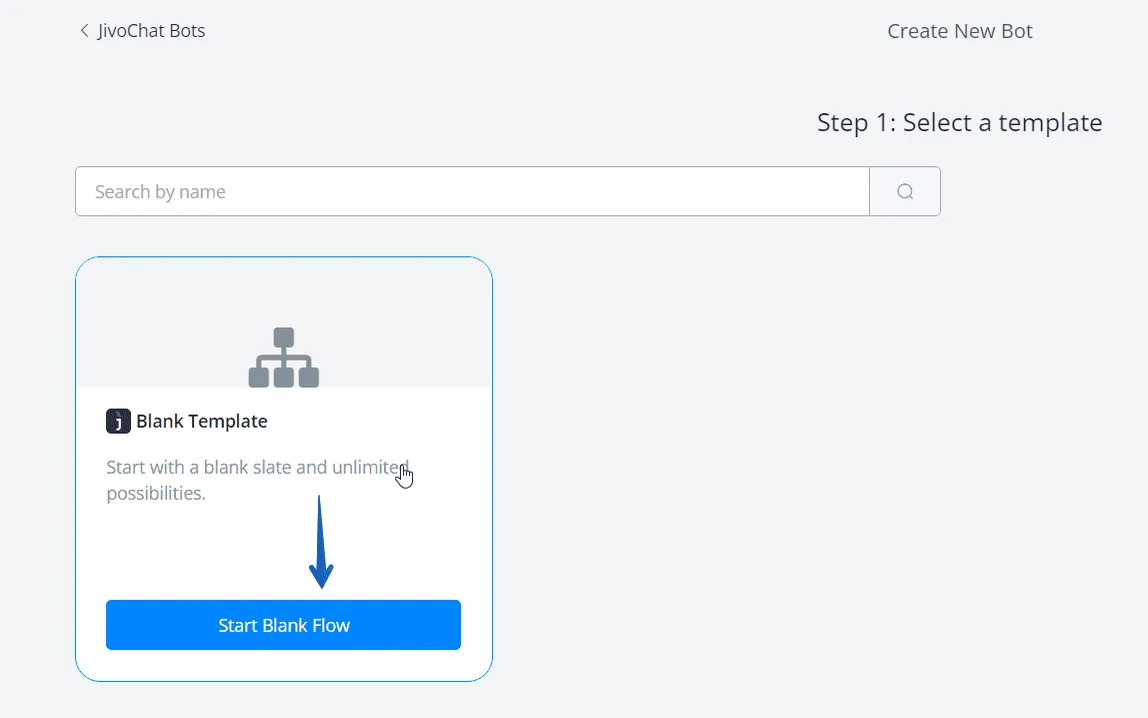
This is very simple: just go to “Create Bot”. You will be taken to this page, where you can select a template or start a new one. Click “Start Blank Flow”, for example:
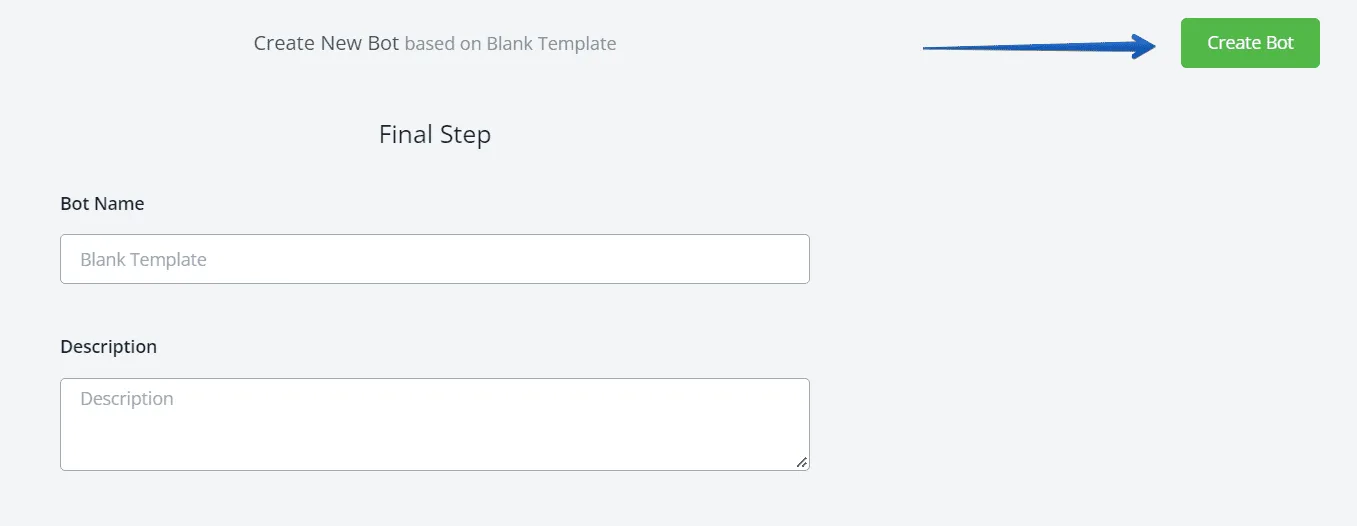
Type a name for your template and a description, if needed, and click “Create Bot”.
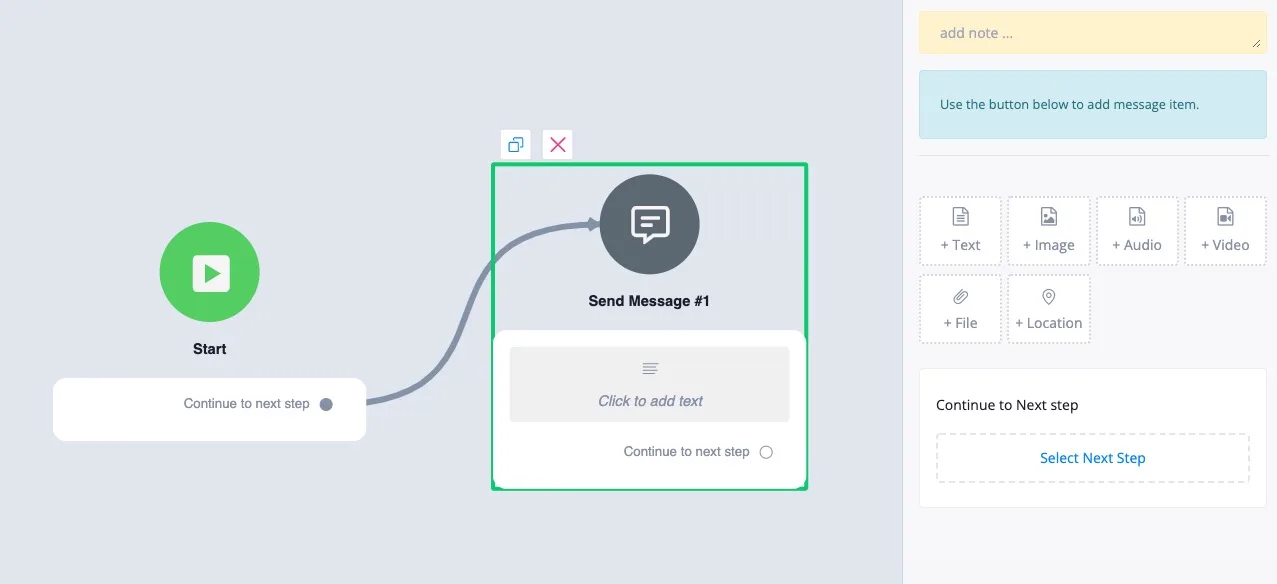
Here you will see your flow and you will be able to edit it, add questions, intents, actions, integrations and so on.
Once you connect JivoChat to NicoChat, you will be able to create your chatbot with our visual drag-and-drop flow builder.
To send messages:
NicoChat supports the following message types:
- Text
- Image
- Audio
- Video
- File
- Location
In the question block, NicoChat allows you to collect the information below from the user:
- Text with buttons
- Number
- URL
- Phone Number
- Date
- Date/Time
- Options
- Image
- File
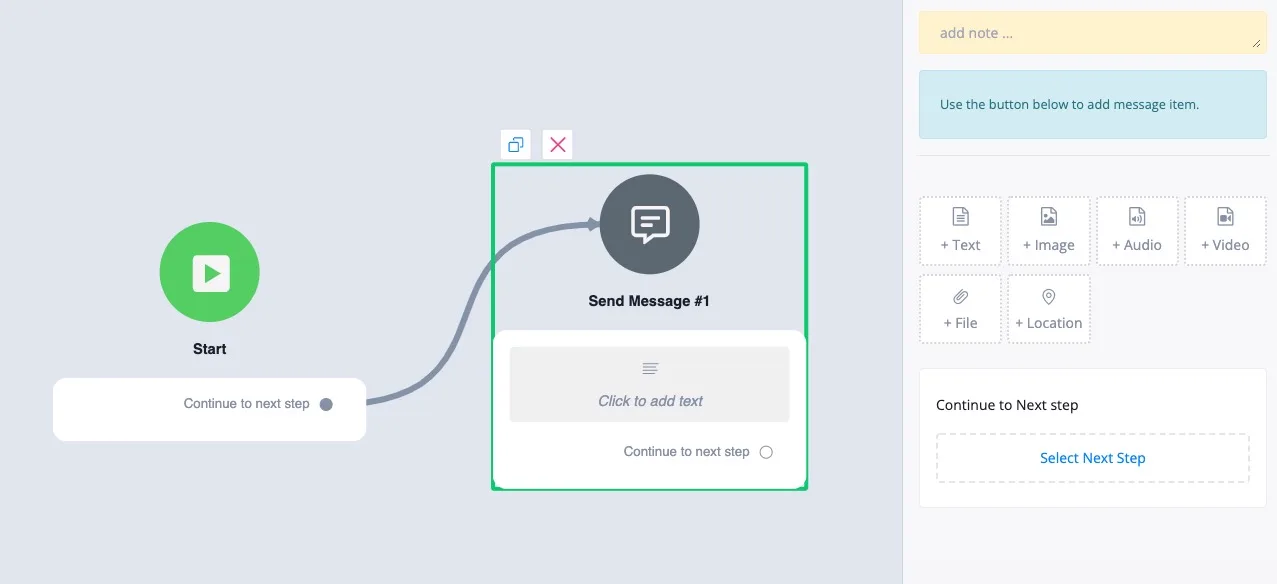
Besides the send message and question blocks, NicoChat allows you to easily integrate with third-party services through our Integrations.
And you can also integrate with third parties through Zapier, Make, Pabbly Connect, etc.
In addition, NicoChat has a built-in e-commerce module: you can build your own e-commerce solutions right inside NicoChat.
There is much more you can do with NicoChat.
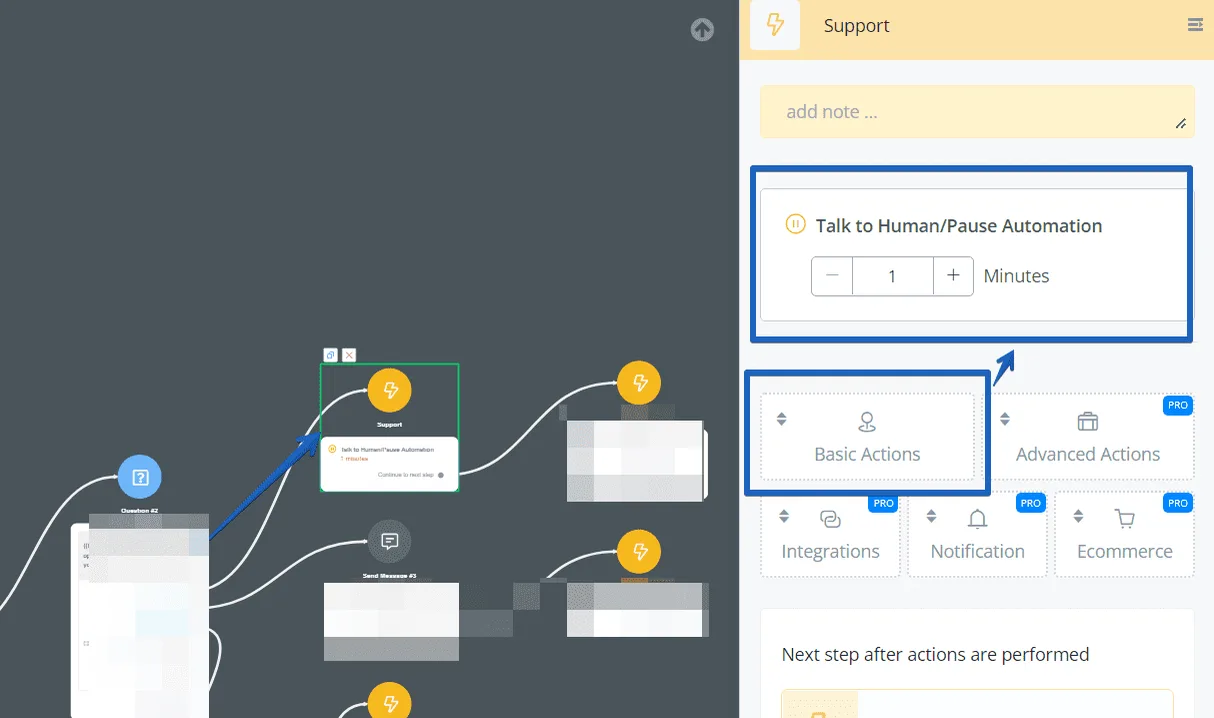
To transfer the conversation to an agent, you will need to set up an action → Talk to Human/Pause Automation:
You can use JivoChat on your website, and it does not depend on any social platform. In this section, you will learn how to install on your website the chatbot you have just built in NicoChat.
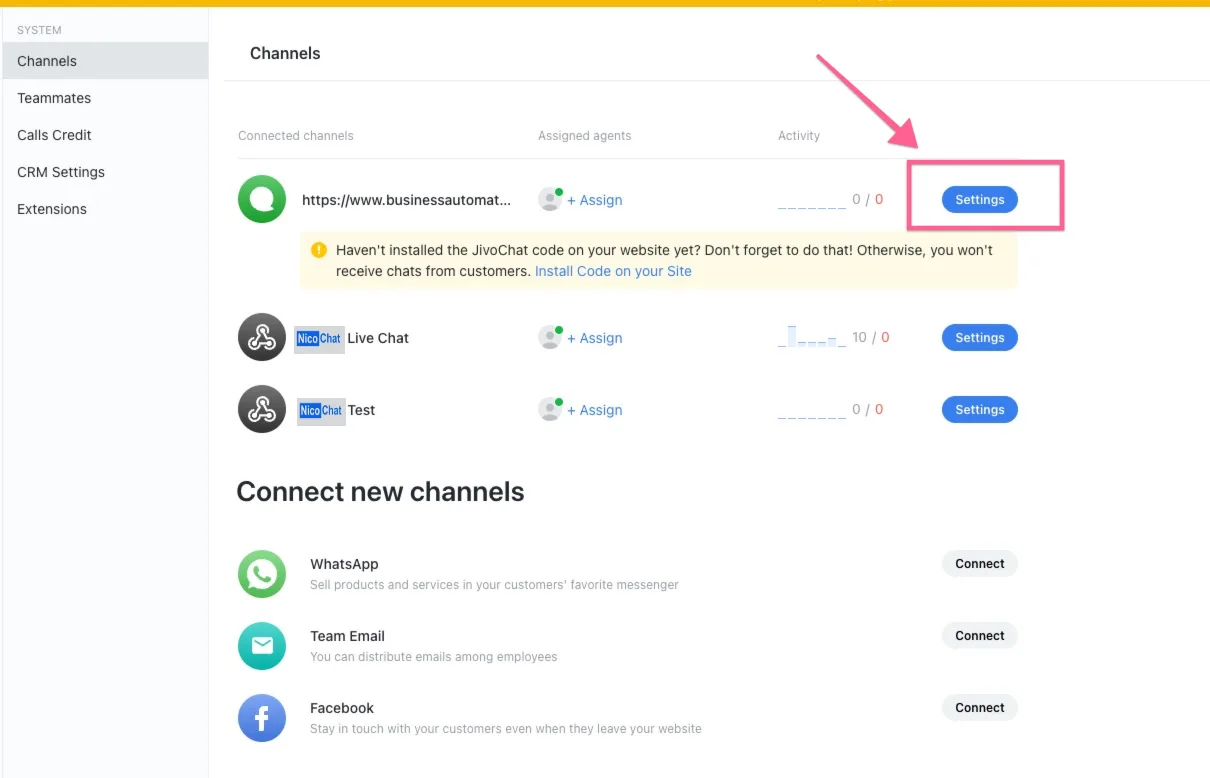
In your JivoChat account, you can go to the channels and find the settings of the channel you want to install on your website.
Then go to the installation section and copy the script to your website.
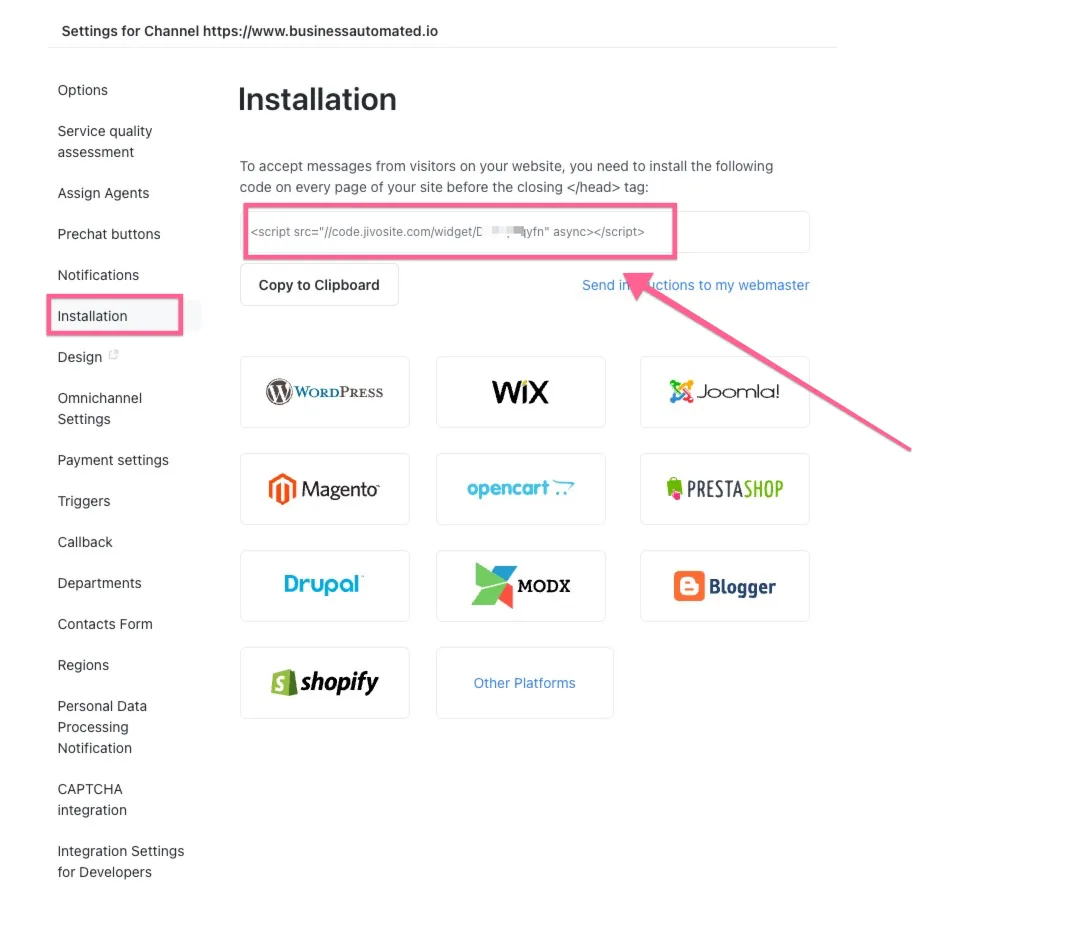
After you add the script to your website, your chatbot will be active.