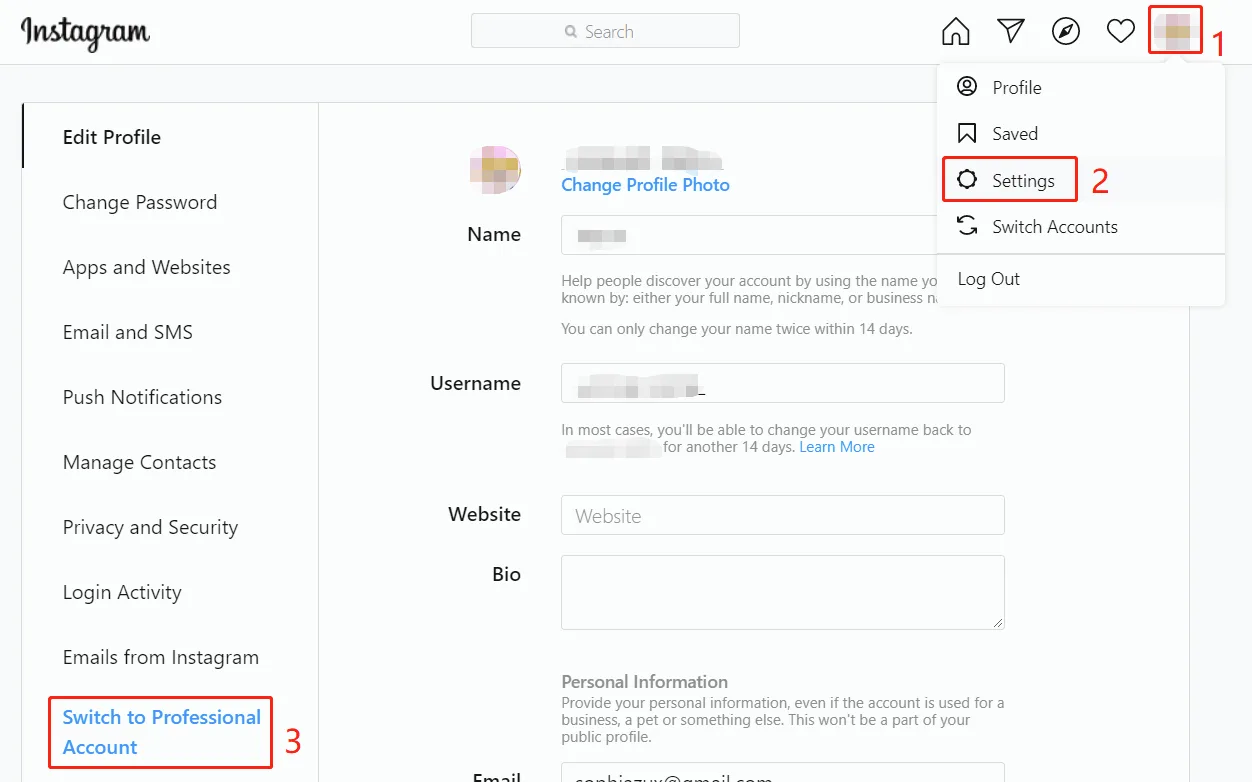
First, you need an Instagram business account. To switch from a personal account to a business account, follow steps 1, 2 and 3 in the screenshot below and choose "Business":

First, you need an Instagram business account. To switch from a personal account to a business account, follow steps 1, 2 and 3 in the screenshot below and choose "Business":
Next, connect your Instagram business account to your Facebook page. A Facebook page is required; if you don't have one, create a new page.
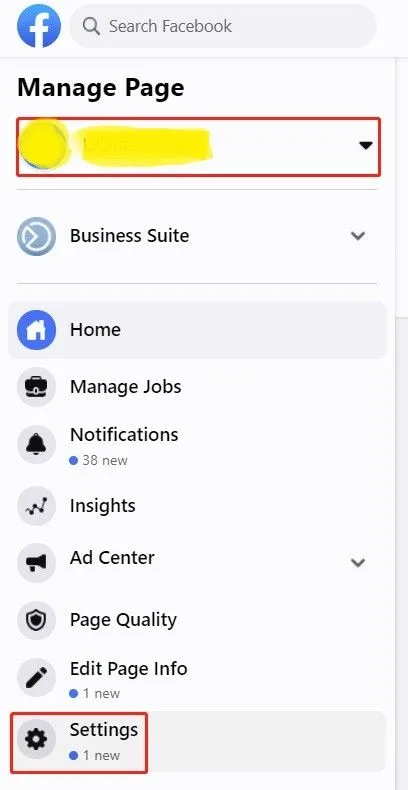
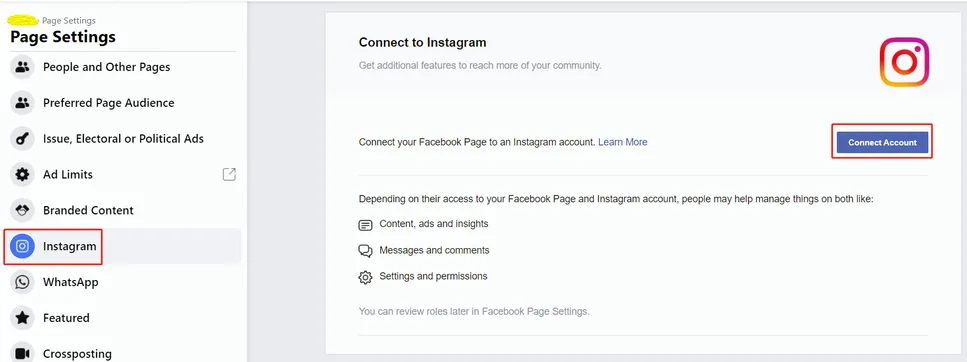
Go to “Settings” on your Facebook page, then “Instagram”, “Connect Account”.
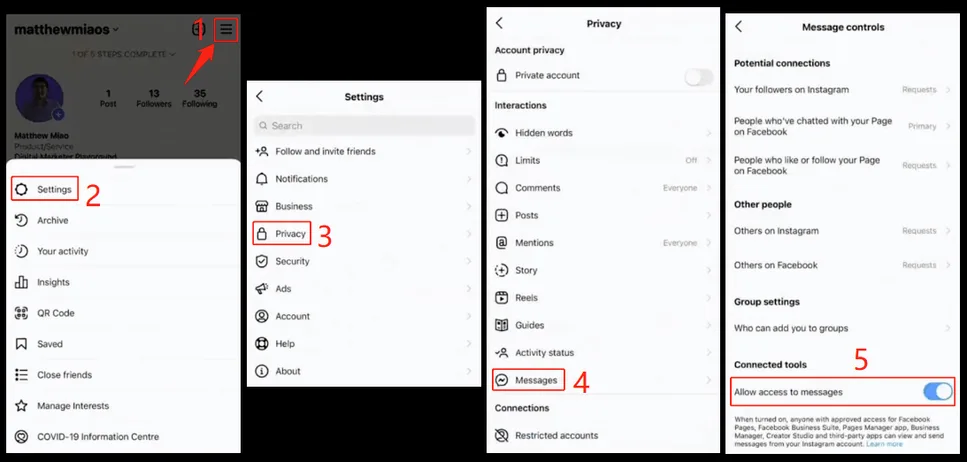
The next step is to turn on “Allow access to messages” in your Instagram app. See steps 1 to 5 in the screenshot below: Menu - Settings - Privacy - Messages - Allow access to messages
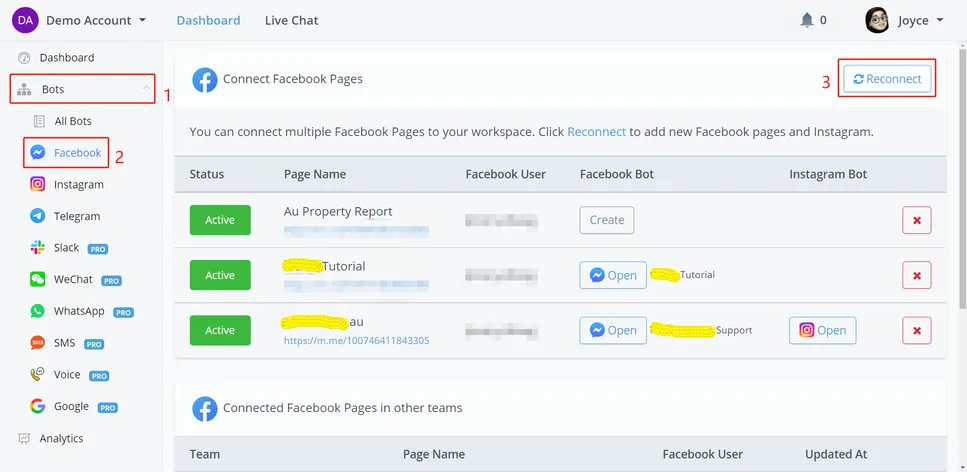
Finally, let's connect your Instagram to NicoChat. Go to "Facebook" and "Reconnect" (yes, Facebook, not Instagram):
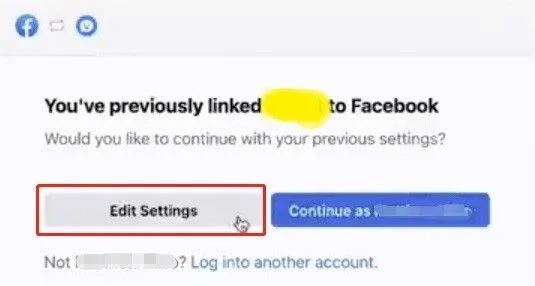
Continue with your own profile, or click "Edit Settings" if you have already linked your Facebook.
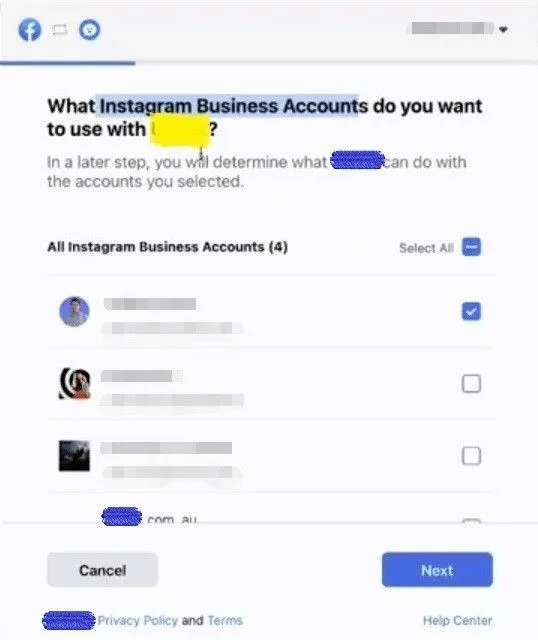
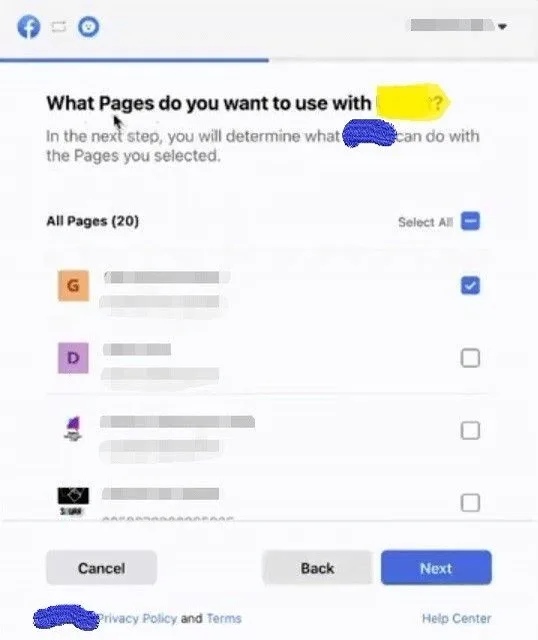
Grant all permissions and, after connecting, you will be able to see your Instagram flow in both "Facebook" and "Instagram":
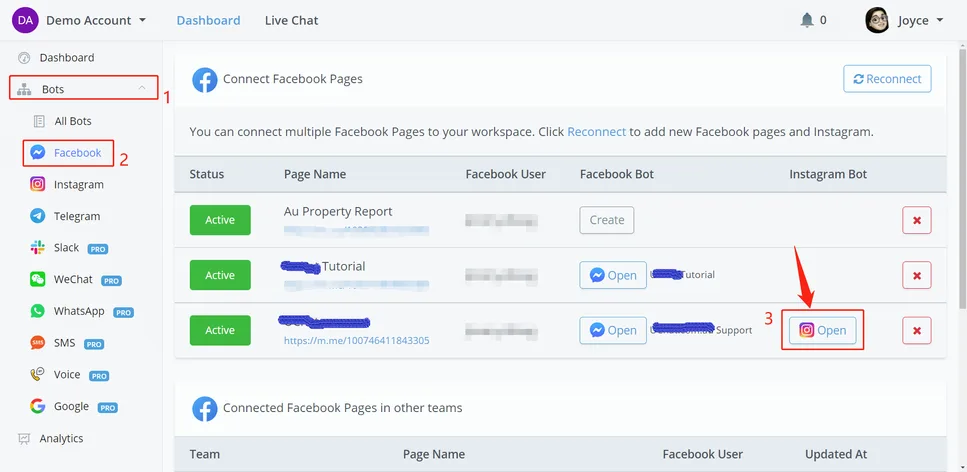
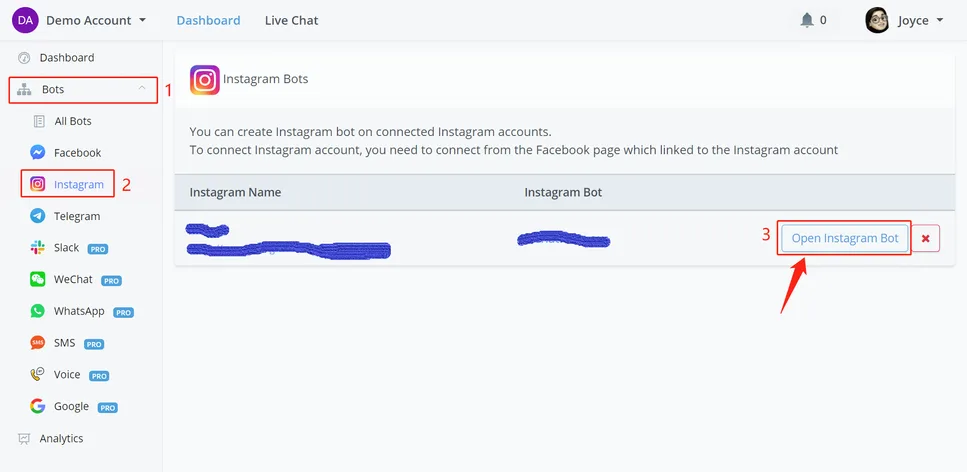
Instagram does not support the preview feature, so to talk to your Instagram bot:
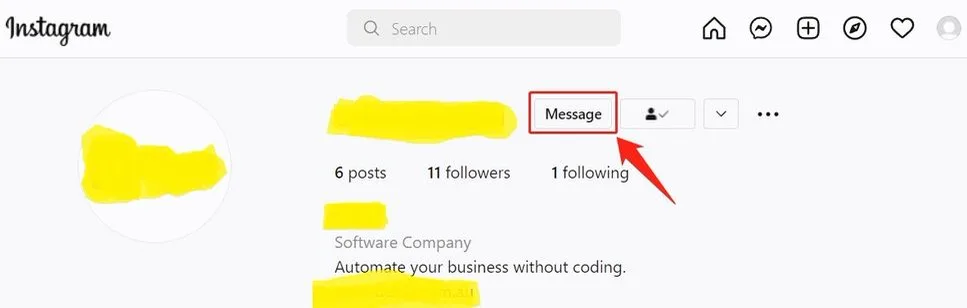
- Search for your account name on Instagram or go to the Instagram section in the NicoChat dashboard and click the link below the bot name to visit your Instagram page
- follow the account and click Message to start the conversation.