

Chatwoot (Channel)
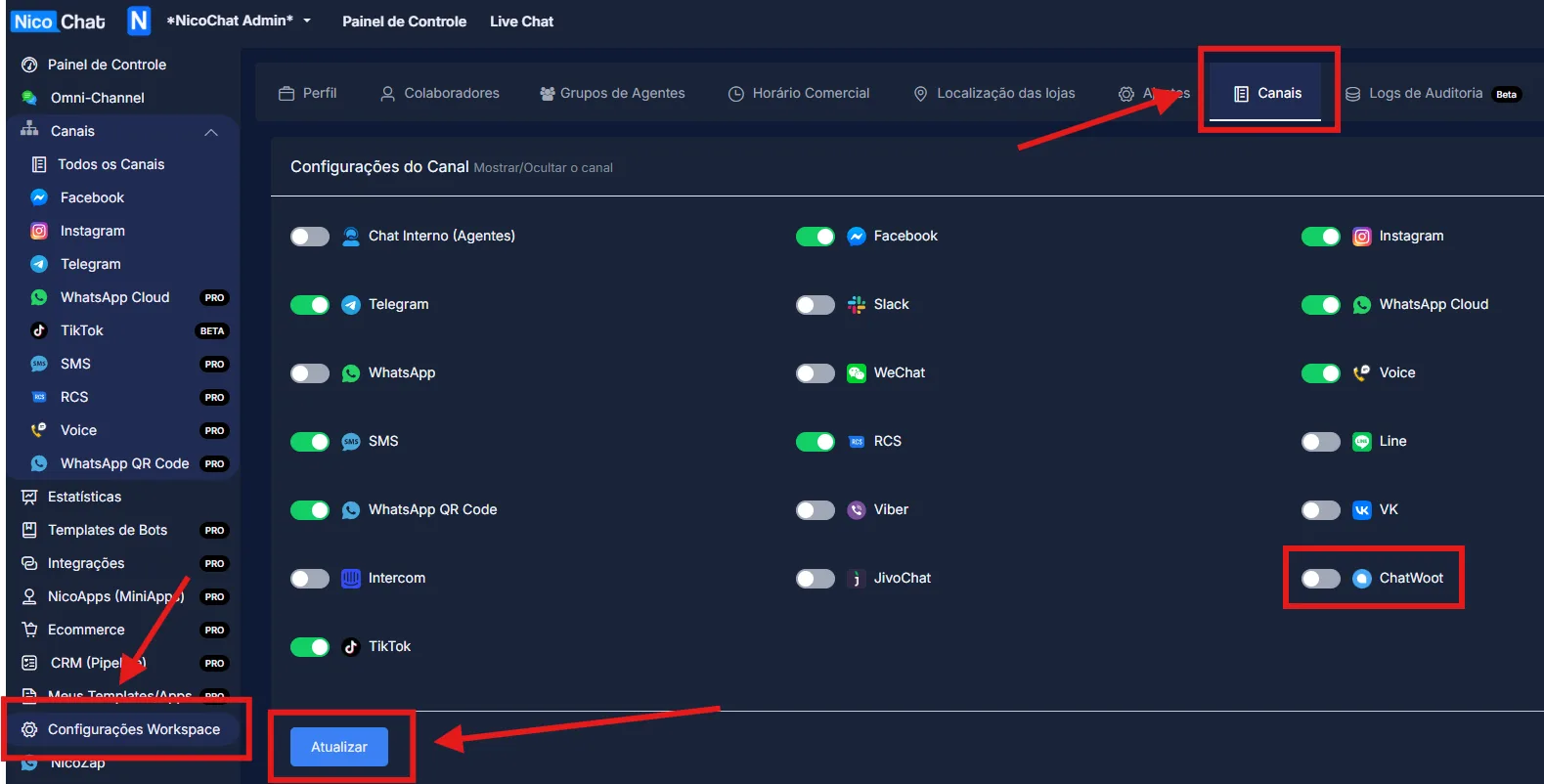
To enable NicoChat's additional channels, go to “Workspace Settings” > “Channels”, enable the desired channel and click “Update”, as shown in the image:
To enable NicoChat's additional channels, go to “Workspace Settings” > “Channels”, enable the desired channel and click “Update”, as shown in the image:
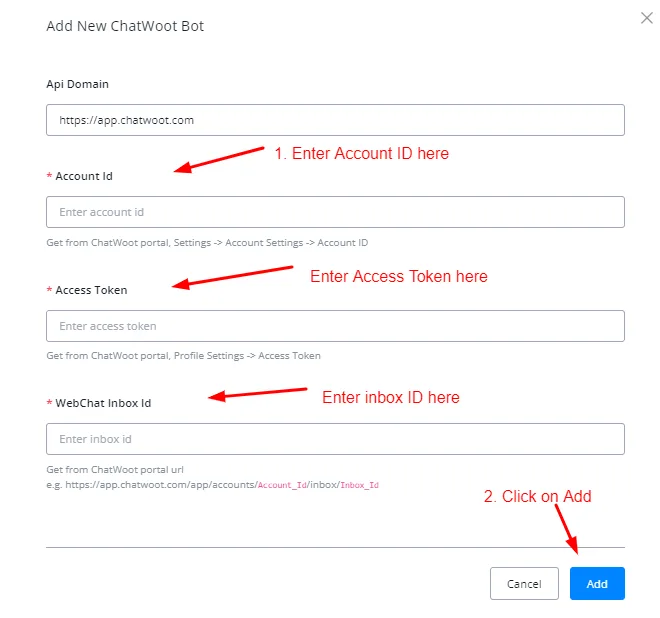
To connect Chatwoot, you will need three things:
- Account Id
- Access Token
- WebChat Inbox Id
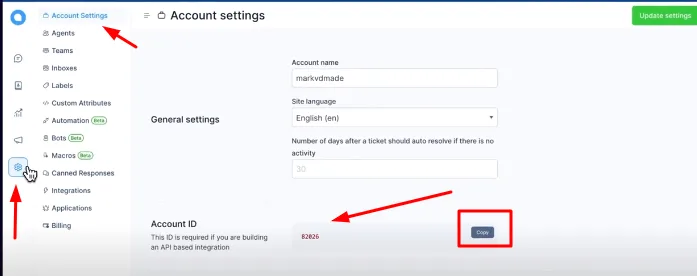
To get the Account Id, on your Chatwoot dashboard, go to settings and copy the account Id.
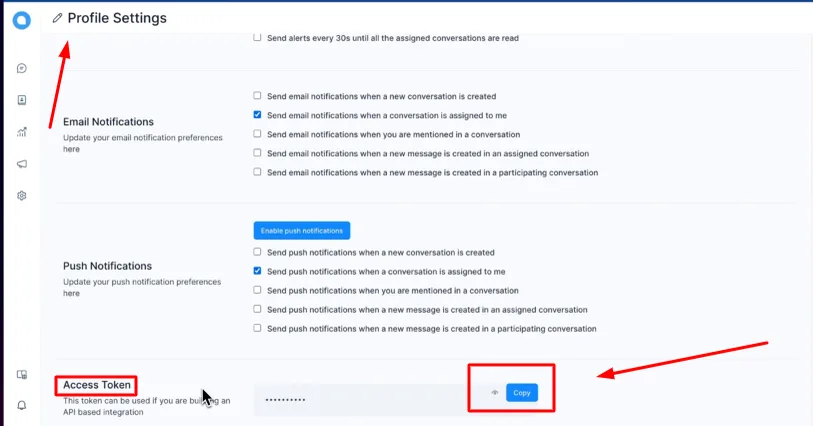
To get the access token, click your profile, go to profile settings, scroll down and copy the access token.
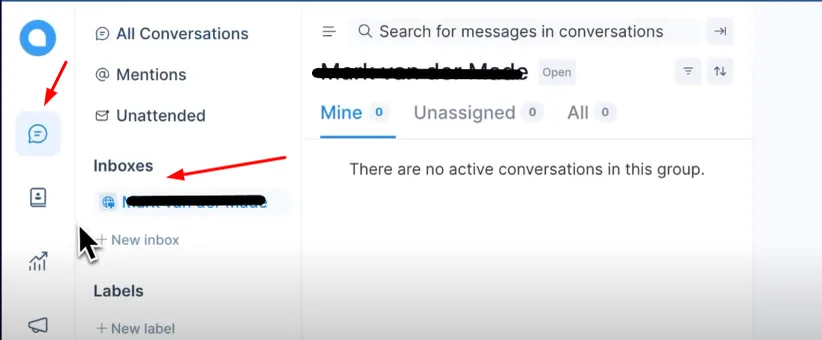
To get the WebChat Inbox Id, click Conversations and select your inbox. Copy the identification number at the end of the URL.

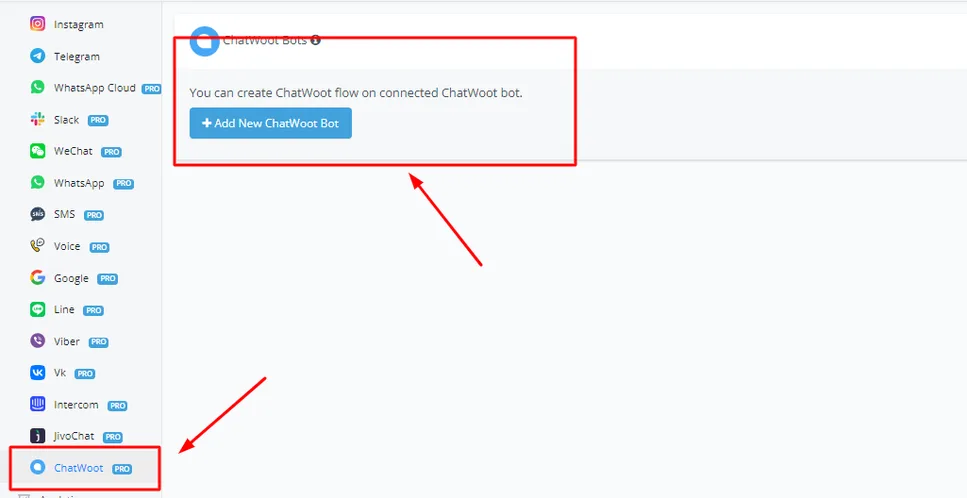
Copy all the information you have collected so far. In the NicoChat dashboard, click “Channels” and scroll down until you see Chatwoot.
Click Chatwoot and then “Add New Chatwoot Bot”.
Paste the required information in the fields and click Add.
Your Chatwoot is now successfully integrated with NicoChat.
Once your connection is established, click “Create Bot” and choose the Blank Template with the Chatwoot icon.
This bot will now serve for automation inside the inbox you selected when integrating Chatwoot.